

Set up email address in Thunderbird
Here I will show you step by step how to set up your bluetronix email address in Mozilla Thunderbird. Take a quick 10 minutes, and then it's all done.
Download Thunderbird
If Thunderbird is not yet installed on your computer, first download the program from the official Thunderbird website and install it.
You can find the download here: Download Thunderbird
Find email data
If you haven't set up an email address yet, first complete the step Create email address.
Open your bluetronix homepage in edit mode.
Go to Email ⯈ Email address management.
Click on Access data for the desired address.
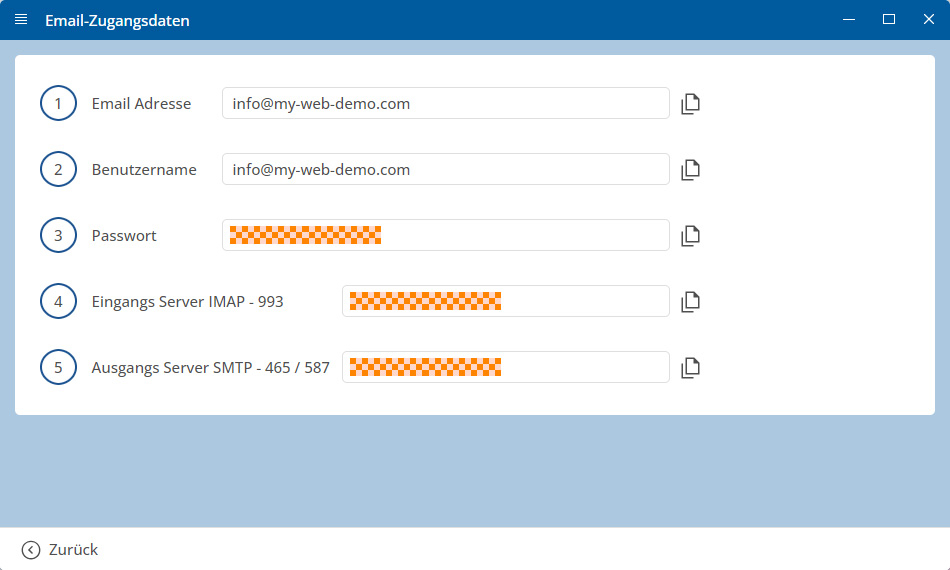
Important: Enter all data exactly as specified in the access data. Also pay attention to capitalization.
Set up Thunderbird
Start Thunderbird and click on Set up account then Email.

Enter your name, your email address, and your password.
Then click on Manual setup.

Set the values as follows:
Incoming (IMAP): Port 993, Encryption SSL/TLS, Authentication Password, normal.
Outgoing (SMTP): Port 465, Encryption SSL/TLS, Authentication Password, normal.
Check all fields carefully and then click Done.

Test emails
First, send an email to your own address and check if the message arrives in your inbox.
If issues arise: Check settings
Click on your email account and then on Account Settings.
Switch to Server Settings and click on Advanced.
Check all fields that are marked in red in the image.
Make sure that the value INBOX is entered in the IMAP Server Directory field. Then save with OK.

Then restart Thunderbird and check if the IMAP folders are displayed correctly.
Setup completed
If the test message has arrived successfully and all folders are displayed correctly, the setup is complete.
FAQ
what customers often ask us
IMAP or POP3 – which one should I use?
It is recommended to use IMAP so that emails and folders stay in sync across all devices. POP3 only downloads emails locally and is only useful in special cases.
Where can I find my access data (server, ports, username, password)?
Open your bluetronix homepage in editing mode: Email ⯈ Email Address Management. Click on Access Data for the desired address. Pay attention to the exact case.
What ports and encryption do I need?
IMAP: Port 993 with SSL/TLS.
SMTP: Port 587 (or 465, depending on access data) with STARTTLS/SSL and active Authentication: Password.
How can I quickly test if everything works?
Send yourself an email. If it arrives in the Inbox and appears in the Sent folder, everything is set up correctly.
Troubleshooting – common causes
Check server names, ports, SSL/TLS, Authentication: Password, username (often the full email address), and password. If folders are missing, set the root folder path/IMAP server directory to INBOX and subscribe to IMAP folders.
Thunderbird does not automatically find the settings. What should I do?
Select Edit Manually in the setup dialog and enter the server, ports (IMAP 993, SMTP 465), encryption SSL/TLS, as well as the usernames exactly as in the access data.
An authentication or password error message appears when sending.
Check the SMTP Username (often the same as the email address), the password, and that Authentication is active. Use port 465 with SSL/TLS.
Folders like Sent, Spam, or Archive are missing.
Restart Thunderbird and subscribe to IMAP folders: Right-click on Account ⯈ Subscribe. Under Account Settings ⯈ Server Settings ⯈ Advanced, set the value IMAP Server Directory to INBOX.
I receive a certificate or security warning.
Use SSL/TLS with the correct server names. Compare the spelling with the access data.
Can I set up multiple email addresses?
Yes. Repeat the setup process for each address; each account has its own folders.
How do I back up my Thunderbird profile?
Close Thunderbird and copy the profile folder to a safe location.