

Import Bootstrap-5 layout
Get to know the complete layout import: from the Bootstrap-5 review and ZIP file to the automatic processing and checking of the imported layout in the editor.
Objective of the Tutorial
You will learn how to import a Bootstrap-5 layout as a ZIP file into the bluetronix CMS, verify the import, and then check layout images, layout HTML, CSS/JS, and the generated section templates.
Important: Use a Bootstrap-5 layout for the import that meets the requirements described below. The actual import may take up to 15 minutes.
1. Import - Open Layout
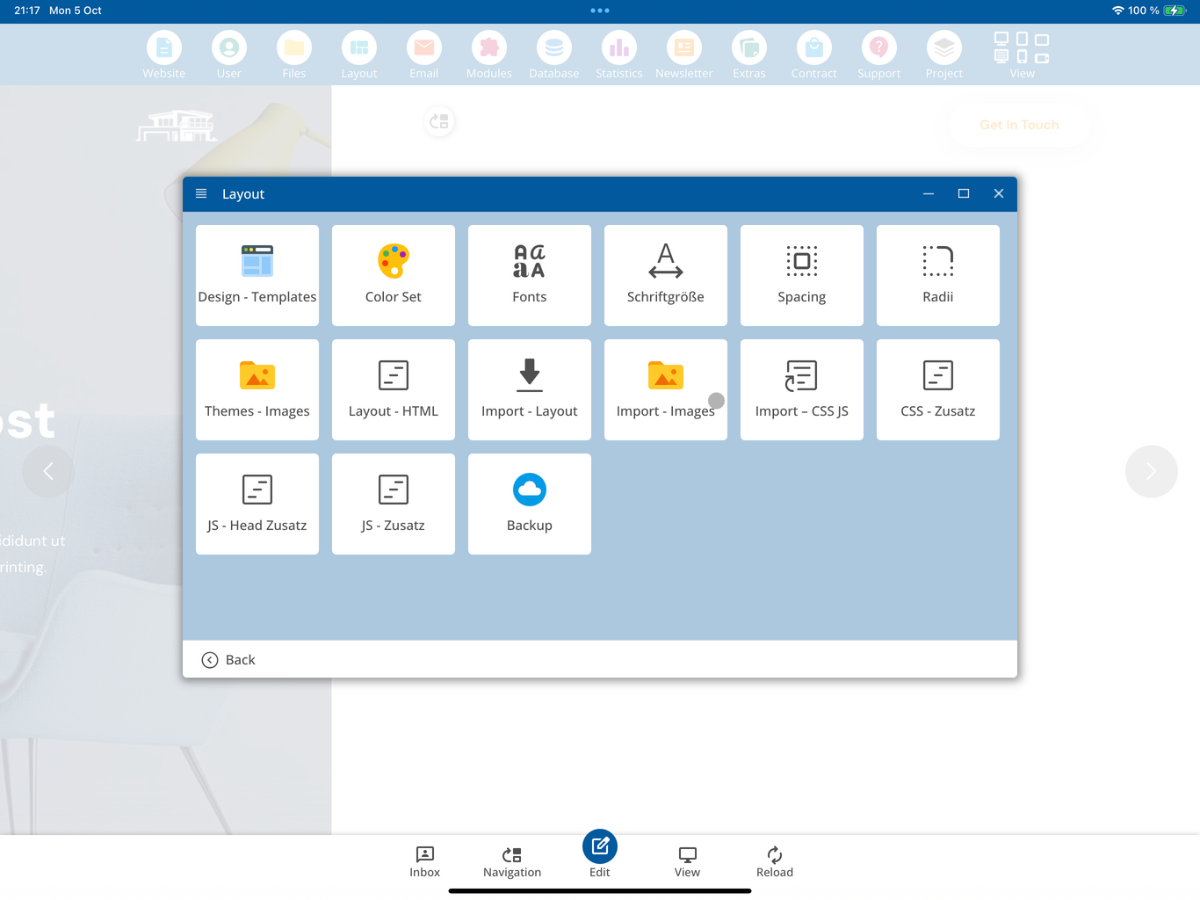
Open the Layout section in the CMS and then select Import - Layout.
2. Select ZIP file
In the Import - Layout window, click Select ZIP file. This function opens the file manager where you can select the ZIP file of your Bootstrap-5 layout.
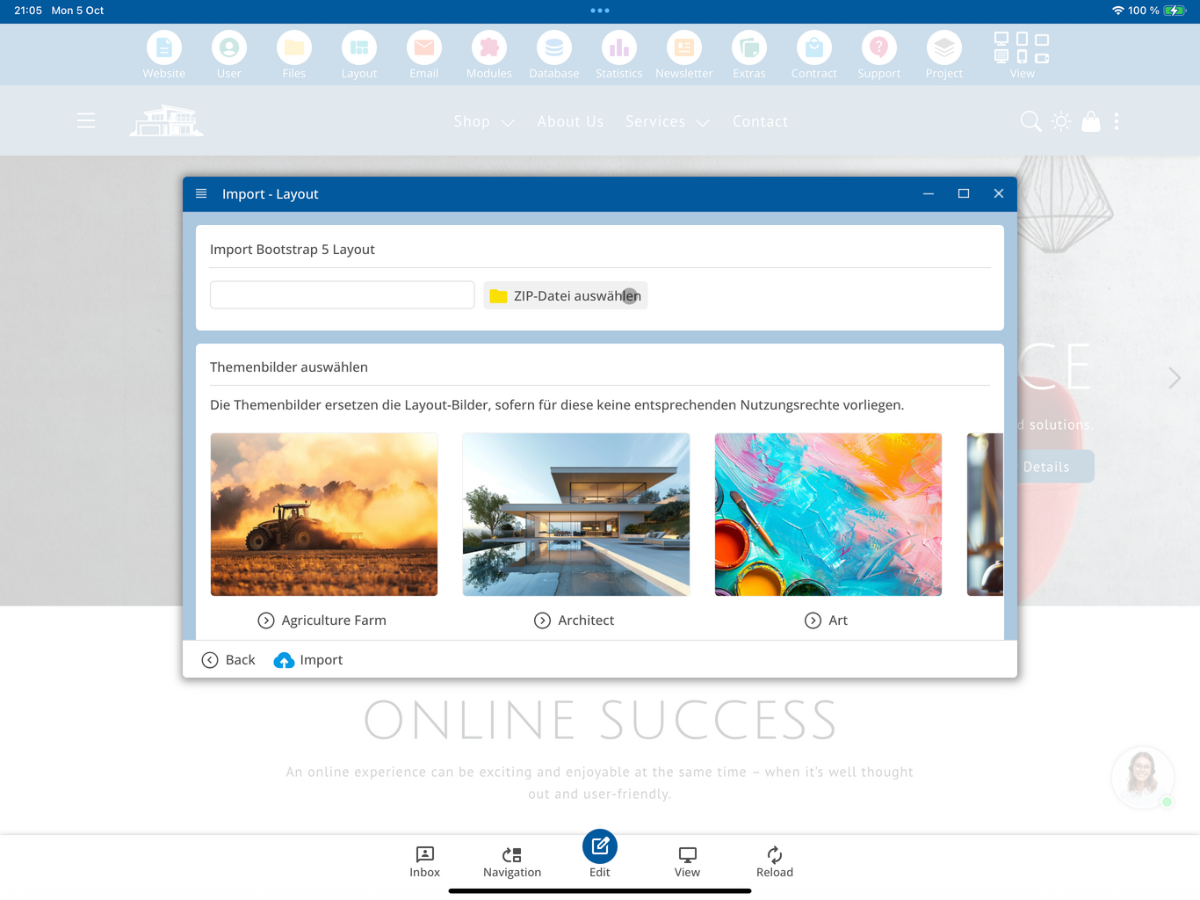
Additionally, theme images are available that can later be used as replacements for layout images if the original images should not be reused.
3. Open folder bx_Import
In the file manager, then open the developer folder bx_Import. This folder is used for providing the ZIP file to be imported.
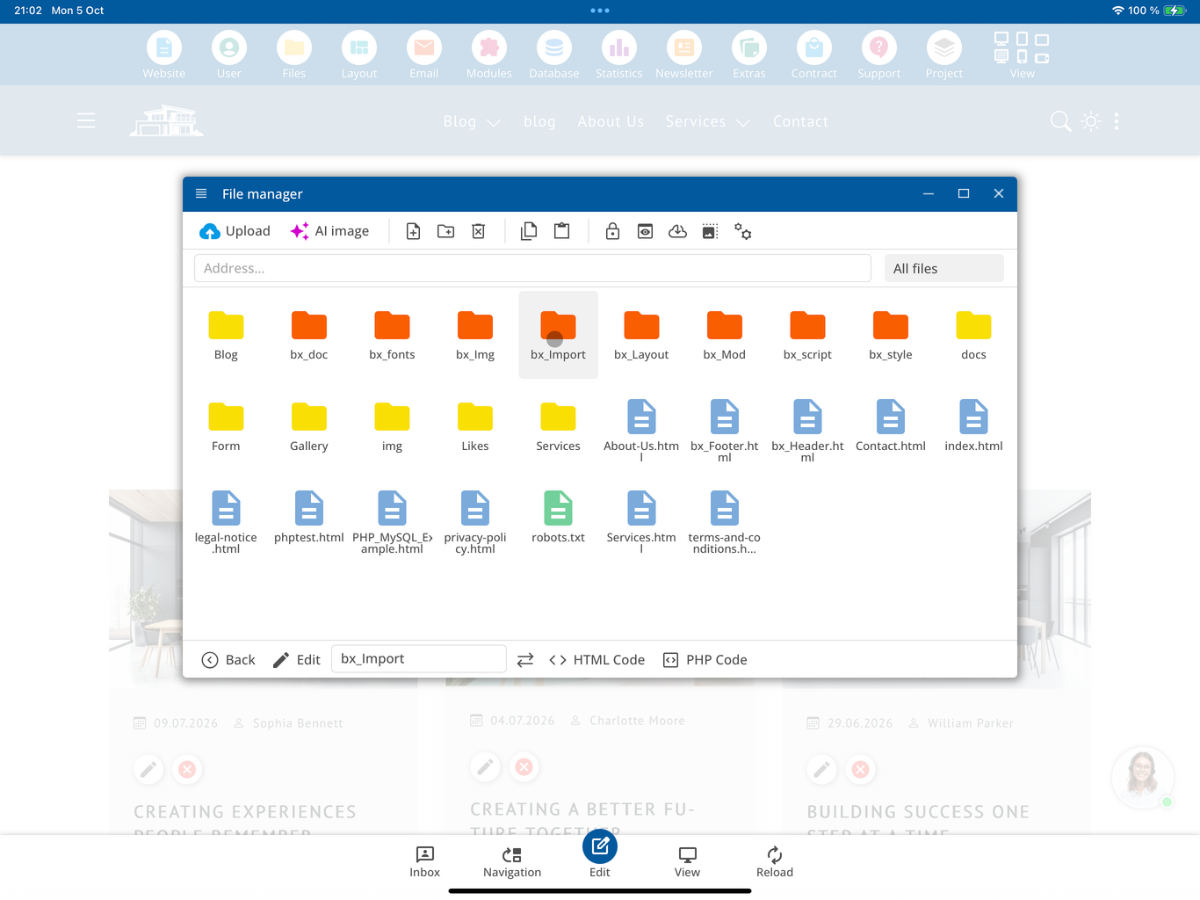
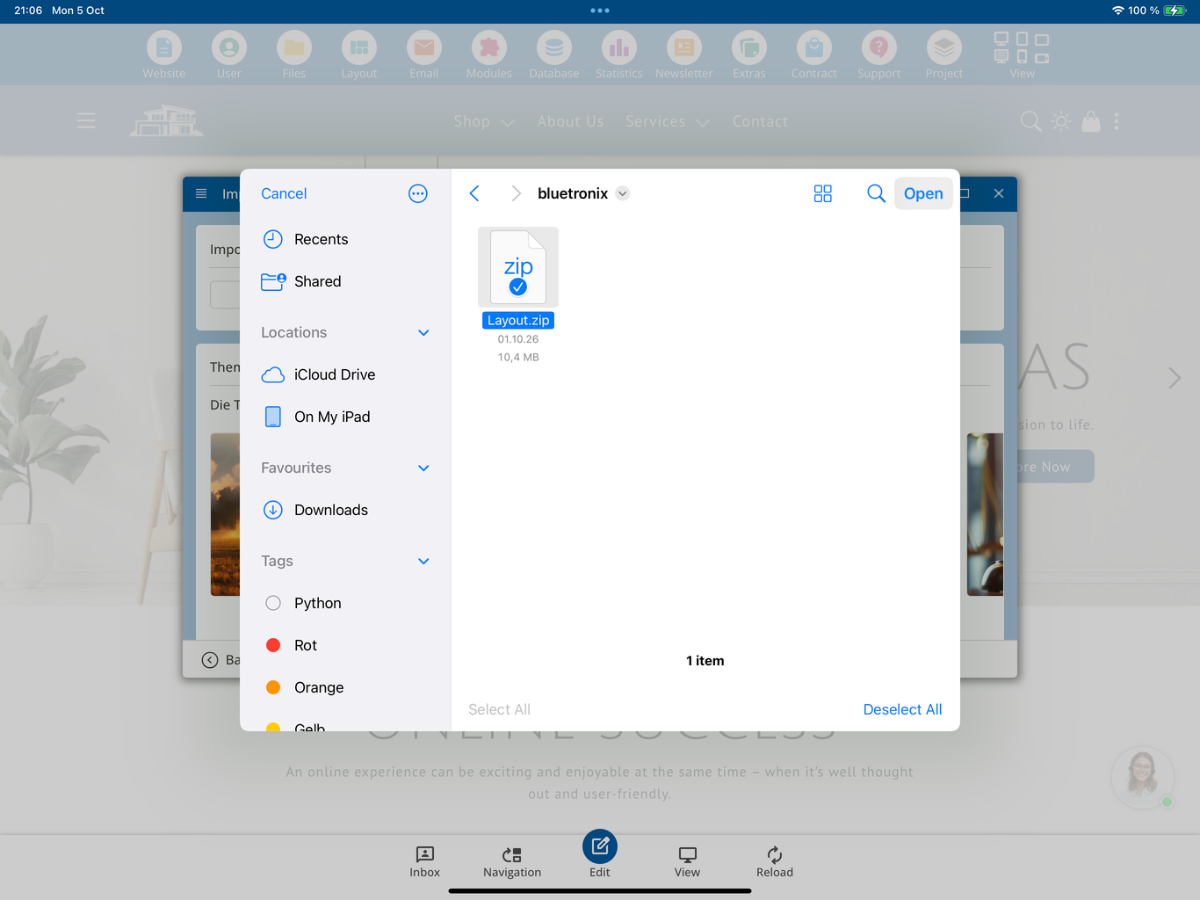
4. Upload Layout.zip
Now upload your own ZIP file to the bx_Import folder. In our example, the file is named Layout.zip. Then select this file for the layout import.
5. Requirements for the Bootstrap-5 layout
The CMS checks before the import whether a suitable Bootstrap-5 structure can be found in the ZIP archive. You can find the complete requirements and supported file extensions in the following technical overview.
Detecting and Importing a Bootstrap Layout

When importing a layout, the system first checks whether it is a valid Bootstrap layout.

1. Detecting a Bootstrap Layout

For a layout to be recognized and imported as a Bootstrap layout, two requirements must be met:

1. A Bootstrap CSS file must be present.
2. An index.html or index.htm file must exist at the corresponding directory level.

The following files, for example, are recognized as Bootstrap files:

bootstrap.css
bootstrap.min.css
bootstrap-grid.css
bootstrap-grid.min.css
bootstrap-reboot.css
bootstrap-*.css

In general, the system searches for a file whose name matches the following pattern:

bootstrap***.css

The file must belong to Bootstrap version 5.

Example 1

/index.html
/assets/css/bootstrap.min.css

The layout is recognized. The index.html file is located at the root level, while the Bootstrap file is located in:

/assets/css/

Example 2

/index.html
/assets/css/bootstrap.css

This layout is also recognized.

Example 3

/index.html
/css/bootstrap.min.css

A Bootstrap file located in the /css/ directory is also recognized.

Important:
Once a matching index.html or index.htm file and a Bootstrap CSS file have been found, that directory level is used as the starting point of the layout. From this level onward, the required files are extracted from the ZIP archive and processed.

2. Which Files Are Imported?

During the import process, only supported file types are included.

HTML Files
.html
.htm

JavaScript and CSS Files
.js
.mjs
.css

Fonts
.woff
.woff2
.ttf
.otf
.eot

Images and Graphics
.svg
.jpg
.jpeg
.jpg
.webp
.avif
.gif
.ico

Video Files
.mp4
.webm

Audio Files
.mp3
.ogg
.wav

Data Files
.json

Documents
.pdf

All other file extensions are excluded from the layout import process.
6. Check import steps
After you have selected the ZIP file, the CMS will display the individual steps that will be executed during the import below the theme images. Review this overview before starting the import.
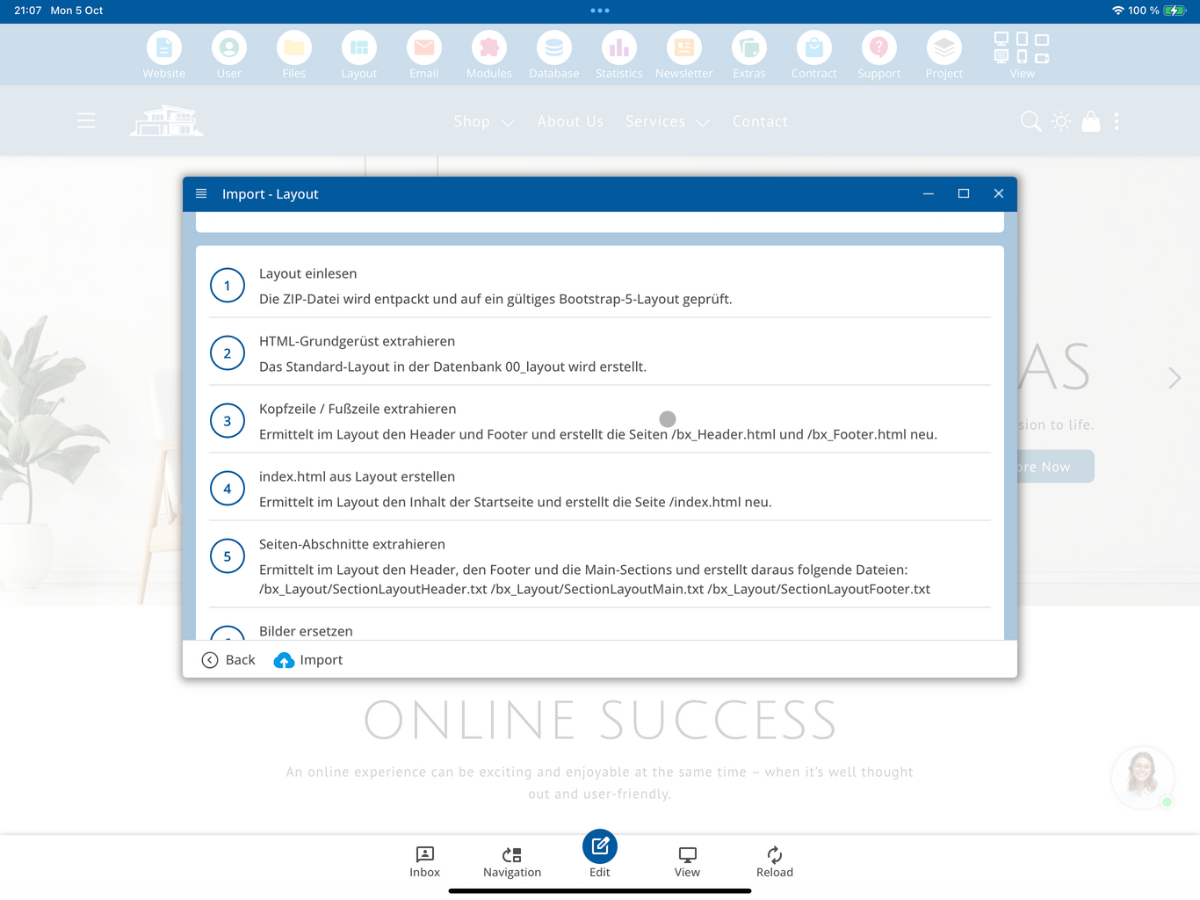
The import includes the following steps in the displayed version:
- Layout einlesen: ZIP-Datei entpacken und auf ein gültiges Bootstrap-5-Layout prüfen.
- HTML-Grundgerüst extrahieren: Standard-Layout in der Datenbank 00_layout erstellen.
- Kopfzeile / Fußzeile extrahieren: Header und Footer ermitteln und /bx_Header.html sowie /bx_Footer.html neu erstellen.
- index.html aus Layout erstellen: Inhalt der Startseite ermitteln und /index.html neu erstellen.
- Seiten-Abschnitte extrahieren: Header, Main-Sections und Footer als Layout-Section-Dateien erzeugen.
- Bilder ersetzen: Layout-Bilder bei Bedarf durch CMS-Themenbilder ersetzen.
- CSS / JS importieren: gefundene CSS- und JS-Dateien in den Main-Ordner übernehmen.
7. Start import
Click Import. The CMS indicates that the import may take up to 15 minutes and that the window must not be closed during this time.
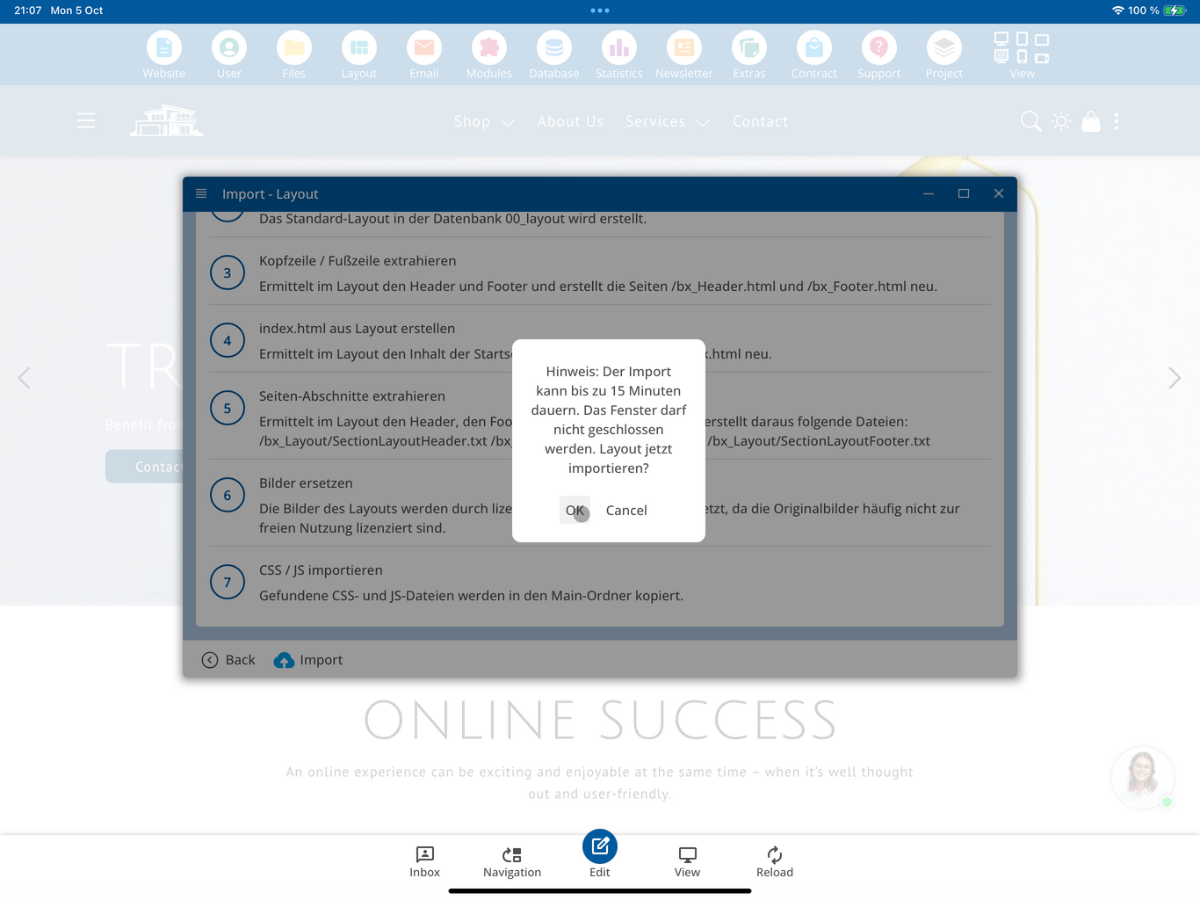
Confirm the prompt with OK. The layout import will then start.
8. Check successful import
Once the import is complete, a message will first appear indicating that the layout has been successfully imported.
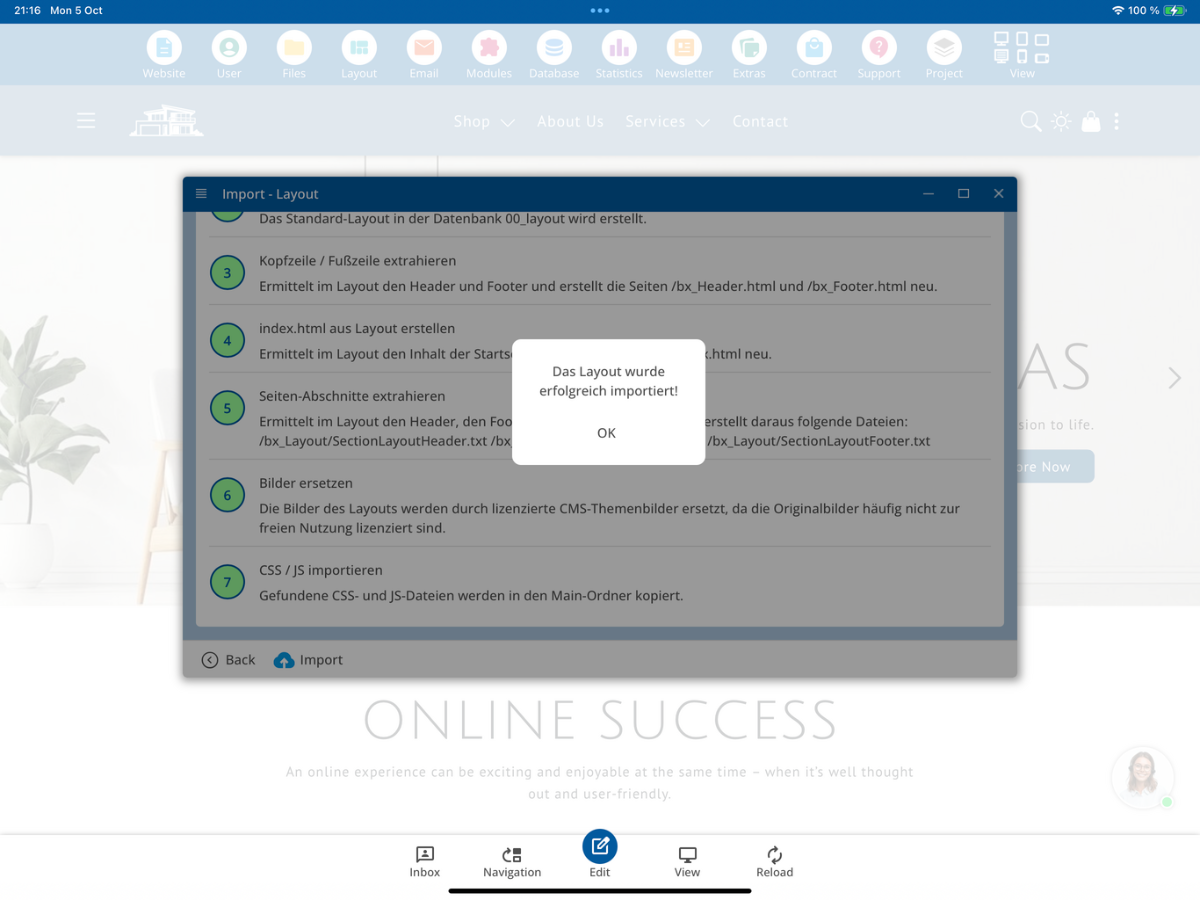
You can then check whether all individual processing steps were successfully completed. Successfully executed steps will be marked in green.
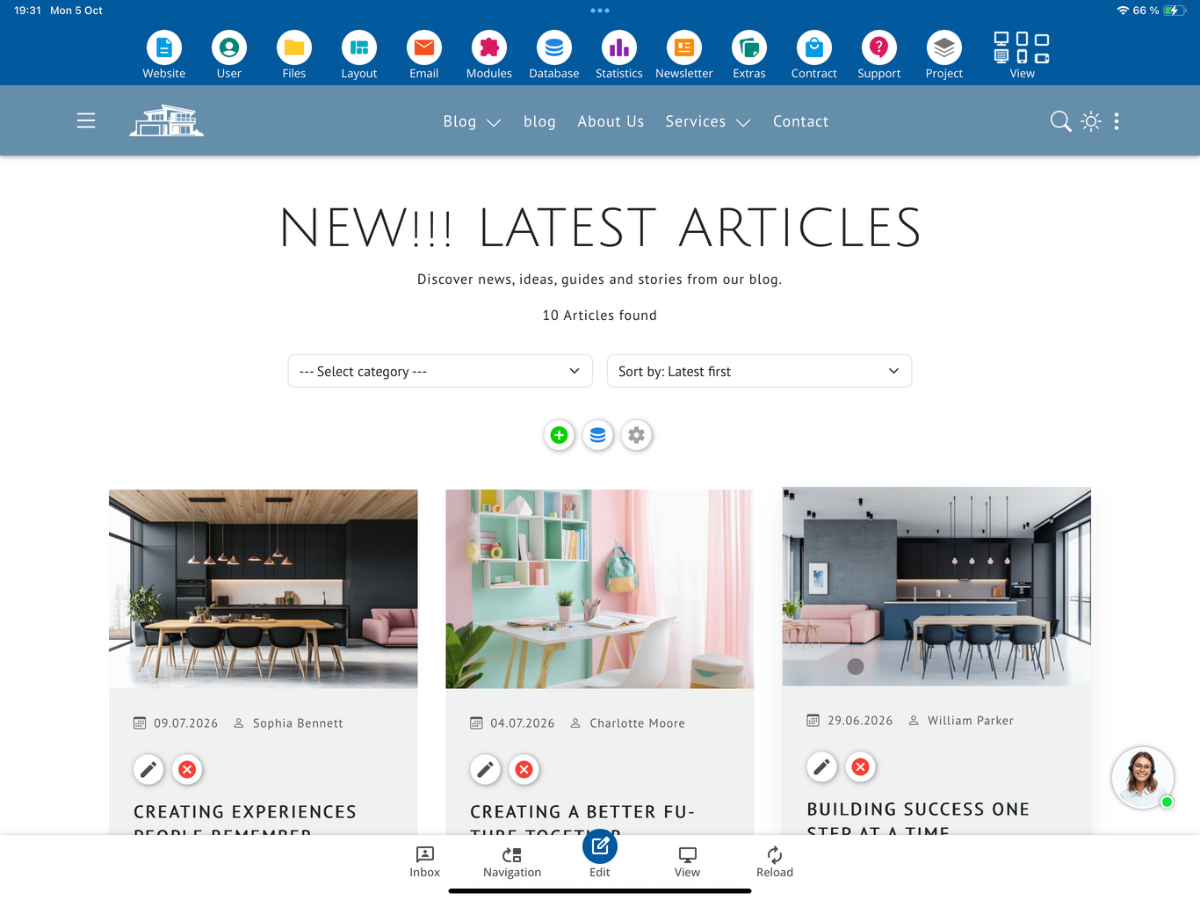
9. Check new layout on the website
Close the import window and return to the homepage of your website. The previous display may still be visible immediately after the import.
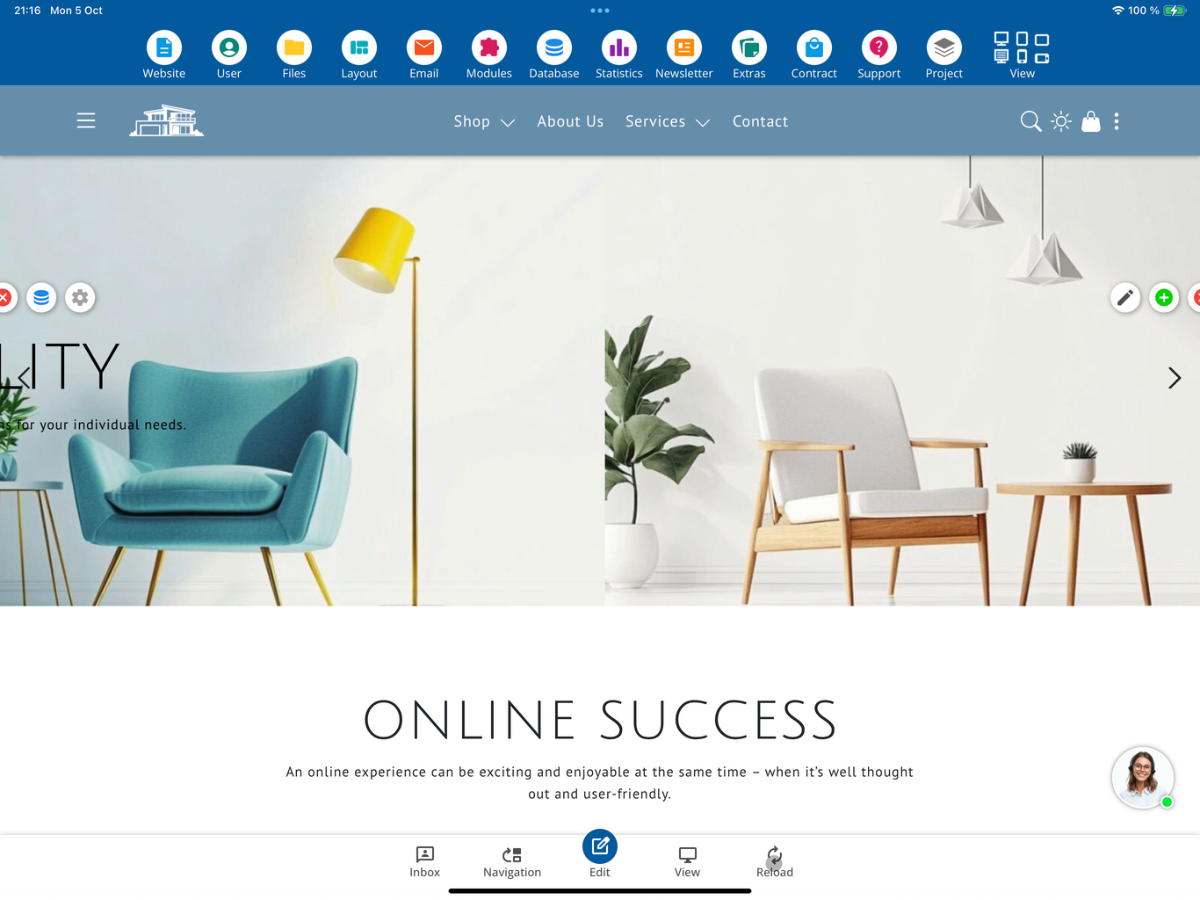
If necessary, click on Reload. The imported layout should then be displayed. Compare the presentation with the original layout you intended to import.

10. Check imported images
Next, open Layout → Import - Images. There you can check which images from the imported layout have been retained or replaced by theme images.
The CMS displays images that are missing information on license or source. Review these notices carefully and decide whether the images can be reused or should be replaced by appropriate theme images.
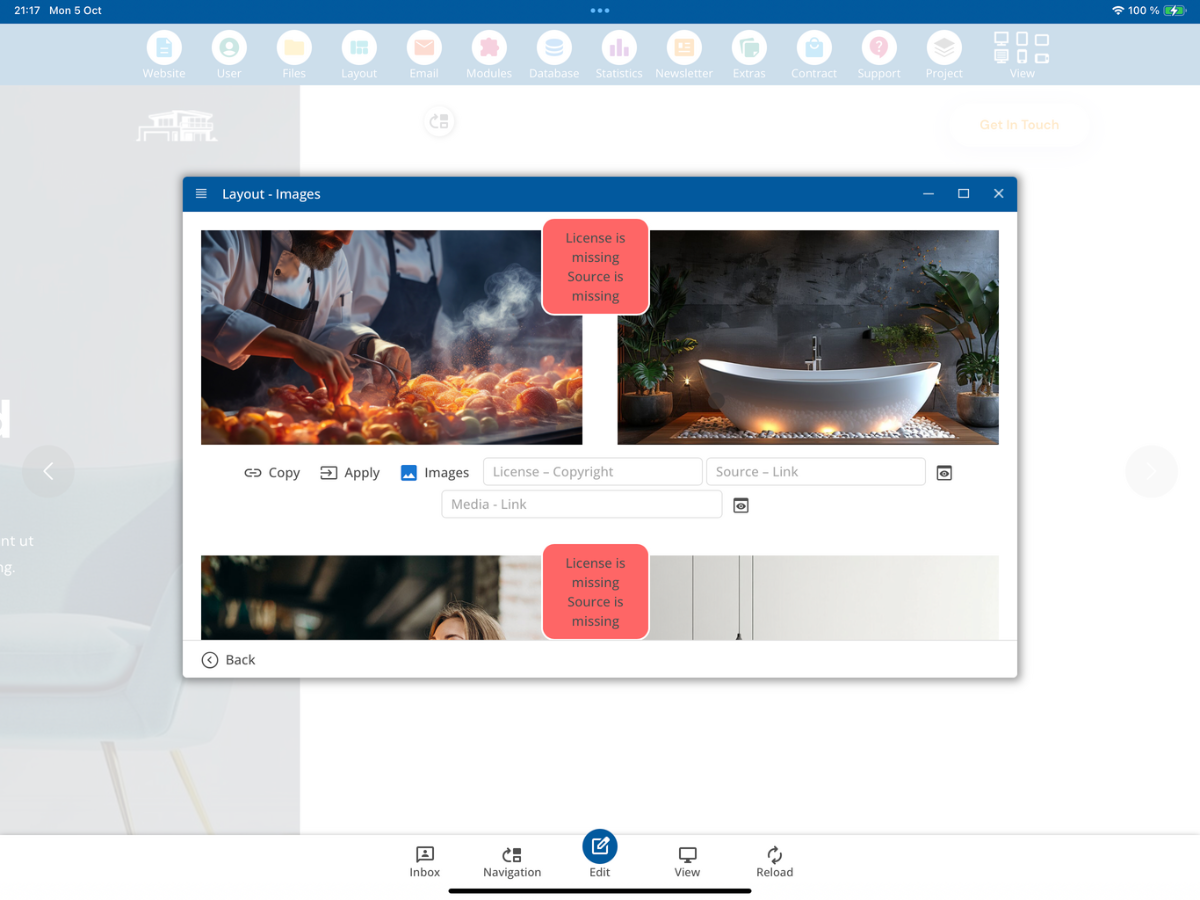
If you do not wish to use the existing original images, you can select suitable theme images or create your own theme images. After replacing, the layout should be visually checked again.
11. Check layout HTML
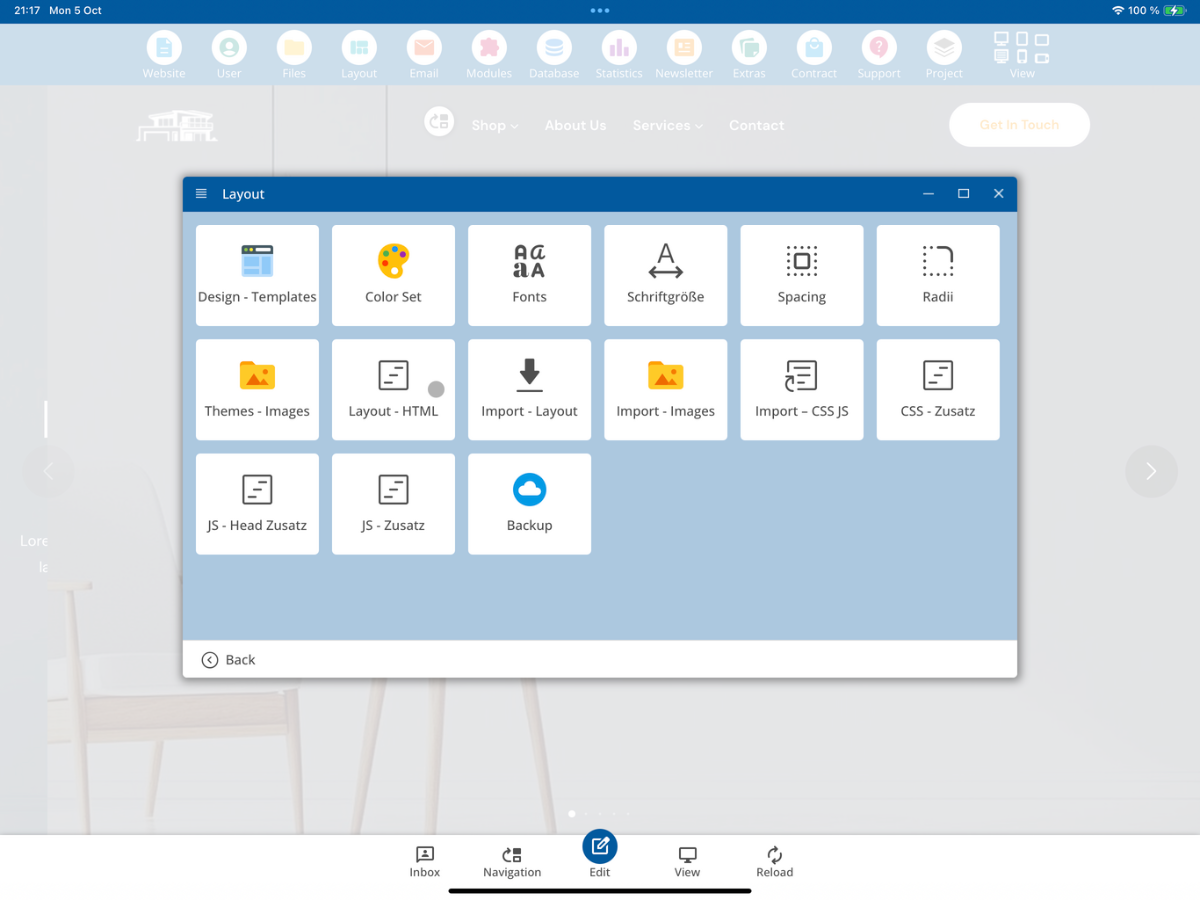
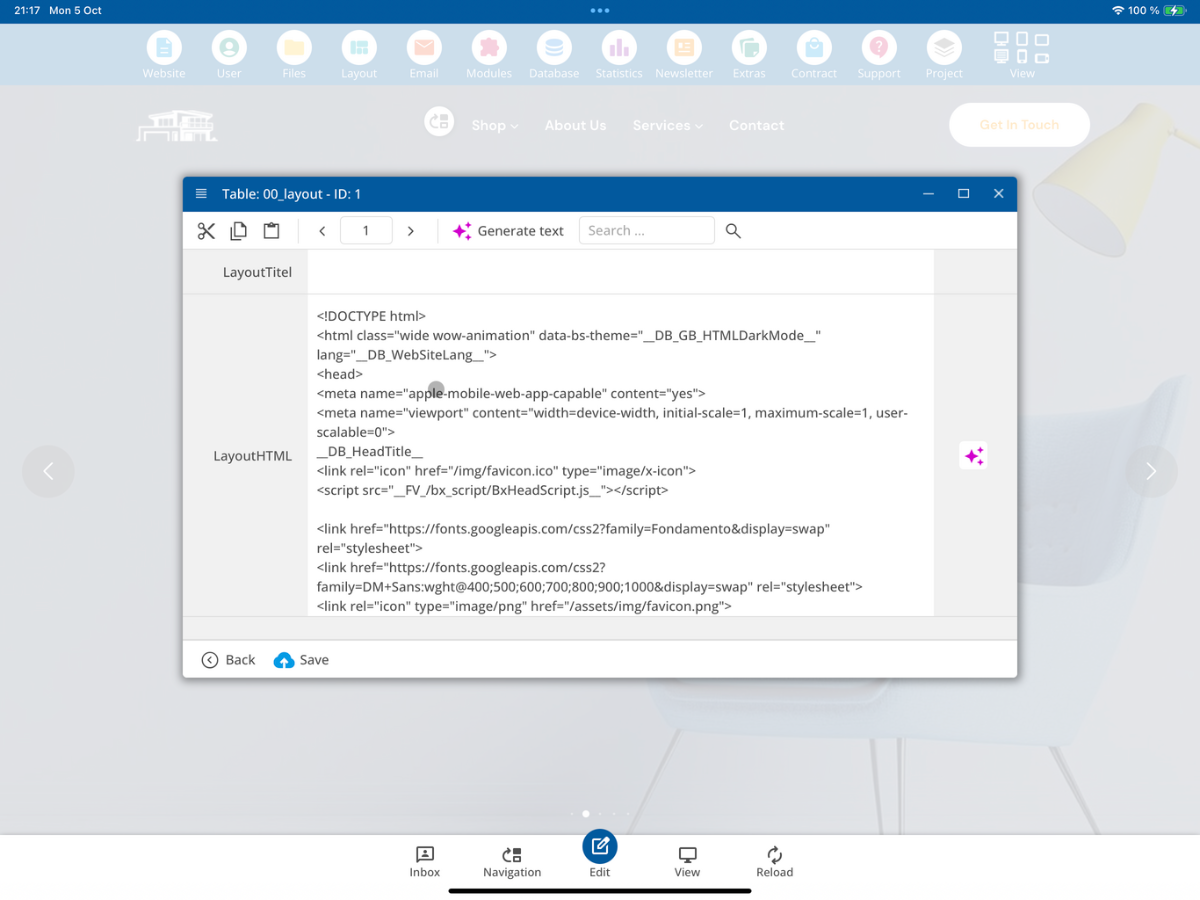
Open Layout in the Layout - HTML section. There you can check the HTML structure generated from the import.
In the layout database, you will see the imported HTML code. Check here particularly whether the structure is complete and whether the required CMS tags have been incorporated into the layout.
12. Check imported CSS and JavaScript files
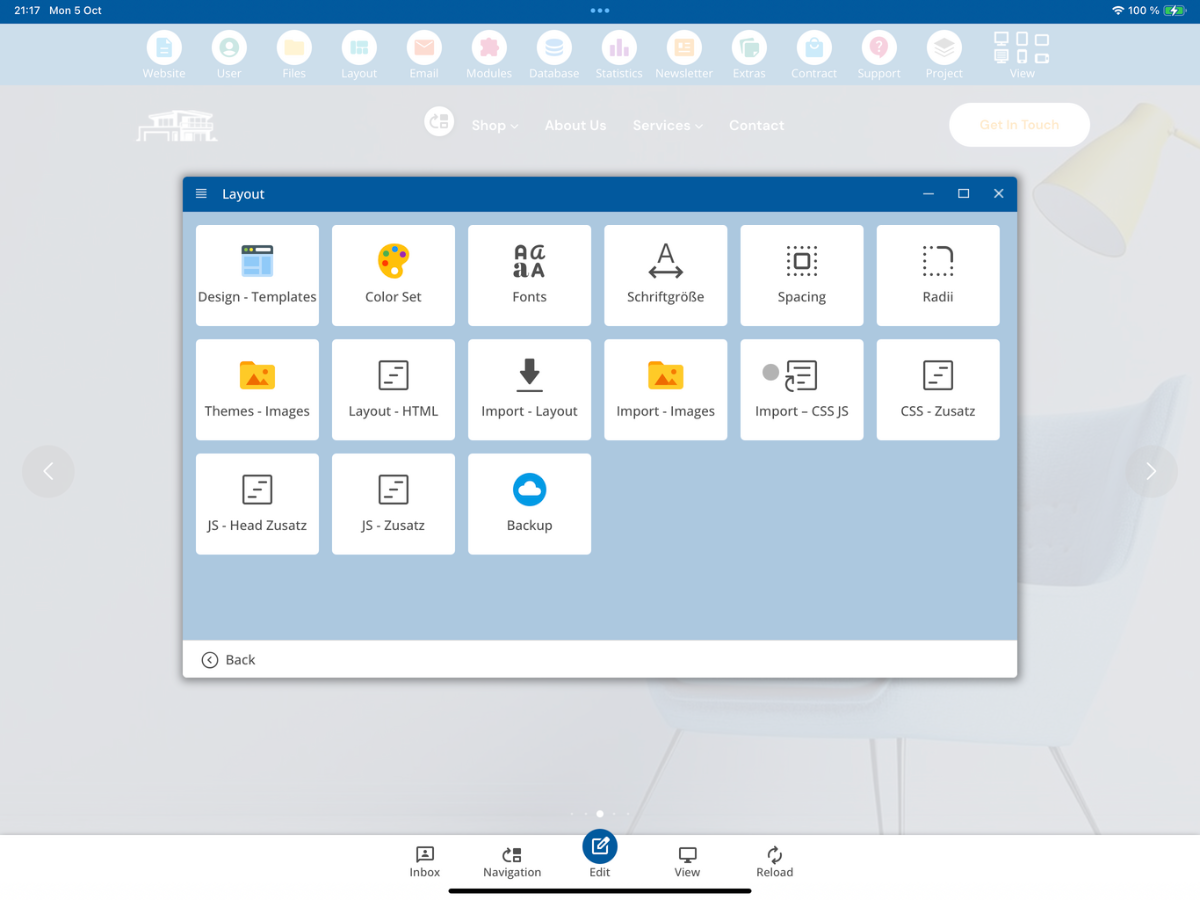
Next, open Layout → Import - CSS JS.
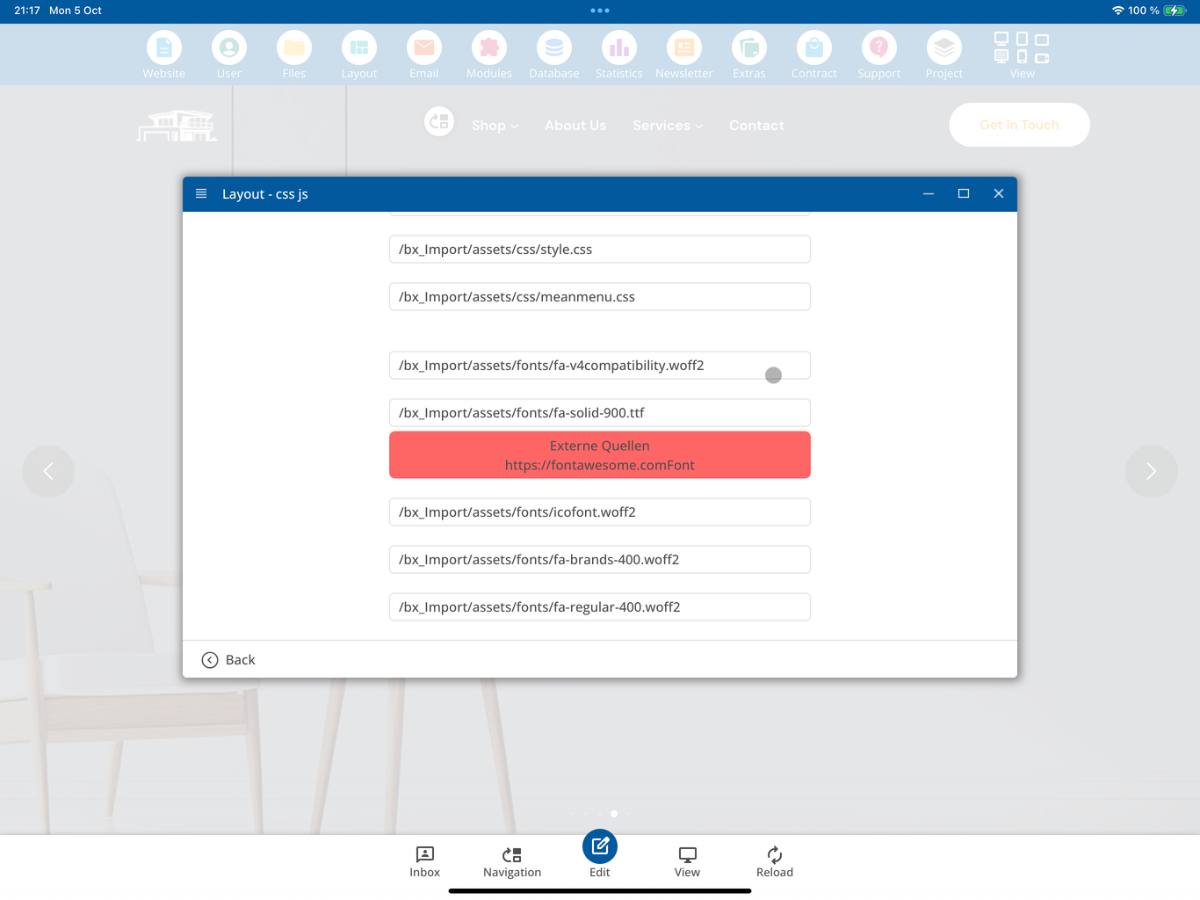
Here you will see the CSS, JavaScript, and other resources recognized during the import. If a resource is marked as External Sources, it is not loaded solely locally from the imported layout. Such external links should be specifically checked and treated accordingly before publication.
13. Test editability in the editor
Open the imported page in the editor and check whether the contents can be edited as intended. Specifically test texts, links, images, and repeatable areas.

14. Check generated section templates
In the editor, open Insert → Page Section. The import generates additional template categories from the original layout. These include Layout-Header, Layout-Main, and Layout-Footer.
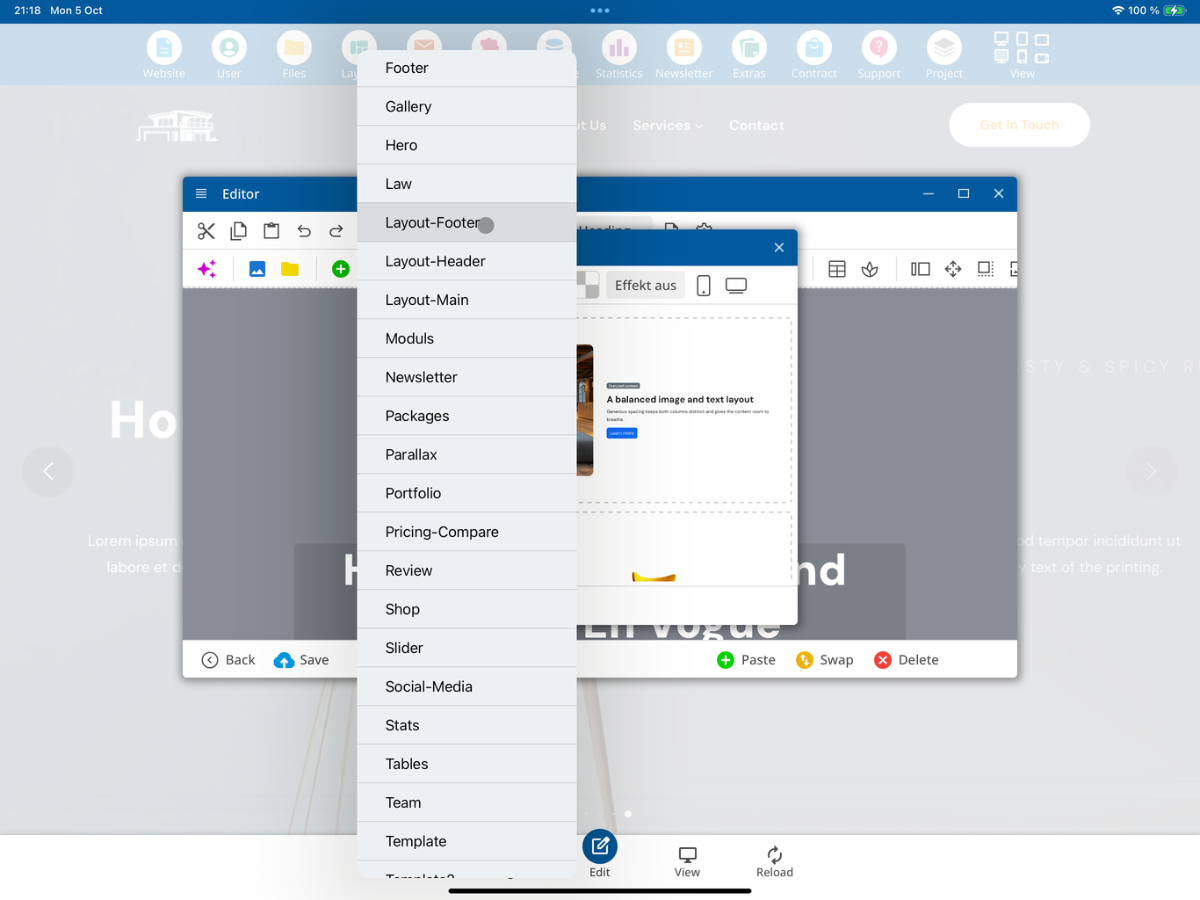
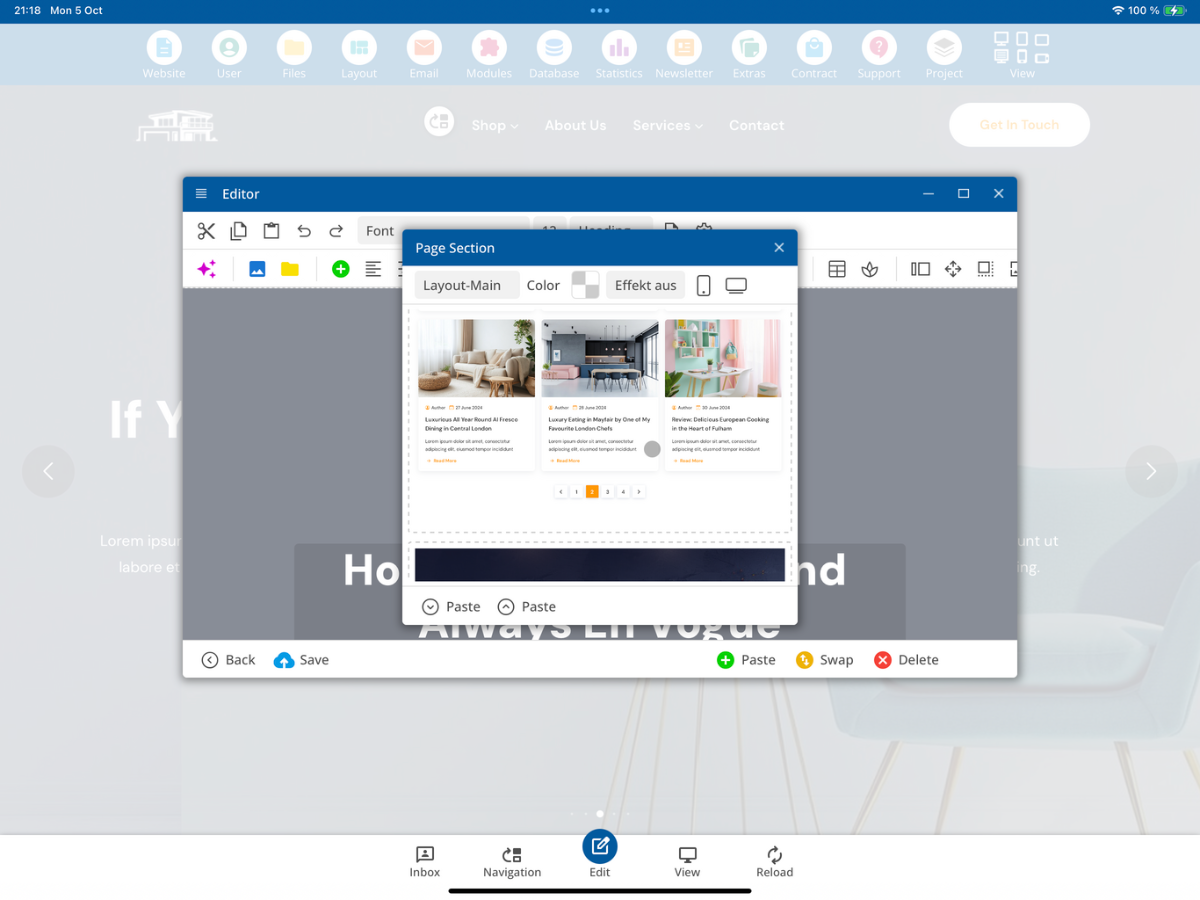
For example, if you select Layout-Main, the main sections extracted from the original layout will be displayed as individual templates. You can then freely insert and further edit these into pages.
15. Final check
After the import, you should thoroughly check the result: layout presentation, images, HTML, CSS/JS, external resources, editability, and the generated page section templates. Only after these checks are completed should you begin further content adjustments to the imported layout.
FAQ
what customers often ask us
What layouts can be imported?
The import is designed for Bootstrap 5 layouts. The CMS looks for a suitable Bootstrap CSS file and an index.html or index.htm at the corresponding folder level.
Where do I start the layout import?
Open the Layout section in the CMS and select Import - Layout.
Which folder will the ZIP file be transferred to?
The selected layout ZIP file will be used in the developer area bx_Import.
Which Bootstrap files are recognized?
Recognized are Bootstrap CSS files such as bootstrap.css, bootstrap.min.css, and other files following the pattern bootstrap***.css. For this tutorial, it must be Bootstrap 5.
Which file types are imported?
The import supports the HTML, CSS, JavaScript, font, image, video, audio, JSON, and PDF file types listed in the tutorial. Other file extensions will not be accepted.
How long can the import take?
The displayed notice indicates a possible duration of up to 15 minutes. The import window must not be closed during this time.
How can I tell if the import was successful?
The individual import steps will be highlighted in green, and then a message will appear confirming that the layout was imported successfully.
What should I do if the old layout is still displayed after the import?
Return to the homepage and use Reload if necessary. After that, the newly imported layout should be displayed.
Where do I check the imported images?
Open Layout → Import - Images. There you can check original images, theme images, and information on licenses and sources.
Where do I check the imported HTML code?
Under Layout → Layout - HTML you can review the generated HTML framework in the layout data record.
Where do I check CSS and JavaScript resources?
Open Layout → Import - CSS JS. There you will see the resources recognized during the import and possible notes on external sources.
What page section templates are generated from the layout?
The import provides templates in the categories Layout-Header, Layout-Main, and Layout-Footer.
What should I test after the import?
Check the layout display, images, HTML, CSS/JS, external resources, editability in the editor, and the generated page section templates.