

Quick start into the bluetronix CMS – easily edit websites
In this block, you'll learn how to quickly customize your website using the bluetronix CMS – change texts, swap images, create blog posts, or edit shop items. Get started easily now!
Schnell-Einstieg zum bluetronix CMS
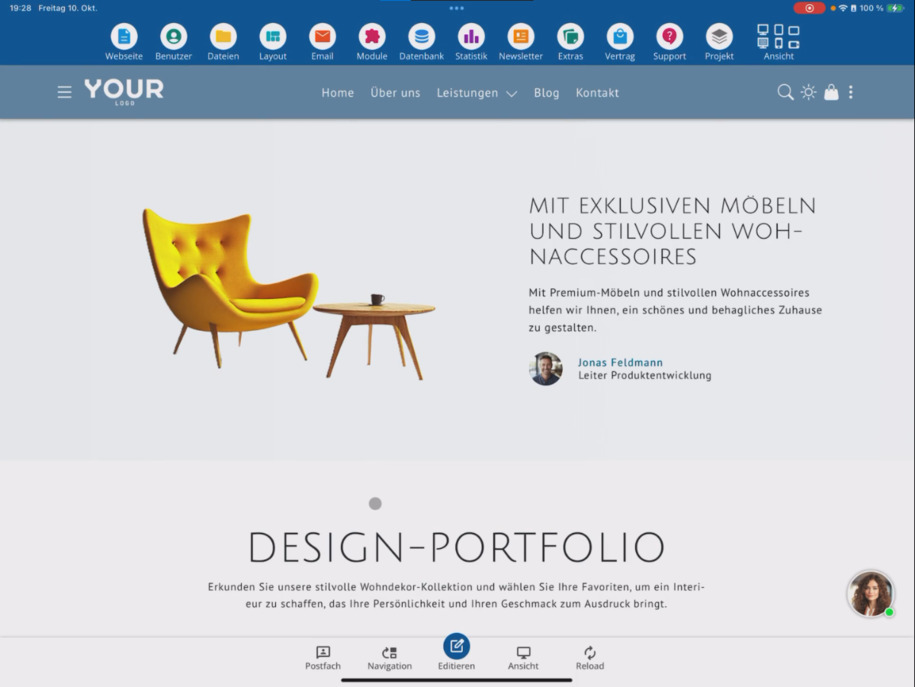
Sobald bluetronix gestartet ist, befindest du dich direkt im CMS-System. Oben findest du die Hauptmenüleiste, unten die Submenüleiste und in der Mitte siehst du deine Webseite, die du später bearbeiten kannst.
Here you will learn how to easily customize your pages. You always edit what you see – completely intuitively. Here you can see the home page and the about us page. This page is going to be changed now. Click on Edit below.
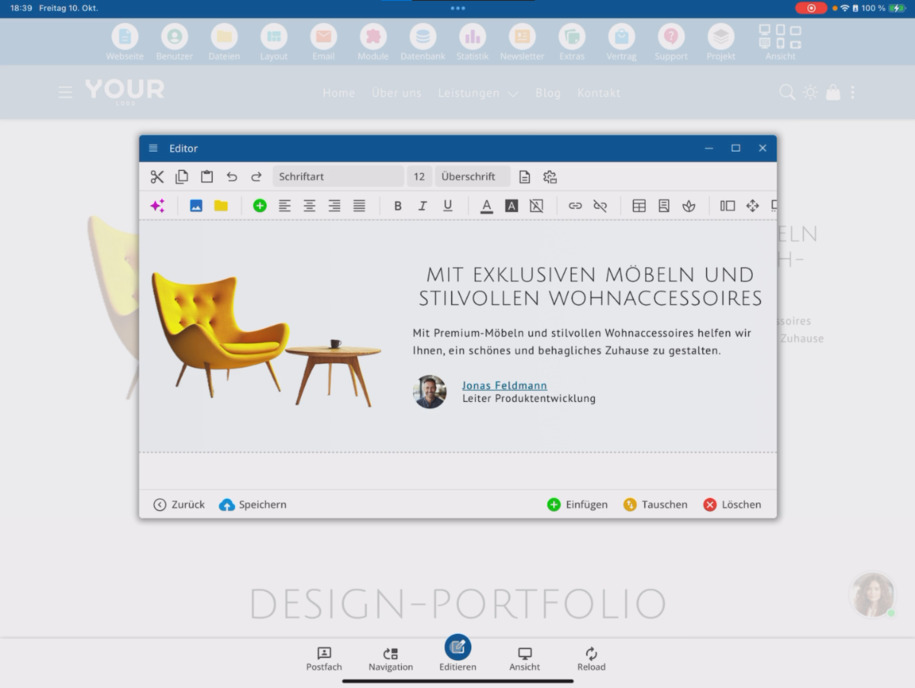
Daraufhin öffnet sich der Editor. Du kannst ihn bei Bedarf vergrößern und den Text direkt anpassen.
Bilder bearbeiten und austauschen
Images can also be easily swapped in the bluetronix CMS. Simply click on the desired image and go to Image Management ⯈ Here you can replace existing images.
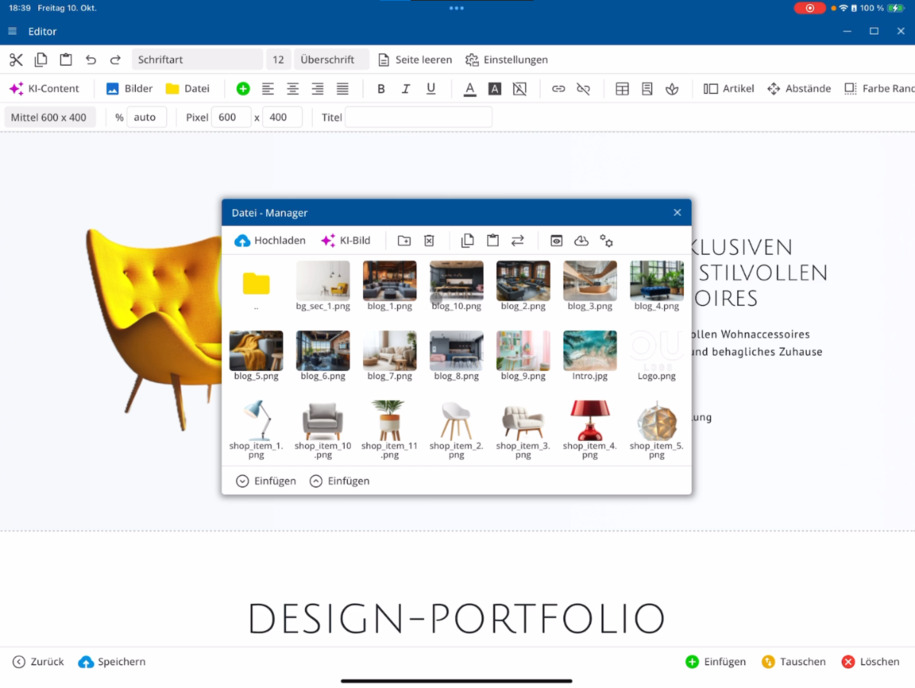
The currently displayed images have already been uploaded to the project. You can add new photos from your computer via Upload.
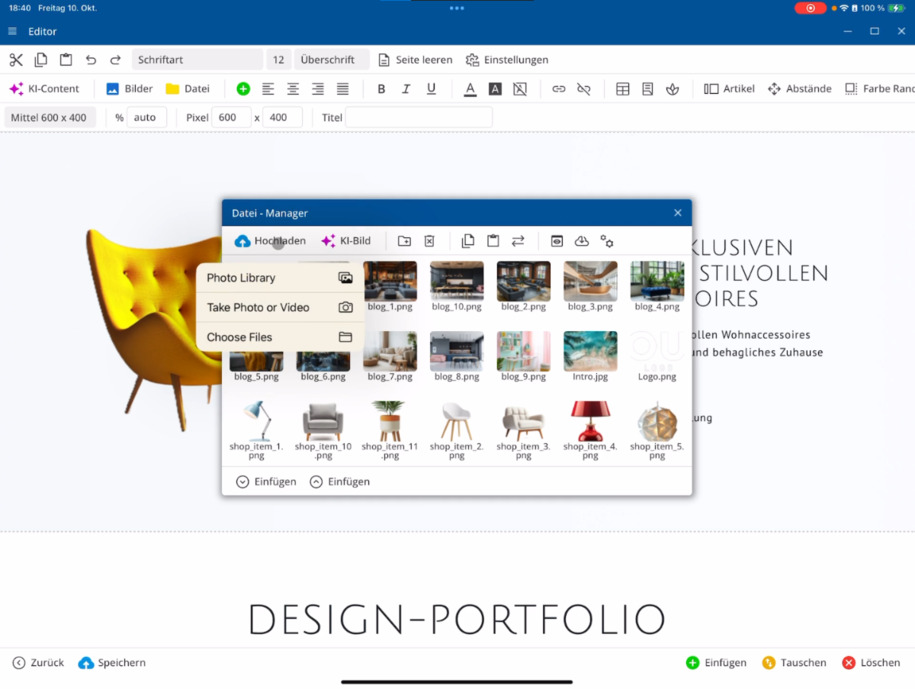
In this example, the current image is replaced by the armchair. After that, simply save the page, shrink the editor again, and check the changes directly on the website.
So schnell und einfach kannst du Inhalte anpassen und austauschen!
Datenbankeinträge bearbeiten
In the second part of the video, you'll learn how to edit database entries. Close the editor and return to the home page. For instance, install a sample shop.
You can now edit the shop items. Each item will show small bluetronix quick edit buttons. With a click, you can open the Record View, where you can change the image and the item name.
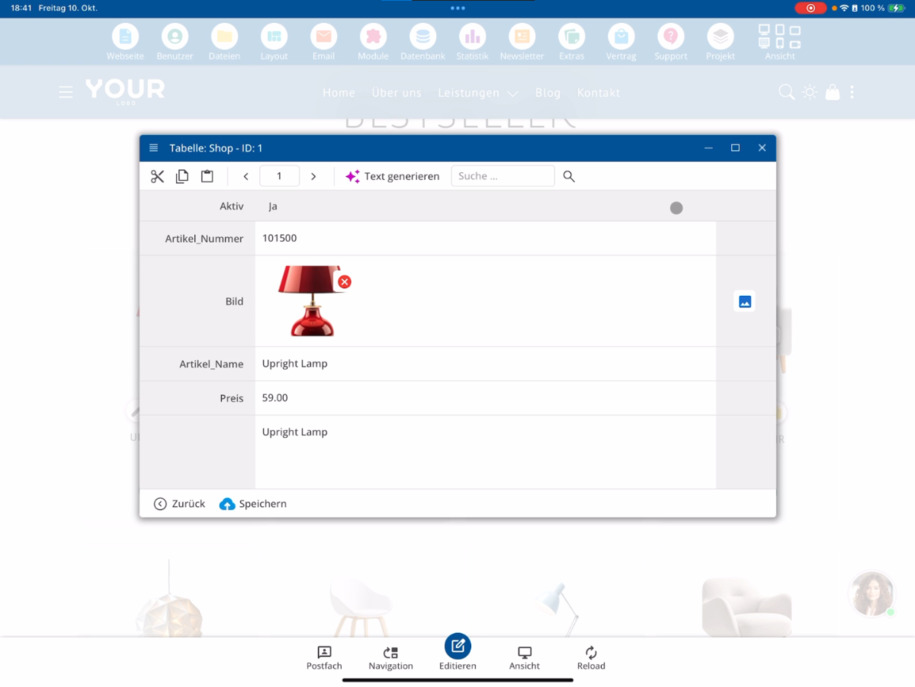
So einfach lassen sich also auch Datenbankeinträge anpassen.
Blogeinträge erstellen und verwalten
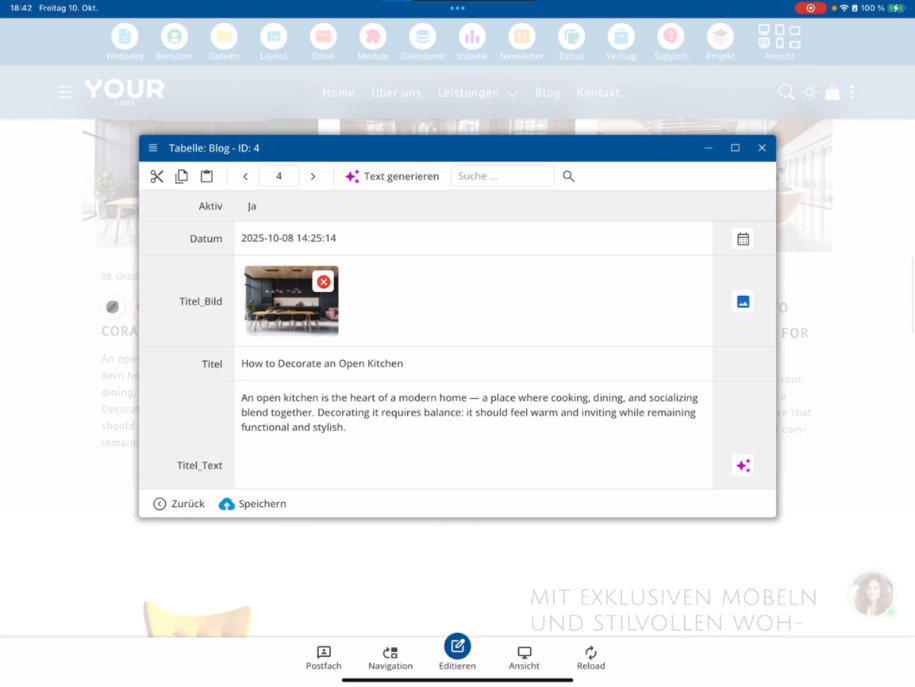
Another example is the blog. Here you can create a new blog entry using the plus symbol ⯈ Enter the date, add a cover image, set the title, and save the entry.
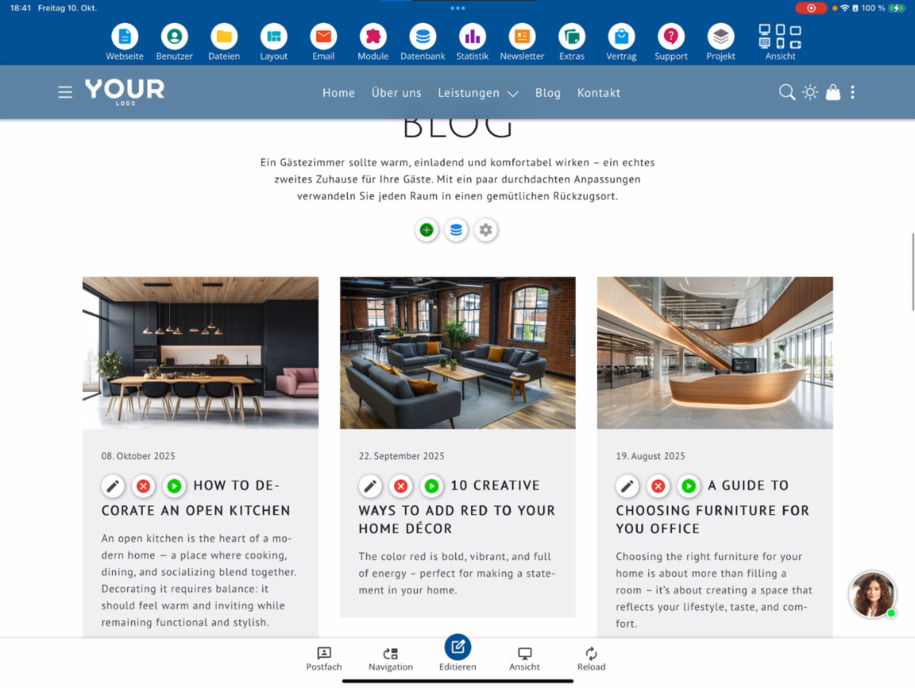
The blog is sorted by date, and below you'll find existing entries. You can also edit them by clicking on Edit. This is how easily you can adjust existing blog entries – just like pages.
Tipp: Der Schnell-Einstieg ist ideal, um einen Überblick über die wichtigsten Funktionen des bluetronix CMS zu bekommen. Weitere Tutorials zeigen dir zusätzliche Möglichkeiten und fortgeschrittene Features.
FAQ
what customers often ask us
Im Schnell-Einstieg lernst du die Grundlagen des bluetronix CMS kennen. Du erfährst, wie du Seiten, Bilder und Inhalte direkt auf deiner Webseite bearbeiten kannst – ganz ohne Programmierkenntnisse.
Wie bearbeite ich eine Seite im bluetronix CMS?
To edit a page, simply click on Edit at the bottom. The editor opens, and you can adjust the text directly. The editor can also be resized for more comfortable work if needed.
Wie kann ich Bilder austauschen?
Click on the desired image and go to Image Management. There, you can replace it with existing images or add new photos from your computer via Upload.
Wie speichere ich meine Änderungen?
After you have adjusted the text or images, click Save at the bottom left.
Kann ich auch Datenbankeinträge bearbeiten?
Ja, wenn du Module verwendest, die mit Datenbanken arbeiten, kannst du diese auch einfach im Bearbeitungsmodus editieren. So kannst du zum Beispiel, falls du das Shop-Modul verwendest, Shop-Artikel über die kleinen Edit-Buttons direkt bearbeiten. Dabei öffnet sich automatisch die Datensatzansicht.
Wie ändere ich Inhalte in der Datensatzansicht?
Klicke auf den gewünschten Artikel ⯈ In der Datensatzansicht kannst du das Bild, den Artikelnamen und weitere Felder bequem anpassen.
Wo finde ich weitere Hilfen und Tutorials?
The quick start is just the beginning. More tutorial videos will show you additional features and advanced possibilities in the bluetronix CMS. You can find them at bluetronix-documentation.