

Section templates in the bluetronix CMS – easily design content
In this tutorial, you will learn how to create new content in the bluetronix CMS with the editor and page section templates, swap images, edit texts, and even add content via voice input – easily, flexibly, and time-saving.
Design websites efficiently with page section templates
In this tutorial, you'll learn how to use the editor with page section templates to design your website quickly and professionally. You are already in the bluetronix system, for example, you select the page About Us and open the editor via Edit at the bottom.
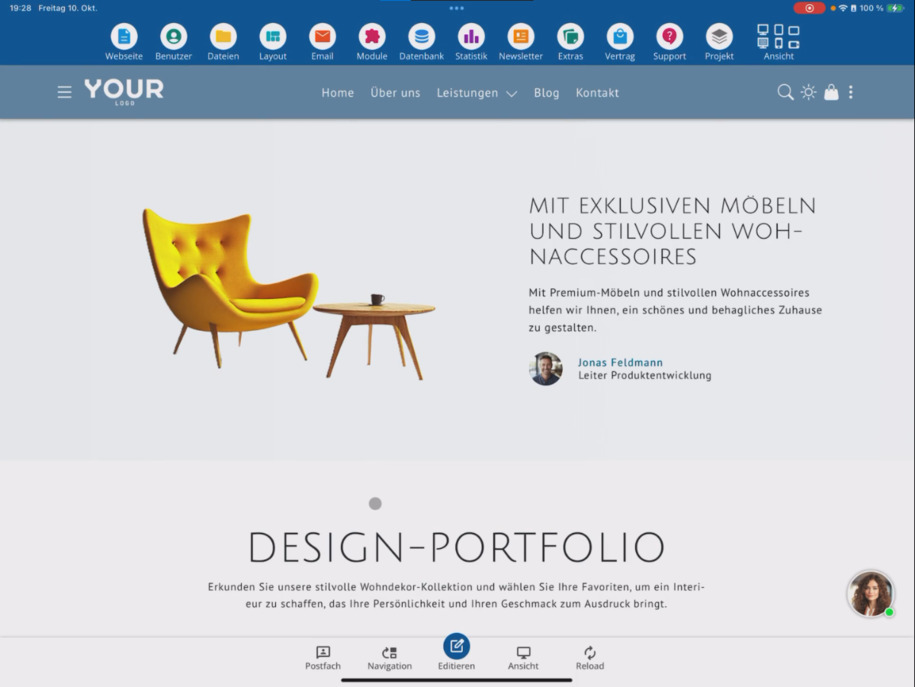
Insert and edit page sections
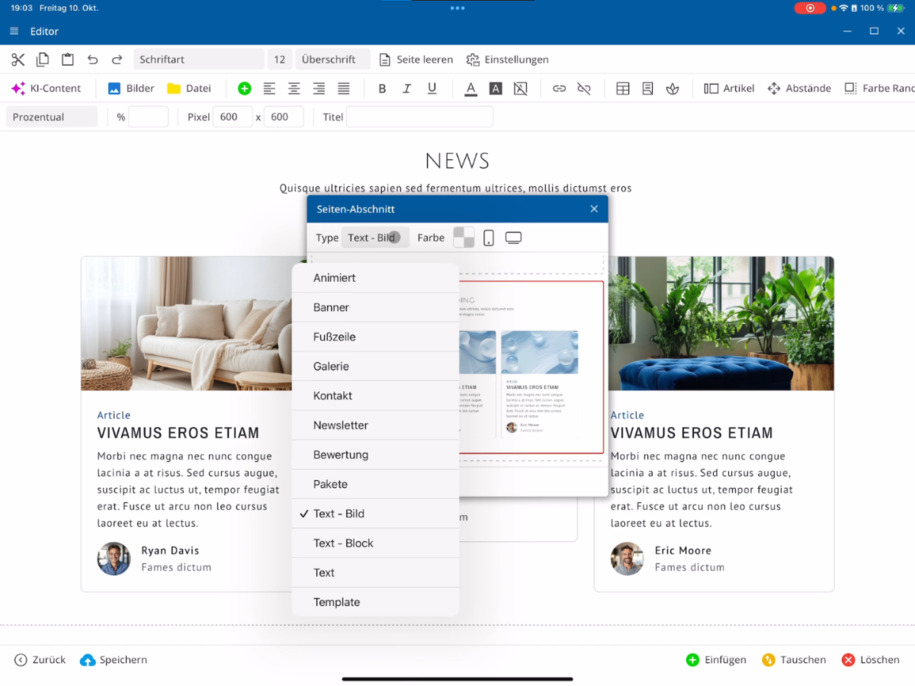
Within the editor, click on the desired page section and then on the green Plus ⯈ Insert ⯈ Page Section. The page section templates will now open.
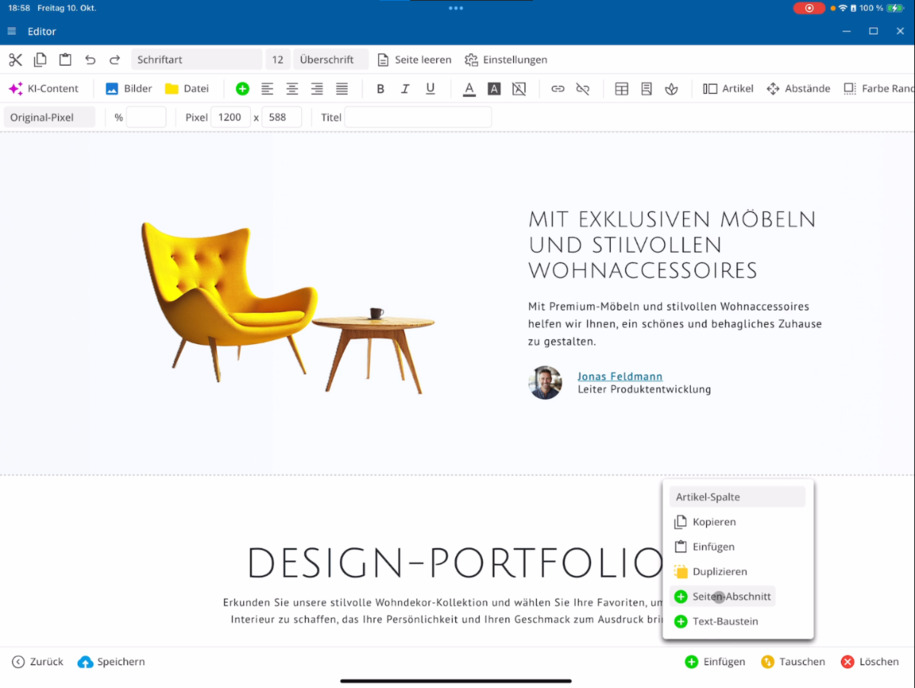
For example, select Text and Image. Various templates will appear in matching color sets of your template. You can check the preview for Mobile and Desktop. After that, decide whether the new section should be added before or after the currently highlighted section. Insert it and then adjust the texts directly.
Quickly insert texts via voice input
If you are using the app version for iPad or Phone, you can easily create text using voice input. To do this, delete the placeholder text of the template and speak your content – for example: "Here is a new text about various new kitchen furniture." This saves you time and fills content efficiently.
Adjust images
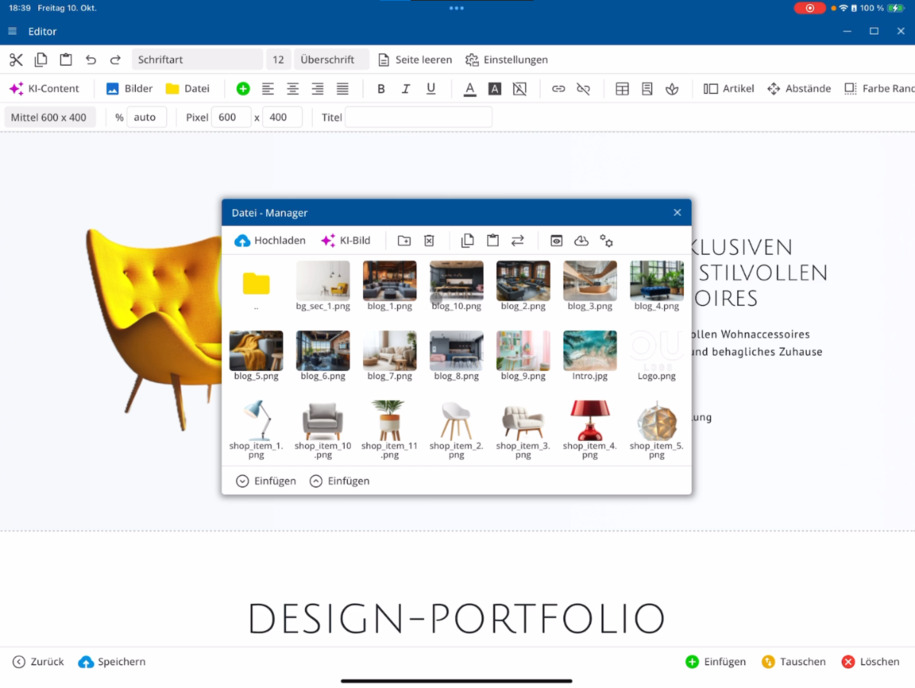
Click on the desired image ⯈ open Image Management ⯈ and replace it with one of your files. Repeat this for all images. Then save the page section and reduce the editor to check the changes on the page.
Tip: Always check how your content is displayed in both dark and light mode for templates.
Manage page sections
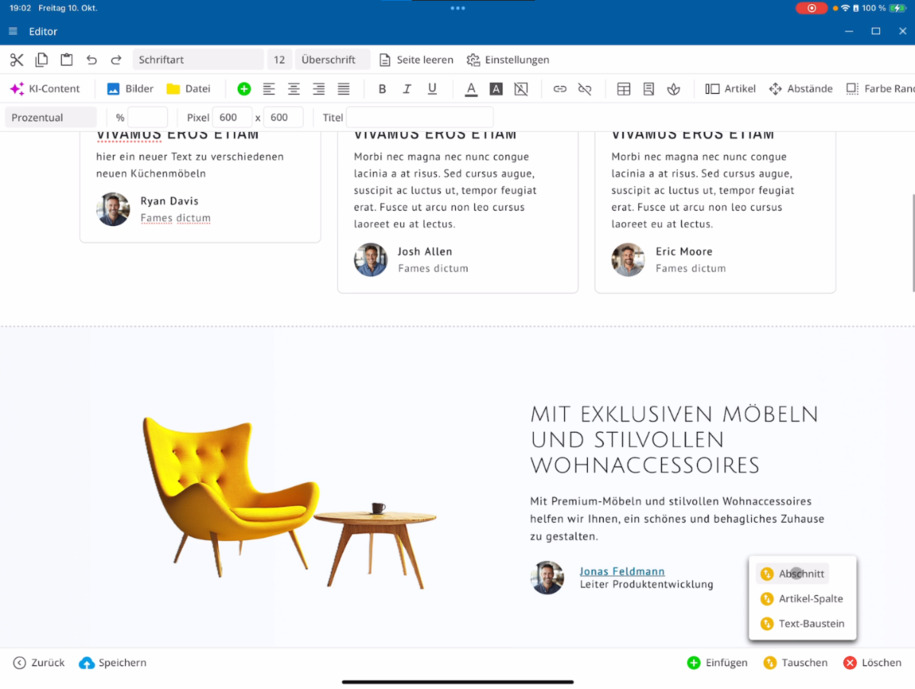
A page section includes everything marked within the frame. The next section starts from the dotted line. You can swap, modify, or delete sections.
To swap: First, select the first section, then the second section ⯈ bottom right Swap ⯈ Swap Page Section. The order will be adjusted immediately.
Swap articles within a section
An article is a single content element. Click on the first article, then the second ⯈ bottom Swap ⯈ Swap Articles. This allows you to rearrange articles within a section.
You can also swap individual text blocks: For example, click on two images or headings ⯈ Swap Text Block.
Templates and custom templates
The bluetronix CMS offers numerous templates for various topics. Additional, specially adapted designs are available for Custom Templates. All templates can be individually customized as usual to optimally design your page.
Create free text blocks
Using the Text Block option, you can create your own content blocks. Simply add a new text block and structure it as desired – with headings, images, or formatted text.
Delete sections and building blocks
To delete a section: Click on the section ⯈ bottom right Delete ⯈ confirm Delete Section. This way you can remove entire sections or individual text blocks that you don’t need.
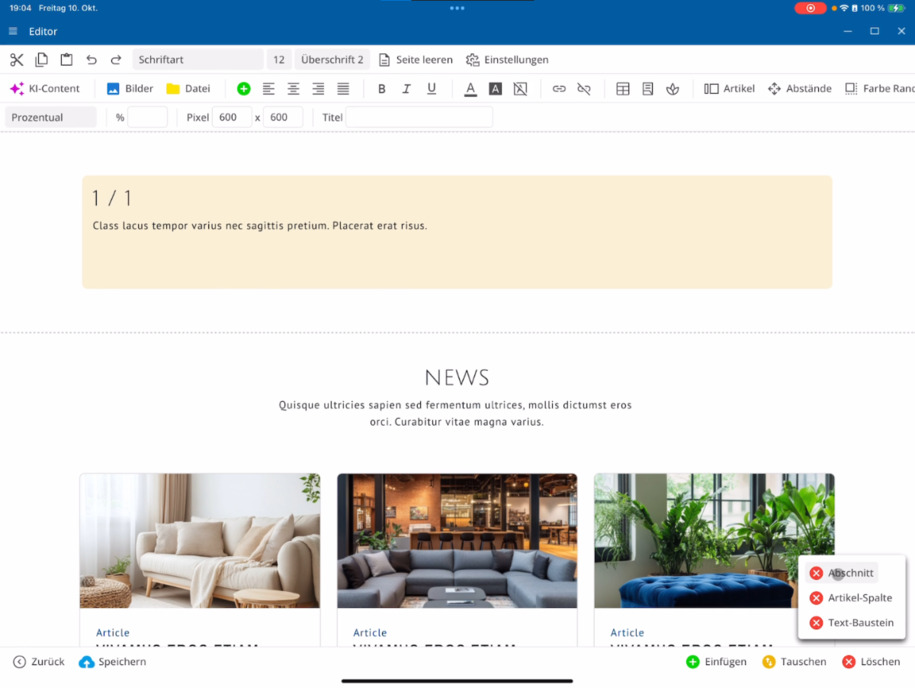
To delete only a block: Click on the text block ⯈ bottom right Delete ⯈ Text Block.
Duplicate or copy sections
To clone a section: bottom Insert ⯈ Duplicate. The section will be expanded, and all articles will be included.
To copy: Click on the element ⯈ Copy ⯈ at the desired location Paste. This allows you to reuse content flexibly.
Efficient work with the template system
With some practice, you'll quickly get used to the template system. Content can be intuitively adjusted, rearranged, and expanded. In the next tutorials, you'll learn more about the special editor menu functions and advanced design options.
Tip: Regularly save your work to avoid losing changes and use the preview to check the layout on different devices.
FAQ
what customers often ask us
What are the page section templates in the bluetronix CMS for?
With the page section templates, you can quickly and systematically build your website. They offer ready-made layouts for text, image, or combination areas that you can easily adapt to your design.
How do I insert a new page section?
In the editor, click on the desired element ⯈ at the bottom on the green Plus ⯈ Insert ⯈ Page Section. Then the selection of templates will open, from which you can choose a suitable layout.
Can I decide myself where the new section is inserted?
Yes. After selecting a template, you decide below whether the section will be inserted before or after the currently highlighted area.
How can I edit texts within the template?
You can adjust the text directly in the editor. If you are using the app version for iPad or Phone, you can also speak using voice input to quickly insert content – ideal for efficient work.
How do I adjust images?
Click on the image you want to change ⯈ open the Image Management ⯈ select a new file ⯈ Save. Repeat the process for all images in the section.
What do I need to consider for dark and light mode?
Always check how your content looks in both display modes. This ensures that texts and images are optimally visible in each mode.
How can I delete a section?
Select the section ⯈ bottom right Delete ⯈ confirm Delete section. The selected section will then be completely removed.
Can I delete individual text blocks?
Yes. Click on the corresponding text block ⯈ bottom right Delete ⯈ Text block. This will remove only that part without deleting the entire section.
How can I change the order of sections?
First select the first section and then the second section ⯈ bottom right Swap ⯈ confirm Swap sections. The order will be automatically adjusted.
How do I swap items or text blocks within a section?
Click on the first item, then the second ⯈ bottom Swap ⯈ Item columns. You can also swap text blocks or headlines in the same way.
What are custom templates?
Custom templates are special templates created specifically for certain projects. They contain customized designs and features that are only available in this template.
How do I create a free text block?
Select Text Block in the editor ⯈ insert the block and design it according to your wishes. You can directly add and format headings, texts, or images.
How do I duplicate or copy content?
To duplicate: bottom Insert ⯈ Duplicate. To copy: click on the element ⯈ Copy ⯈ at the desired location Paste. This way you can quickly reuse content.
How do I best get used to the template system?
The easiest way is by trying it out! The bluetronix template system is intuitively designed – the more often you insert, swap, and adjust sections, the faster you will work with the editor.
Are there further instructions?
Yes, in the upcoming tutorials you will learn more about the special editor menu functions and advanced design options. This way, you'll learn step by step how to make optimal use of the bluetronix CMS.