

Publish menu items and pages – easily manage navigation and schedule online release
In this second part, you'll learn how to publish pages and menu items in the navigation editor, manage their visibility, switch between editing and public views, and schedule publications.
Menüpunkte und Seiten veröffentlichen
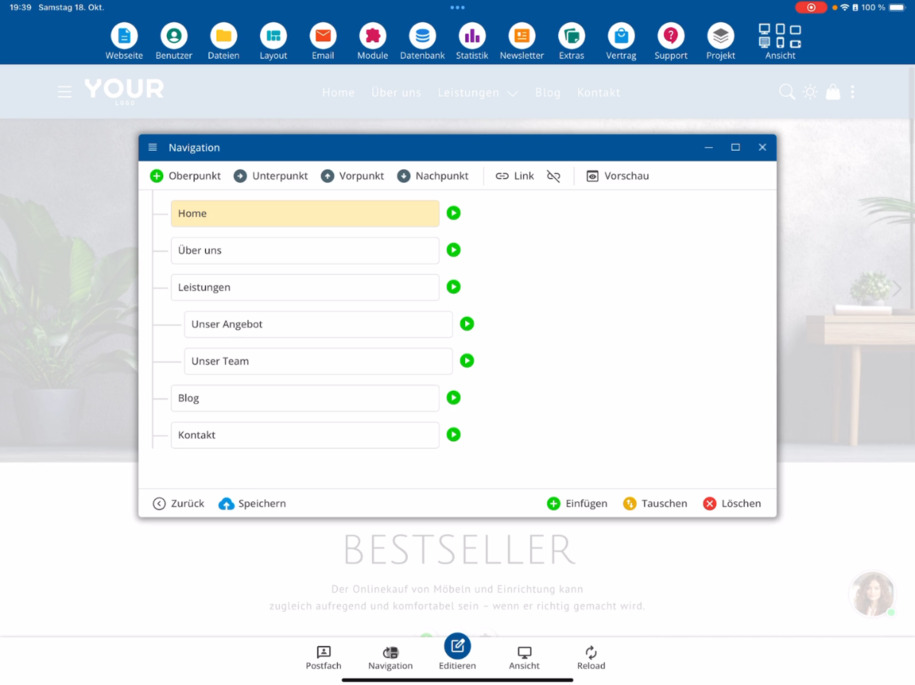
In this second part of the navigation editor, you will learn how to publish menu items and pages. To do this, open the navigation editor in the submenu. There you will see your current menu items, such as About Us.
Veröffentlichungsstatus ändern
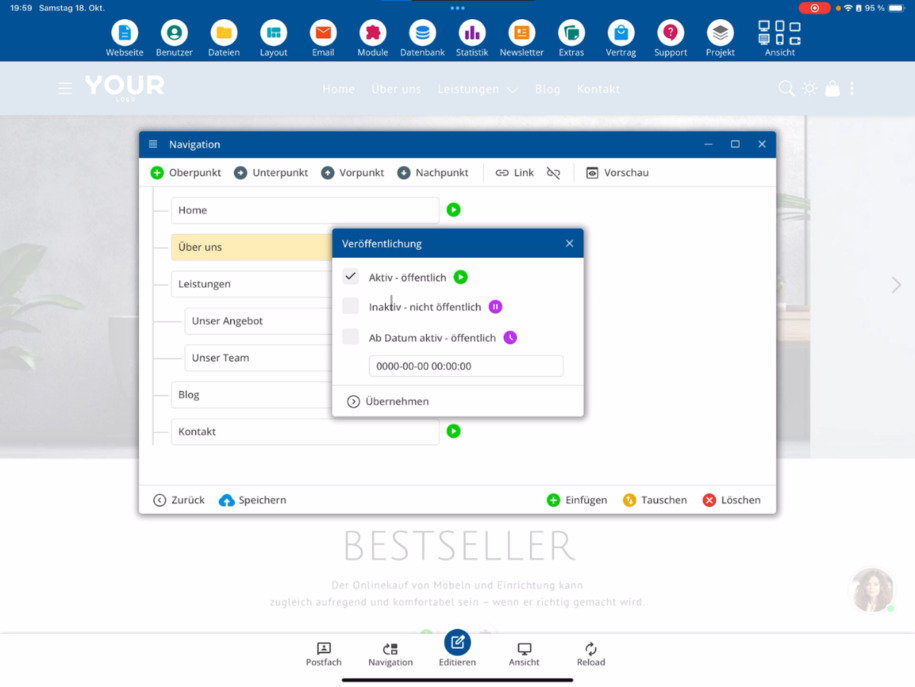
The green arrow indicates that the menu item is publicly visible. If you click on the arrow, you can specify that a certain page should not be published yet. Once you have made the change, save it.
Bearbeitungsmodus und Sichtbarkeit
Auch wenn du eine Seite auf „nicht öffentlich“ setzt, bleibt sie im Bearbeitungsmodus sichtbar. So kannst du sie im Editor weiter anpassen, bis sie vollständig fertiggestellt ist und du sie veröffentlichen möchtest.
Öffentliche Ansicht prüfen
To see how your website looks to the public, click on the View option in the top menu and select the icon with the desktop monitor and stripes. This opens the public view.
Seiten zeitgesteuert veröffentlichen
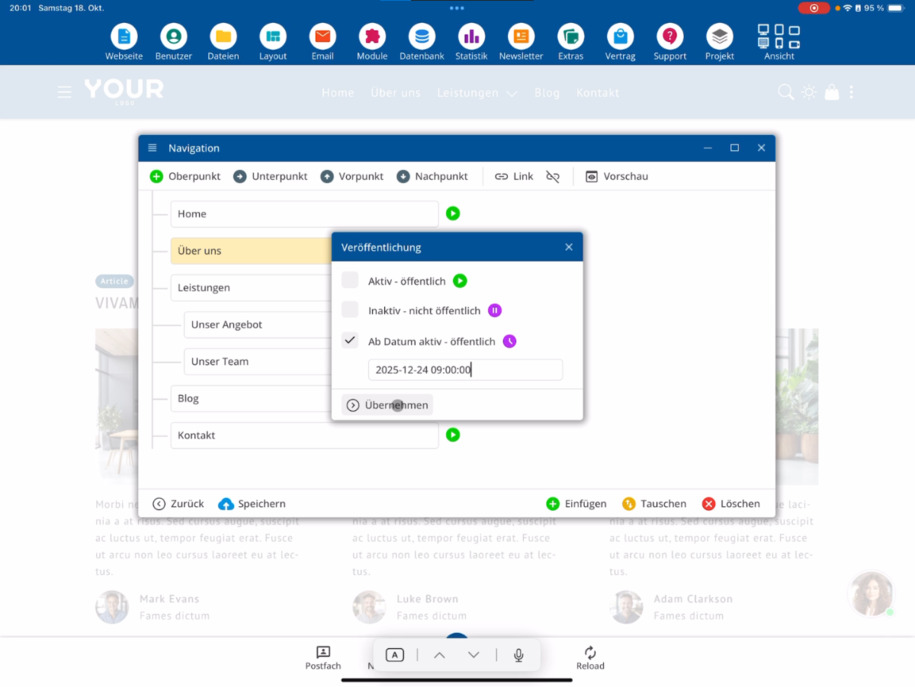
If you are using one of the server packages, you can also schedule pages to be published. This means you can set a specific time when a page goes live automatically – for example, on December 24th at 9 AM for a Christmas promotion. This allows prepared content to be activated automatically.
Tipp: Plane Veröffentlichungen im Voraus, um zeitkritische Inhalte wie Aktionen oder Kampagnen pünktlich online zu stellen.
FAQ
what customers often ask us
Open the navigation editor in the submenu. There you will see your current menu items, such as About Us. A green arrow indicates that the menu item is publicly visible. Click on the arrow to set that a page should not be public yet. Then apply and save the change.
Warum sehe ich den Menüpunkt im Bearbeitungsmodus, obwohl er nicht veröffentlicht ist?
Wenn du dich im Bearbeitungsmodus befindest, kannst du alle Menüpunkte sehen – auch jene, die noch nicht veröffentlicht wurden. So kannst du sie weiterhin im Editor bearbeiten, bis sie fertiggestellt und bereit zur Veröffentlichung sind.
Wie kann ich die öffentliche Ansicht meiner Webseite prüfen?
Click on the icon with the desktop monitor and stripes under View in the top menu. This will open the public view of your website. There you can immediately see which menu items are already visible – for example, About Us will be hidden as long as it is not published.
Wie wechsele ich zurück in den Bearbeitungsmodus?
To go back to editing mode, simply click on the corresponding icon or use the navigation path Menu ⯈ Editing Mode. There the menu item will reappear, and you can continue editing it as usual.
Wie kann ich eine Seite endgültig veröffentlichen?
Within the navigation editor, you can publish any menu item or page as soon as it is fully completed. After saving, it will automatically be visible in the public view.
Kann ich Seiten zeitgesteuert veröffentlichen?
Yes, if you are using one of the Surfer Packages. With it, you can automatically activate pages at a specific date and time – for example, on December 24th at 9 AM for a Christmas campaign. This allows prepared content to go online automatically.