

Database function in the bluetronix CMS – manage, edit, and export articles
In this tutorial, you will learn how to efficiently manage, edit, and export articles using the database function in bluetronix CMS. Even large amounts of data can be easily structured, searched, and automatically backed up.
Einführung in die Datenbankfunktion
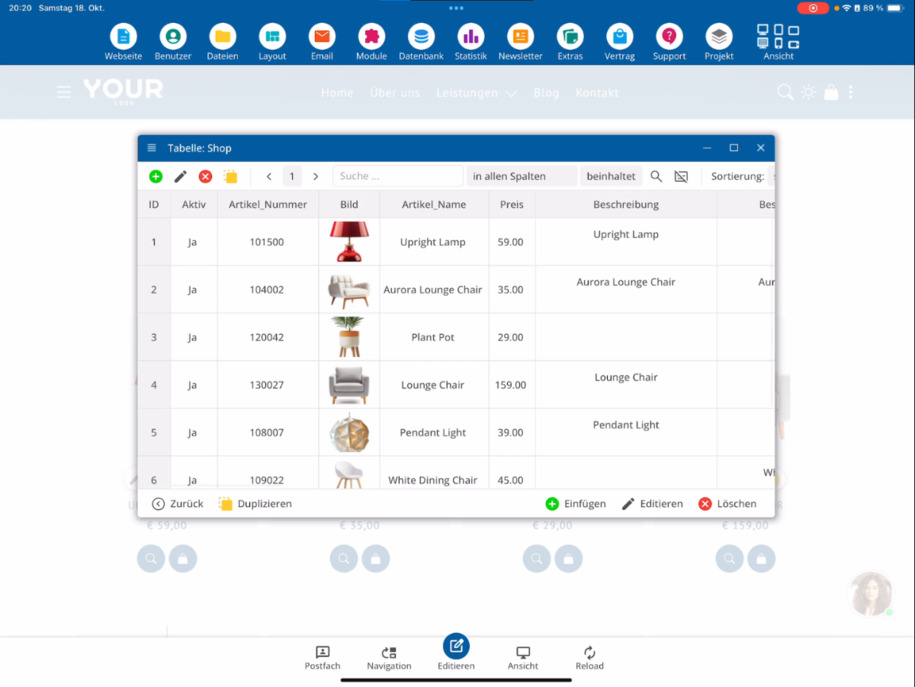
In this tutorial, you will learn how to work with the database function. In edit mode, you can open the database table in the display view using the blue database icon. There, you can see all the articles and edit or duplicate them if needed, in order to quickly create similar articles.
Arbeiten in der Datensatzansicht
In der Datensatzansicht kannst du gezielt nach bestimmten Kriterien suchen, Datensätze sortieren und festlegen, wie viele Artikel gleichzeitig angezeigt werden. Um in die Datensatzansicht zu wechseln, klicke den gewünschten Artikel an und wähle den Schnelledit-Button. Das Fenster kannst du vergrößern, um mehr Überblick zu haben.
Artikel bearbeiten und Inhalte ergänzen
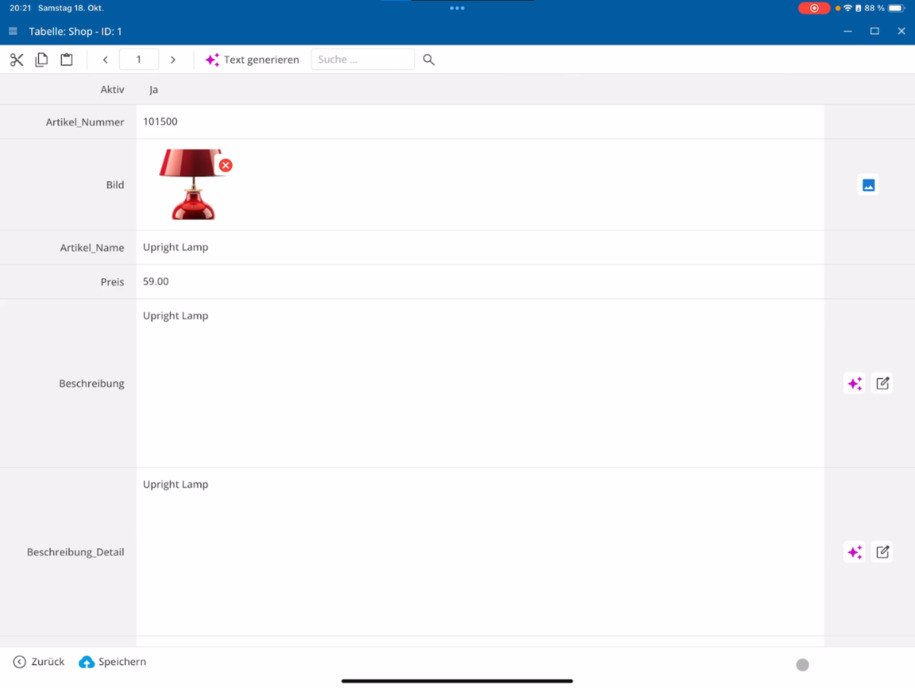
In der Datensatzansicht kannst du längere Texte zu einzelnen Artikeln verfassen, mit KI überarbeiten lassen oder automatisch generieren. Außerdem lassen sich Bilder austauschen und zusätzliche Detailbilder hinzufügen. Du kannst zwischen Datensätzen wechseln und die Bearbeitung direkt fortsetzen.
Schnellbearbeitung nutzen
You can also adjust articles using the quick edit button. A click on Edit immediately opens the record view, where you can specifically make changes to an article.
Auf Datenbanken über das Hauptmenü zugreifen
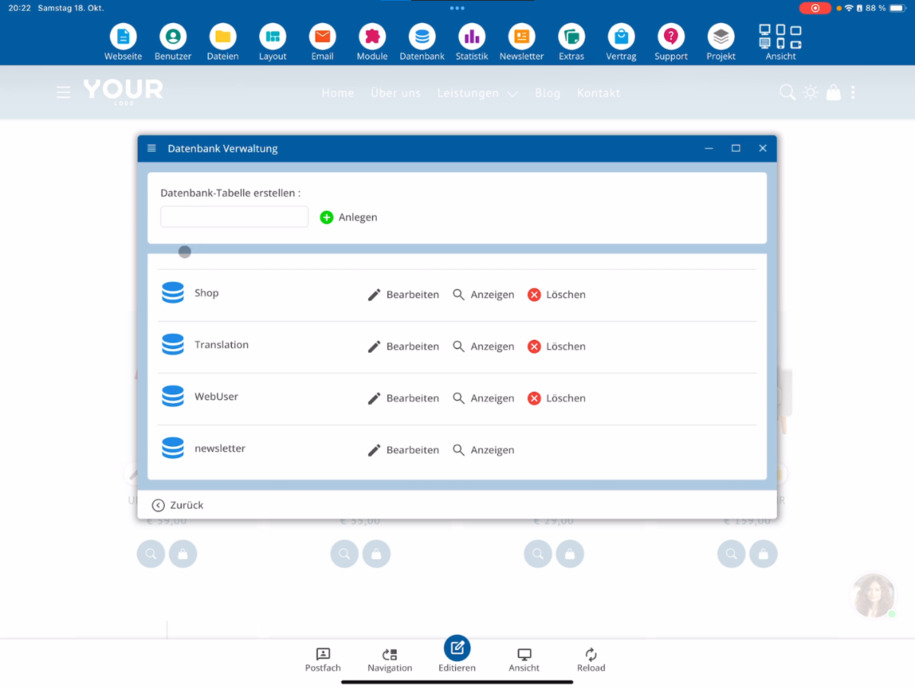
Du kannst auch über das Hauptmenü auf deine Datenbanktabellen zugreifen. Klicke dazu auf Datenbank ⯈ Datenbank. Im unteren Bereich findest du alle verfügbaren Tabellen, zum Beispiel deine Blog- oder Shop-Datenbank.
Anzeige- und Bearbeitungsansicht verstehen
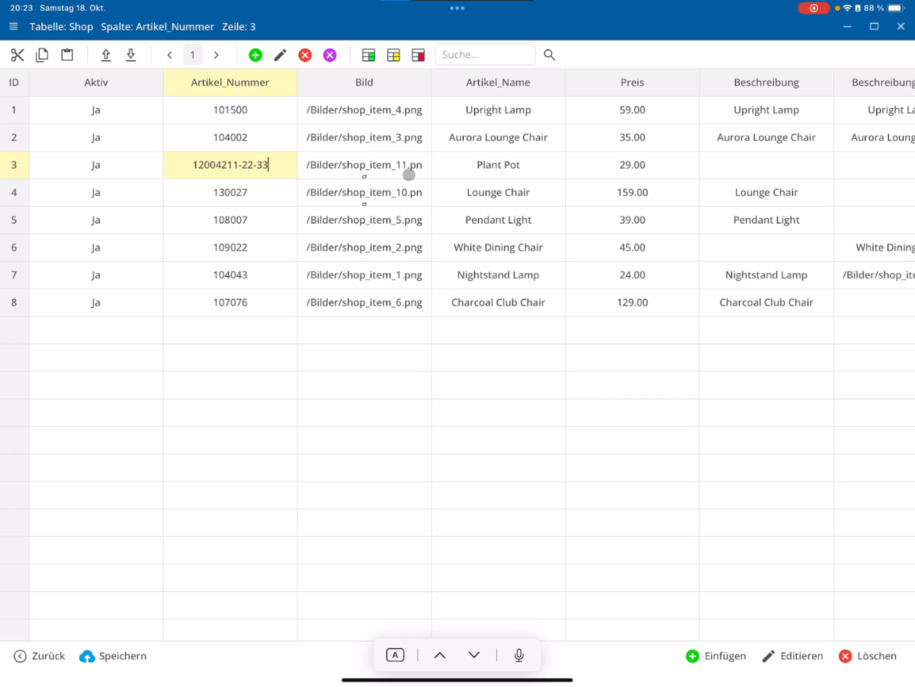
The display view is suitable for browsing and sorting records, but changes cannot be made directly there. In the edit view, you will see a tabular representation – similar to Excel – and can change data directly or add new articles.
Excel-Export und -Import
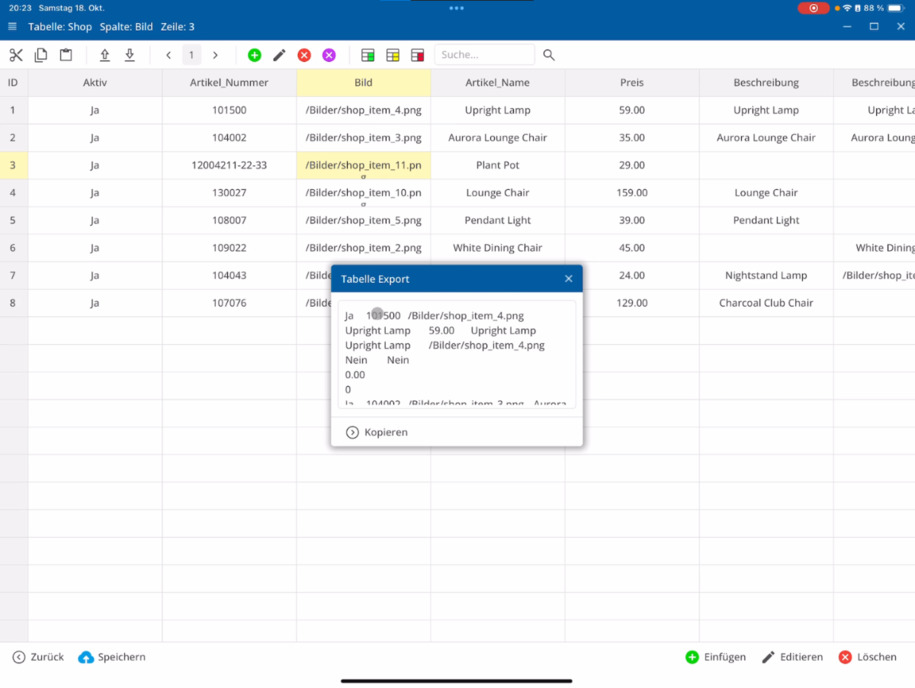
Records can be easily exported. Select your shop table and export it as a TXT or CSV file. You can edit this file in Excel and then import it back. During import, you decide whether to replace existing records or to add new articles.
Große Datenmengen effizient verwalten
Pro Seite werden standardmäßig 50 Datensätze angezeigt. Wenn dein Shop mehr Artikel enthält, kannst du über die Seitennavigation oben weitere Seiten aufrufen. So kannst du selbst sehr große Datenbestände mit mehreren Millionen Artikeln effizient bearbeiten.
Eigene MySQL-Befehle ausführen
For developers, there is an advanced option to execute their own MySQL commands directly. Further information can be found in the video MySQL Records for Developers.
Automatische Sicherung und Wiederherstellung
All databases are automatically backed up seven days a week. If an error occurs during export or import, you can always restore a backup – for example, to reset the shop table to yesterday's state.
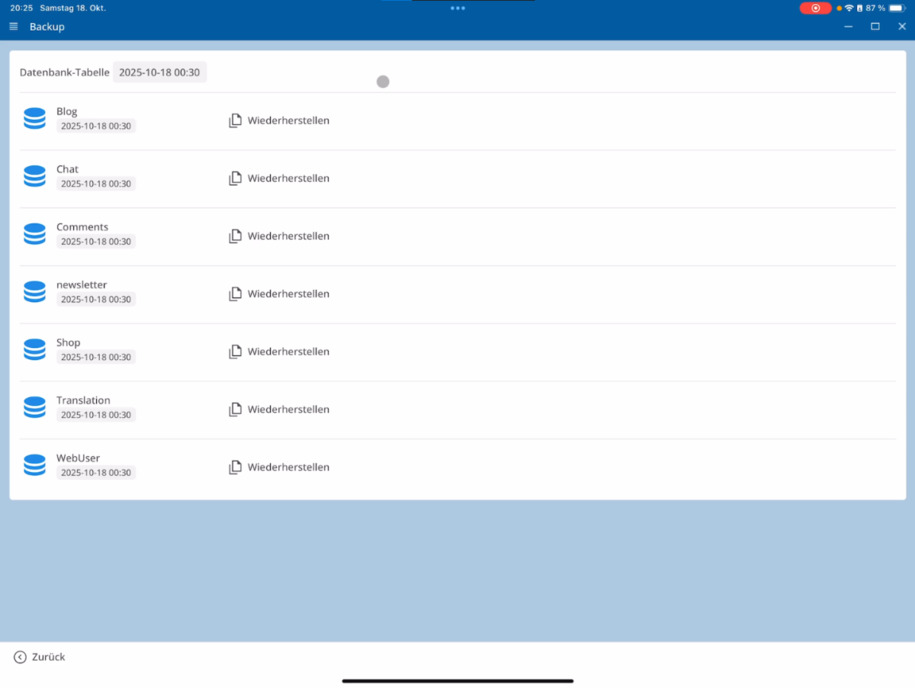
Tipp: Sichere regelmäßig deine Datenbank, besonders vor größeren Änderungen oder Importen.
Fazit
Das Datenbanksystem ist einfach und effizient aufgebaut – ähnlich einer Excel-Tabelle. Auch ohne Vorkenntnisse kannst du Daten durchsuchen, bearbeiten, exportieren und importieren. Selbst große Artikelbestände lassen sich so übersichtlich und zuverlässig verwalten.
FAQ
what customers often ask us
In editing mode, you can open the database table via the blue database icon in the display view. There you can see all the items in your shop and edit or duplicate them directly if you want to create similar items.
Wie funktioniert die Datensatzansicht?
In the record view, you can search by specific criteria, sort records, determine the number of displayed records, and edit each item individually. To do this, click on the desired item and select Edit Record or Edit at the bottom.
Was kann ich in der Datensatzansicht bearbeiten?
In dieser Ansicht kannst du Beschreibungen verfassen, Texte mit KI verbessern oder generieren, Bilder austauschen oder zusätzliche Detailbilder hinzufügen. Du kannst zwischen den Datensätzen wechseln und deine Bearbeitung fortsetzen, ohne die Ansicht zu verlassen.
Wie nutze ich die Schnellbearbeitung?
Über den Schnelledit-Button kannst du Artikel direkt anpassen. Mit einem Klick öffnet sich die Datensatzansicht, in der du Änderungen an einzelnen Artikeln vornehmen kannst.
Wie greife ich über das Hauptmenü auf die Datenbank zu?
Du kannst auch über das Hauptmenü auf deine Datenbanken zugreifen: Klicke auf Datenbank ⯈ Datenbank. Unten werden deine verfügbaren Tabellen angezeigt, zum Beispiel Blog oder Shop.
Was ist der Unterschied zwischen Anzeige- und Bearbeitungsansicht?
In display view, you can view, search, and sort records, but you cannot make changes. In editing view, you see a tabular representation – similar to Excel – and can directly adjust entries there.
Kann ich Datensätze exportieren und wieder importieren?
Yes. You can export your shop table as a TXT or CSV file, edit it in programs like Excel, and then re-import it. During import, you decide whether to replace existing records or add new items.
Wie viele Datensätze kann ich gleichzeitig anzeigen?
Standardmäßig werden 50 Datensätze pro Seite angezeigt. Wenn du mehr Artikel hast, kannst du über die Seitennavigation oben zu weiteren Seiten wechseln. So lassen sich auch große Bestände mit Millionen Datensätzen effizient verwalten.
Kann ich eigene MySQL-Befehle ausführen?
Yes, there is an additional option for developers to run their own MySQL commands directly. You can find more details in the video MySQL Records for Developers.
Wie werden meine Datenbanken gesichert?
All databases are automatically backed up daily. If an error occurs during export or import, you can restore a backup at any time – for example, to reset your shop table to yesterday's state.
Was macht das Datenbanksystem so einfach?
Das System funktioniert ähnlich wie eine Excel-Tabelle. Du kannst Daten leicht verwalten, durchsuchen, bearbeiten und sogar bestehende Artikellisten aus anderen Programmen importieren. So hast du volle Kontrolle über deine Shop-Daten, ohne Programmierkenntnisse zu benötigen.