

Publish or hide records in the blog – this is how you control visibility
In this tutorial, you will learn how to make blog posts visible or invisible, check the public view, and prepare content specifically before publishing.
Datensätze veröffentlichen oder für die Öffentlichkeit sperren
In diesem Tutorial lernst du, wie du Datensätze – hier am Beispiel eines Blogs – gezielt veröffentlichst oder für die Öffentlichkeit sperrst.
Wenn du einen Seiten-Abschnitt von dem Blog-Modul einfügst, siehst du verschiedene Blog-Einträge. Alle Datensätze sind öffentlich, wenn der grüne Pfeil sichtbar ist.
To check the public view, click on the Desktop View, the icon with the stripes at the top right. Then scroll to the blog section: Here you can see that all articles that previously had a green arrow are publicly visible.
In der öffentlichen Ansicht sind außerdem keine Schnellbearbeiten-Buttons sichtbar. Unten erscheint die Cookie-Meldung.
Artikel für die Öffentlichkeit deaktivieren
Switch back to editing mode and scroll to your blog. Set the desired article to deactivated for the public. This is indicated by the pause button.
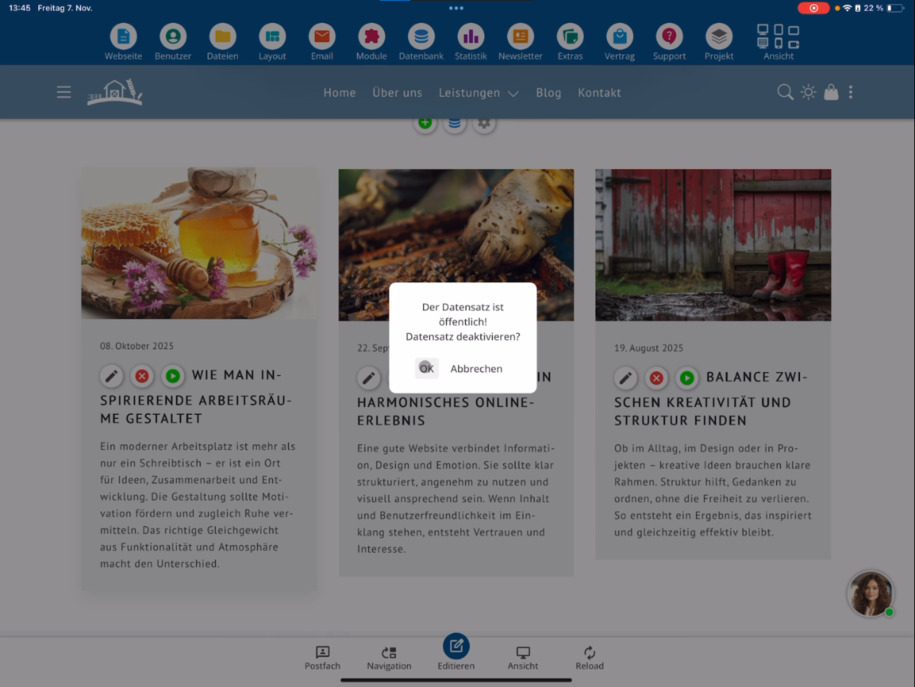
Da du dich weiterhin im Bearbeitungsmodus befindest, siehst du den deaktivierten Artikel dort noch.
To check, go back to public view ⯈ scroll to the blog. Now the previously deactivated entry is missing.
Artikel wieder veröffentlichen
To make an article publicly visible again, simply click the pause button again and activate it for the public.
Mit dieser Funktion kannst du Artikel vorbereiten und erst dann veröffentlichen, wenn sie wirklich fertig sind.
FAQ
what customers often ask us
If an article should be published, just click the pause button, which activates it for the public. The green arrow then indicates that the entry is publicly visible.
Wie prüfe ich, welche Artikel öffentlich sichtbar sind?
Click on Desktop View, the icon with the stripes at the top right. In the public view, you can see exactly which blog articles are visible to visitors.
Wie kann ich einen Artikel für die Öffentlichkeit deaktivieren?
Scroll to the desired blog article in editing mode and click the pause button to deactivate it for the public. It will then no longer be visible in the public view.
Wie kontrolliere ich, ob ein deaktivierter Artikel ausgeblendet wurde?
Switch back to Desktop view ⯈ scroll to the blog. The disabled article will no longer be displayed there.
Wie mache ich einen zuvor deaktivierten Artikel wieder sichtbar?
Click the pause button and reactivate the article for the public. It will then reappear in the public view.
Wofür eignet sich die Funktion zum Sperren und Veröffentlichen?
Damit kannst du Blog-Artikel in Ruhe vorbereiten und erst dann veröffentlichen, wenn sie fertig sind. Die Buttons helfen dir dabei, die Sichtbarkeit flexibel zu steuern.