

Set up & manage domain – easy explanations for redirects, languages, and subdomains
In this tutorial, you will learn how to correctly set up your domain after registration: from activation to redirects, language assignments, and subdomains for multilingual websites.
Domain nach der Registrierung aktivieren
After you have registered your domain, click under Extras ⯈ Domain. After about five minutes, the domain is usually available – indicated by the green checkmark.
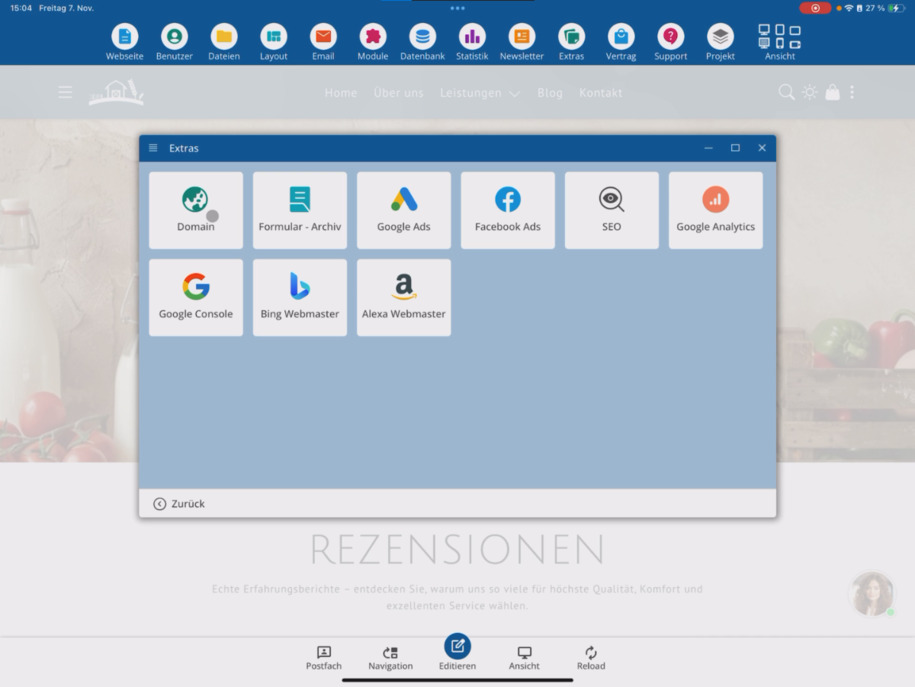
Once the domain is active, you can make it your main domain directly. This will make it the primary address of your web project.
Domain umleiten
You can redirect your domain to a specific directory. The start of your website will then not take place from the standard directory, but from, for example, the folder my-demo or another subfolder.
Sprache für die Domain festlegen
For multilingual websites, you can specify a default language – such as German or English. In addition, you assign a specific language to each domain, e.g., .de → German or .com → English. This way, you can assign any number of languages to different domains.
Auth-Code für externe Systeme
If you want to hand over the domain to an external system, request the Auth Code through the corresponding option. This code is required for domain transfers.
Weitere Domains und Subdomains anlegen
At the top of the domain management, you can order additional domains and create new subdomains. For example, you can create an English subdomain like en.
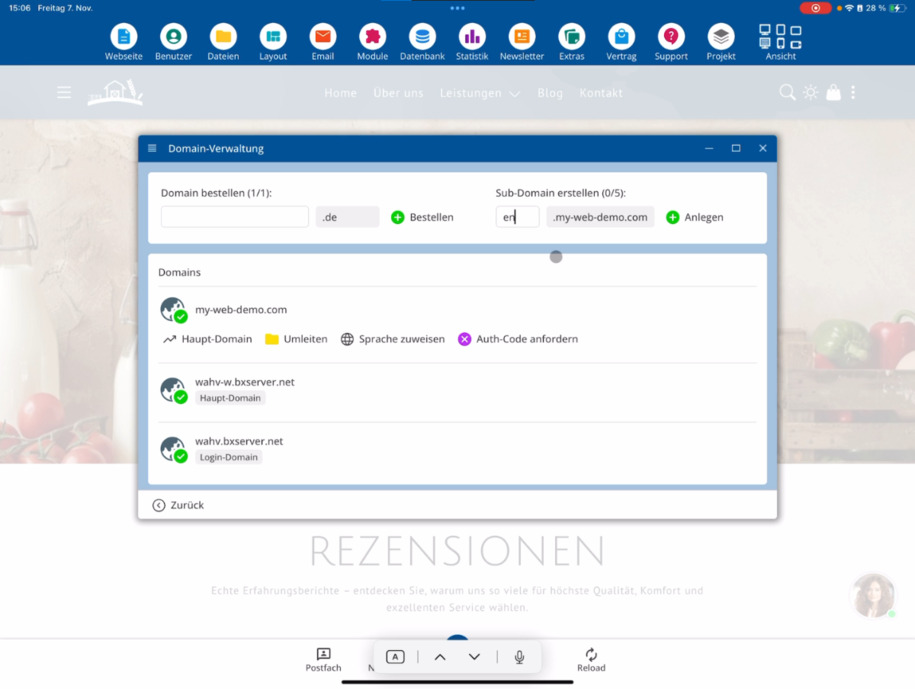
If you want to organize everything under a single domain, you can use subdomains like de.my-web-demo.com or en.my-web-demo.com. Here you can add as many additional subdomains as you like.
FAQ
what customers often ask us
When is my registered domain ready for use?
After you have registered the domain, click under Extras ⯈ Domain. After about 5 minutes, the domain is ready – indicated by the green checkmark.
How do I set my new domain as the main domain?
Once the green checkmark appears, you can set the domain as the main domain. This makes it the primary address of your web project.
Can I redirect my domain to a different directory?
Yes, you can redirect your domain to a specific directory. This way, your website will not start in the default directory, but for example in the folder "my-demo".
How do I assign a language to my domain?
Set a default language and then assign a specific language to each domain – for example, .de → German and .com → English. This allows you to assign as many languages as you want to different domains.
What is the Auth-Code and what do I need it for?
The Auth-Code is required when you want to transfer your domain to an external system. You can request it directly through the Auth-Code Request option.
How do I order additional domains or create subdomains?
At the top of the domain management, you can order new domains and create subdomains – for example, an English subdomain like en. You can create as many additional subdomains as you want.
Can I organize multiple languages via subdomains?
Yes. For example, if you use de.my-web-demo.com as a subdomain, you can also create en.my-web-demo.com for English and thus manage multilingual areas through subdomains.