

Manage emails directly in the CMS: this is how you use the webmailer
In this tutorial, you will learn how to open the integrated webmail, manage your email folders, and write, receive, and organize messages directly in the CMS – fast, easy, and without additional software.
Open the webmail
When the edit mode of your homepage is active, you will find the integrated webmail under Email ⯈ Email inbox.
Requirement: You must have created an email address and set up a domain under Email ⯈ Accounts first.
Email accounts and folder overview
In the lower area, you can see all existing email accounts, including the number of unread messages. Tap on an account to open its inbox.
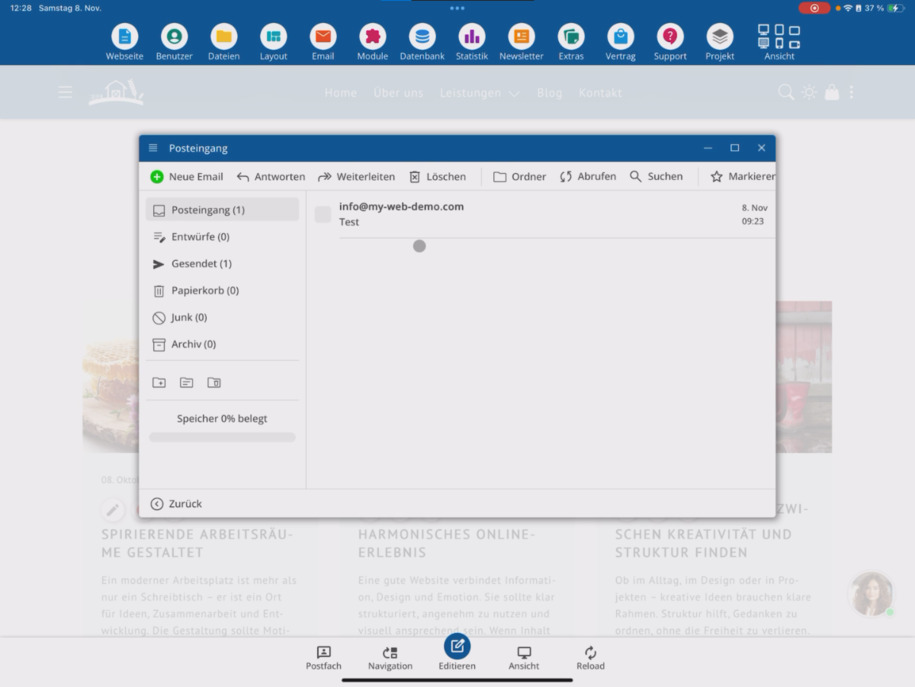
On the left, you will find the standard folders: Inbox, Drafts, Sent, Trash, and Junk. You can also move emails to the archive.
Below, you can create, rename, or delete your own folders. At the very bottom, you can see the used storage space of your inbox.
Read, write, and manage emails
With the webmail, you can read, receive, and send emails — completely without additional programs like Outlook or Thunderbird. Of course, you can set up your account there as well, but for quick tasks, everything works directly through the CMS, the app, or the browser.
You can create new emails, reply, forward, delete, switch or create folders, fetch emails, search, and mark.
The webmail can be opened in full-screen mode. On smaller devices, you can scroll through the menu bar to see all options.
Create new email
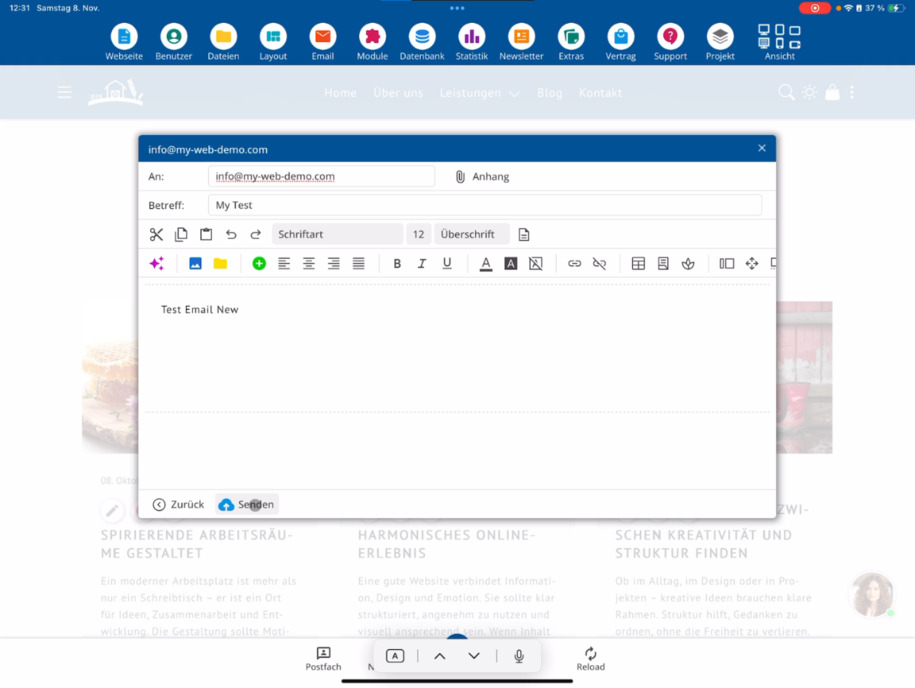
Tap on new email to compose a message. Enter a subject and use attachments if needed.
Text editing works like in a text editor: You can insert links, use tables, or add icons and page sections.
With the integrated AI function, you can automatically enhance your text — correct errors, optimize phrasings, or adjust the style.
Of course, you can also insert images and attach files.
Send test email
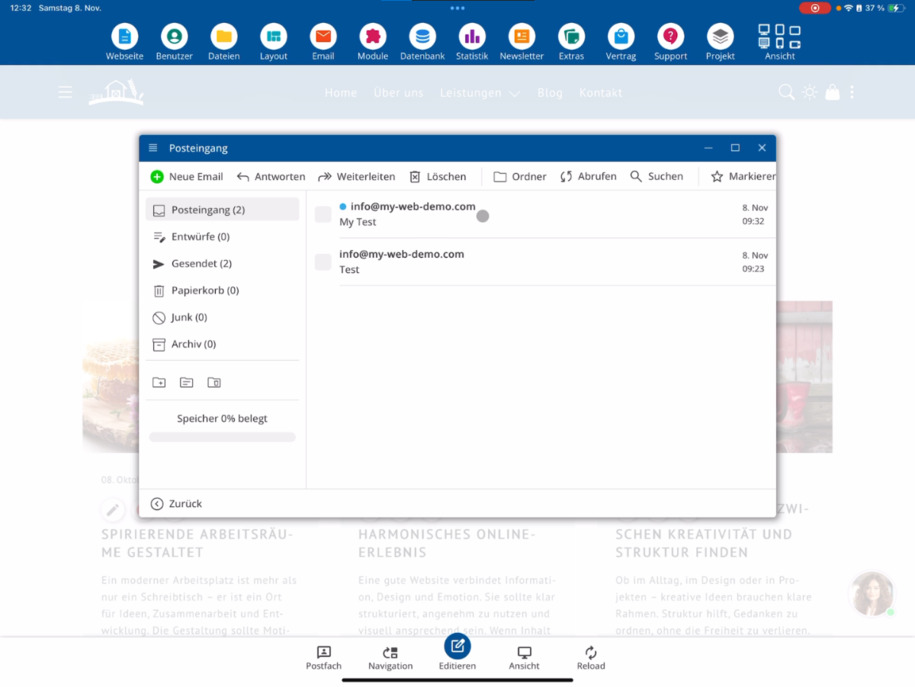
Send the finished message to your own address. Then tap on fetch. Under "Sent," you will now find two messages: your new one and any older emails.
Now open the inbox — your test email should have arrived there. Tap on the corresponding line to open it and check the content.
Have fun working with the webmail!
All important functions are directly available in the CMS — fast, clear, and without additional software.
FAQ
what customers often ask us
What do I need to use the webmail?
You need a configured domain and a created email address. You set this up beforehand under Email ⯈ Accounts. Only then can you use the webmail.
How do I open the webmailer?
Activate the editing mode of your homepage and go to E-Mail ⯈ E-Mail Inbox. There you can open the webmailer.
What functions does the webmailer offer?
You can read, send, reply to, forward, delete, search, and mark emails. Additionally, you can create, rename, or delete folders. The webmailer works directly in the CMS, in the app, or in the browser.
What folders are available in the webmailer?
On the left, you will find the standard folders: Inbox, Drafts, Sent, Trash, and Junk. You can also create your own folders or move emails to the archive.
Can I send attachments and images?
Yes, you can upload files, insert images, and use links, tables, or icons. The text editing works like in the editor.
Can I use the AI assistant for emails?
Yes, with the integrated AI, you can correct, stylistically improve, or adjust texts — directly in the webmailer.
How do I send a test email to myself?
Click on new email, enter a subject, write your text, and send the message to your own address. Under Sent, you can find the email, and after fetching, it will appear in the inbox.
Can I use the webmailer in full screen?
Yes, the webmailer can be switched to full screen mode. This provides you with more options. On smaller devices, you can also scroll through the menu bar.