

Set up email address in the Bluetronix CMS on your device
In this tutorial, you will learn how to set up your email address created in the CMS in mail programs like Apple Mail, Outlook, or Thunderbird.
Set up email account in the mail client
In this tutorial, we will show you how to set up your email account created in the CMS in a mail program (e.g., Apple Mail on the iPad).
Requirements
Make sure you have already registered a domain and created an email address. The creation is done in editing mode under E-Mail ⯈ Accounts.
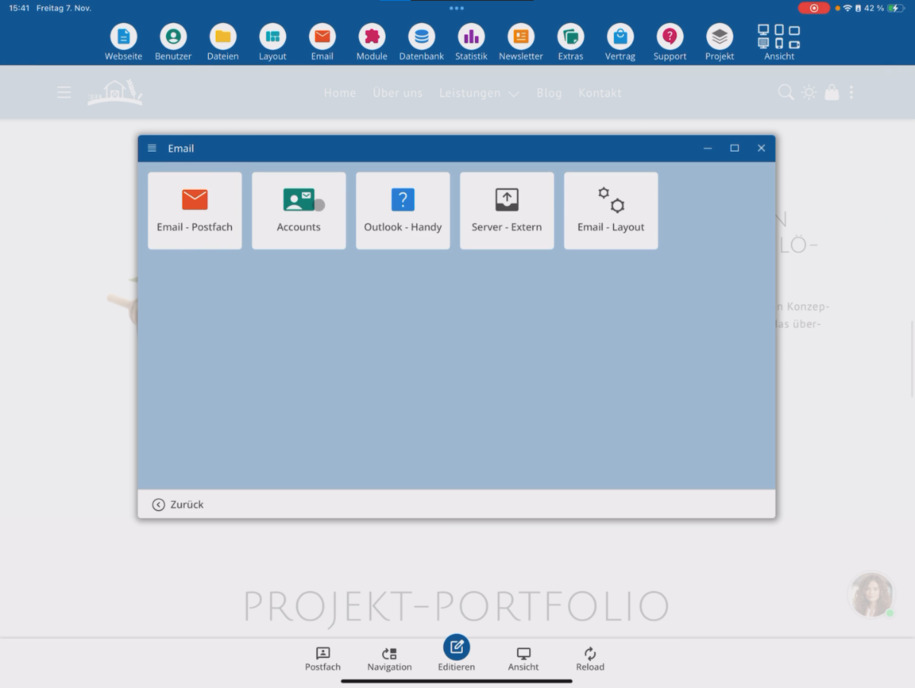
Retrieve access data
Click below your email address on Access data. There you will find all the information you need for the setup in Outlook, Thunderbird, or Apple Mail.
The password is displayed in plaintext once when the address is created. Save it or copy it directly before you leave the window.
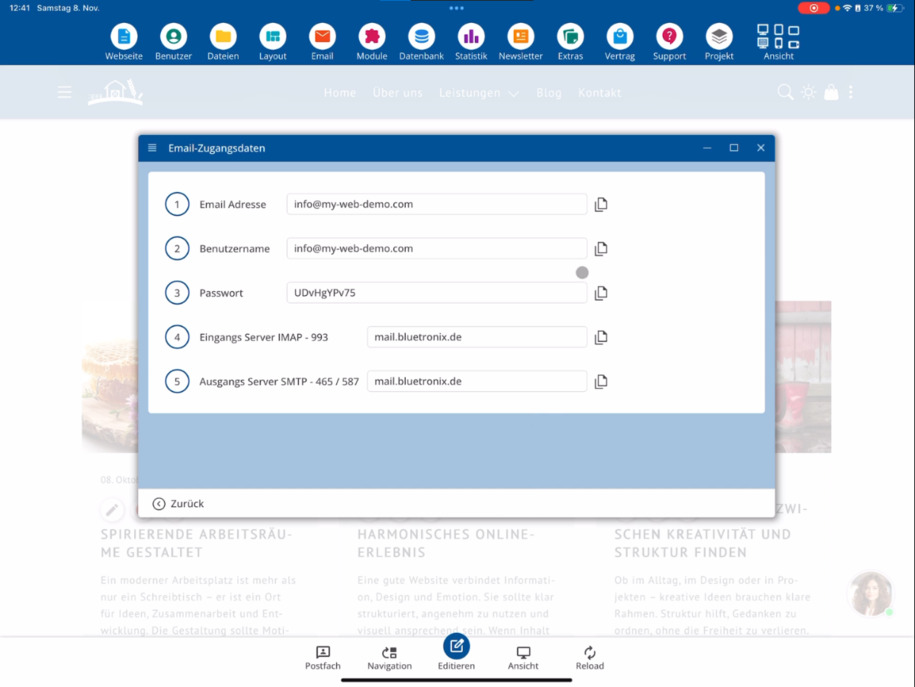
Create account on the device
Go to your device's settings and open Mail Accounts. Click on Add Account ⯈ select Other ⯈ Add Mail Account.
Enter your name or email address as the name. Use your full email address as the username. Copy the password from the Access Data (Position 3: Password).
IMAP settings
Select IMAP as the account type. IMAP ensures that all devices stay synchronized: changes and sent messages appear on your phone, tablet, and PC simultaneously.
At bluetronix, the username, password, and hostname for incoming and outgoing servers are identical. Enter the data from the Access Data for both incoming and outgoing servers.
Check and save connection
Check all entries and tap on Next. The mail app will now try to establish a connection and verify the settings.
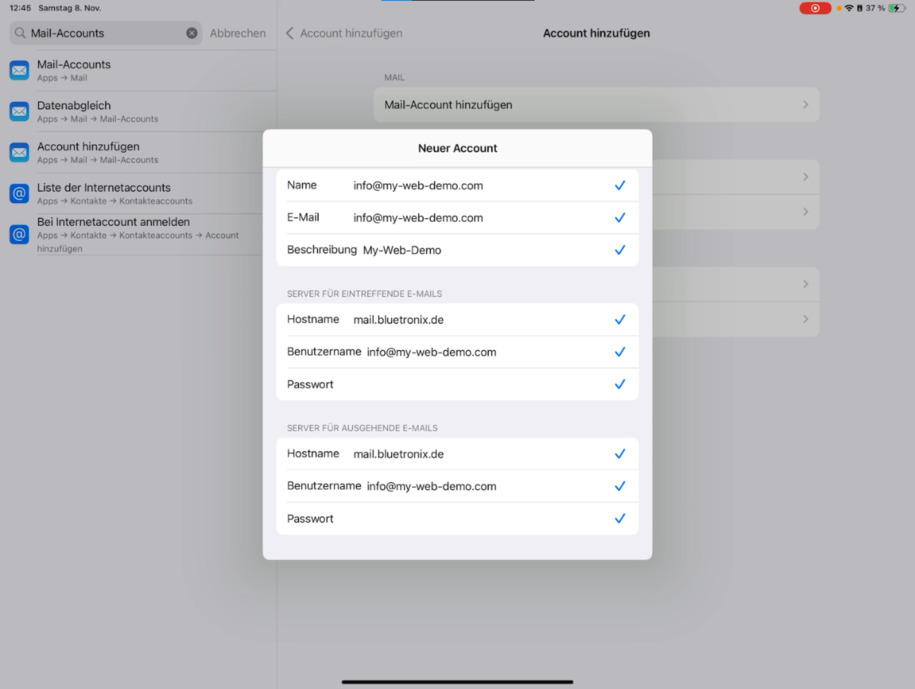
Once the check is successful, click on Save. Your account is now saved and connected to the server.
Test and usage
Open the mail client, fetch your test messages, and check if sent emails appear in Sent. If there are issues, double-check the username, password, and hostname in the Access Data.
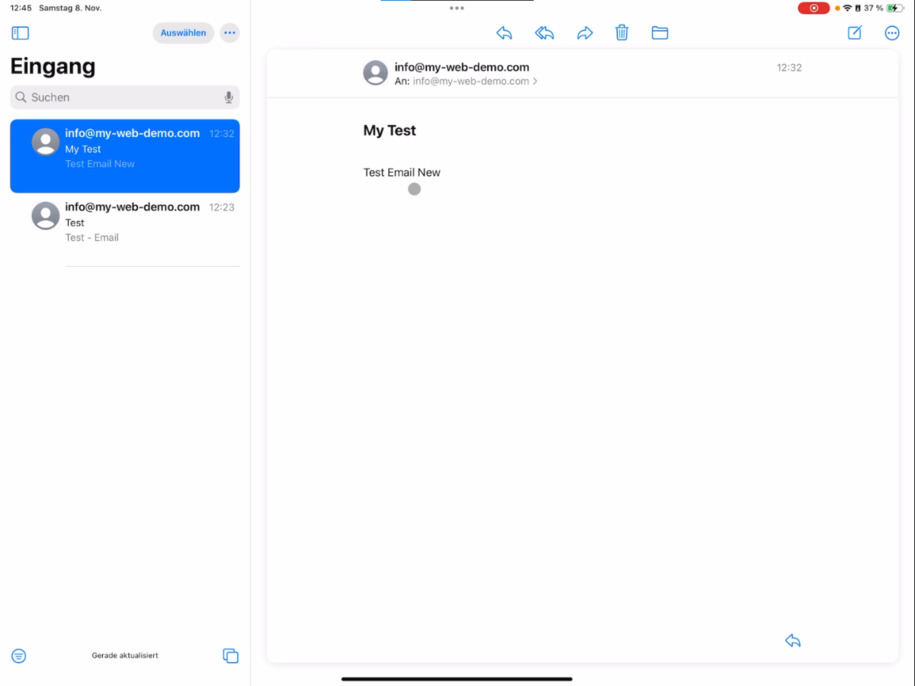
Have fun setting up and testing!
FAQ
what customers often ask us
What do I need to set up my email account in the mail client?
You must have previously created a domain and a corresponding email address in the CMS. The setup takes place in editing mode under Email ⯈ Accounts.
Where can I find the access data for my mail client?
Below your email address, you can click on Access Data. There you will find the username, password, and incoming and outgoing servers.
Why can I see my password in plaintext only once?
For security reasons, the password is only visible immediately after the address is created. Therefore, copy it immediately or save it in a password manager.
How do I add my account on iPad, iPhone, or Mac?
Go to your device's settings ⯈ Mail Accounts ⯈ Add Account ⯈ select Other ⯈ Add Mail Account. Enter the name, email address, password, and server data there.
Which account type should I choose: IMAP or POP3?
Choose IMAP. This keeps all devices (phone, tablet, PC, Mac, Linux) synchronized. Sent and received messages are displayed everywhere simultaneously.
What data should I enter for incoming and outgoing servers?
At bluetronix, the username, password, and hostname for both directions are identical. You can find the exact data in the Access Data.
What should I do if my device cannot connect?
Check the username, password, and hostname again. Make sure you're entering your full email address and that IMAP is selected.
How do I know if the account has been successfully set up?
After clicking Next, your device checks the connection. If no error message appears and you can then tap Save, the account is connected.
Can I immediately send and receive emails afterwards?
Yes, just open your mail client and retrieve your messages. Test emails appear immediately synchronized across all devices.