

Change password for your email account in the Bluetronix CMS
In this tutorial, you will learn step by step how to change the password of your email account in the CMS, what to consider for secure passwords, and why you need to update the password on all devices afterwards.
Change password for your email account
In this tutorial, we will show you how to quickly and securely adjust the password of your email address in the CMS. Open Email ⯈ Accounts in edit mode and select your address.
Under your email address, you will find the button Password. There you can assign a new password for your mailbox.
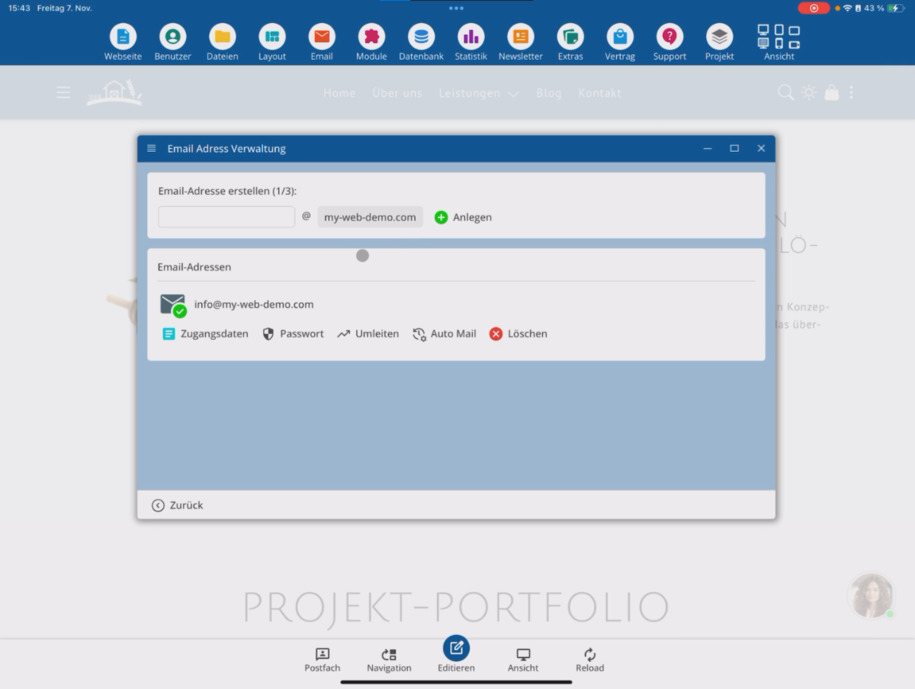
Important: After you change the password in the CMS, you must also update it in all mail clients (e.g., Outlook, iPhone, Mac, Windows), otherwise they will no longer be able to connect.
Tips for a secure password
The system provides hints for password security. It is best to use a combination of uppercase/lowercase letters, numbers, and special characters, with a length of at least 12 characters.
As a guideline, you can use a format like Example!2025#Mail — customize it individually and do not use an easily guessable word.
Complete change
Tap on Change password to save the new credentials. Afterwards, the password for your email account is updated in the system.
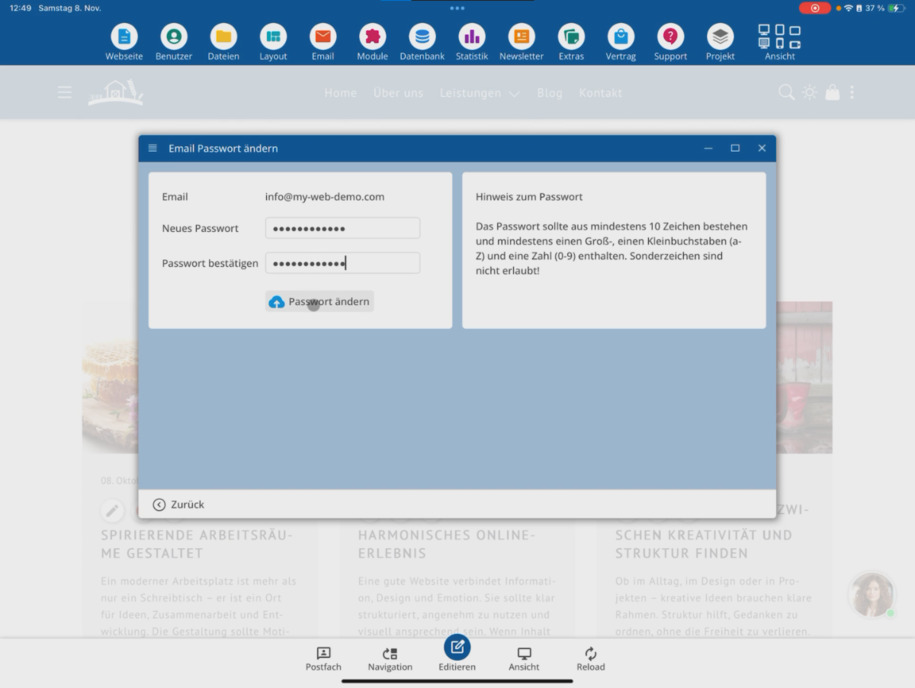
Don't forget to update your access data in your mail programs afterwards to ensure sending and receiving works again immediately.
FAQ
what customers often ask us
Where can I find the option to change my password?
In edit mode, click on Email ⯈ Accounts. Under your email address, you will find the button Password, through which you can assign a new password.
What do I need to consider after changing my password?
You must update the new password on all devices and mail clients — for example, on Outlook, iPhone, Mac, or PC. Otherwise, they will not be able to connect to your mailbox.
How do I create a secure password?
The system provides hints for a strong password. Use a combination of letters, numbers, and special characters, as well as a sufficient length.
How do I confirm the change?
After you have entered your new password, tap on Change password. Your password will be stored immediately.
Why do I see the password in plain text only once?
For security reasons, the password is only displayed in plain text immediately after creating the address. Afterwards, you can change it at any time in the Password section.