

Automatic out-of-office reply for email accounts
This section explains step by step how to set up automatic out-of-office replies for your email addresses. Afterwards, your bluetronix CMS will automatically send reply emails with your message text for new messages, such as vacation notice and the time of your return.
Access the email section
Start the bluetronix CMS and select the E-Mail menu item. There you manage the sending and receiving of your messages. Click on Accounts within E-Mail.
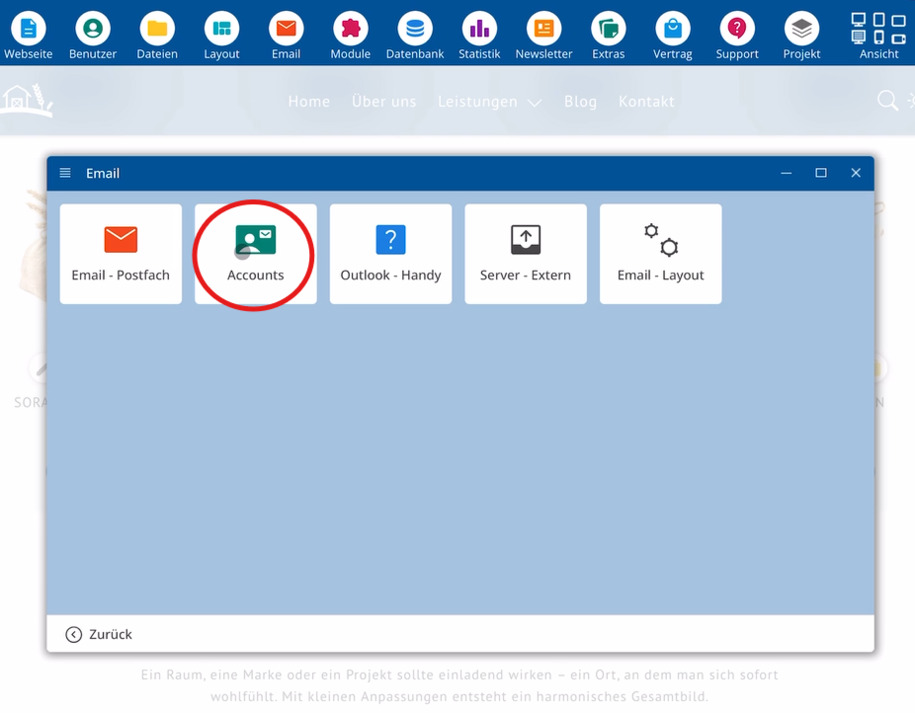
Open Auto Mail
Find your address and use the Auto Mail button directly next to this row. This is where you set up your automatic response.
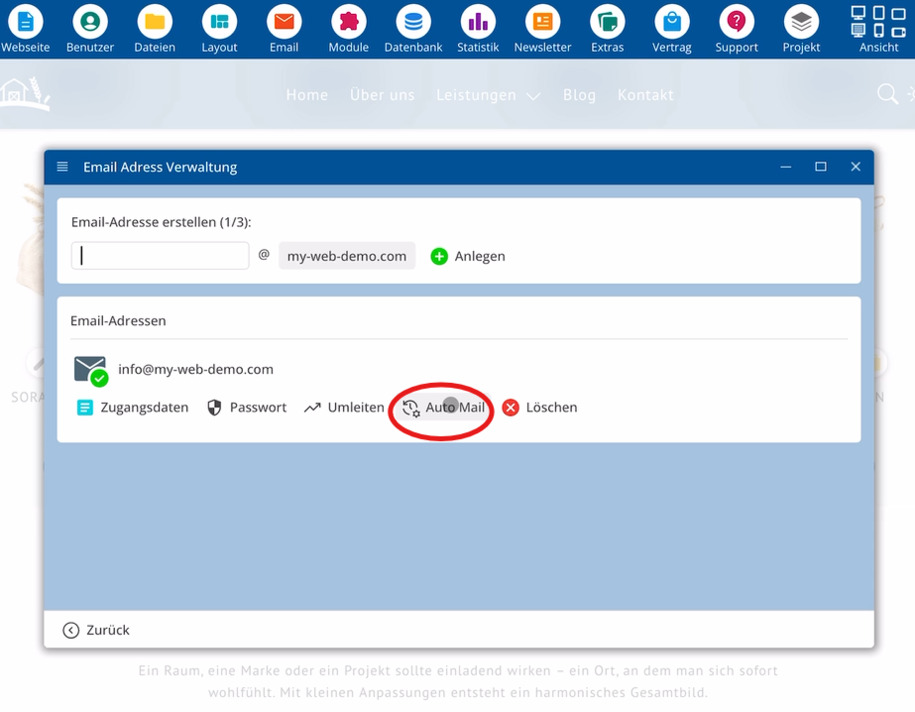
Capture out-of-office message
Open the Auto Mail section. Create your text for the out-of-office notice there, for example, a vacation message with the duration and return date.
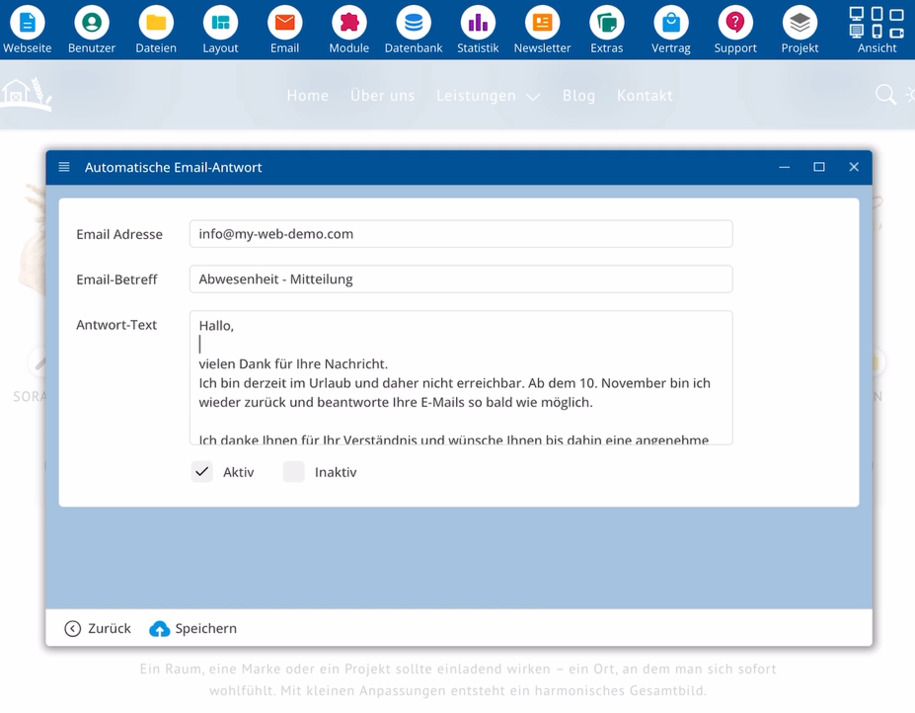
Automatic response to customers
As soon as a customer sends a message to your address, the system automatically sends a response with your text, such as vacation notice and the time of your return. This way, the customer immediately sees that their email has been received and that you need a bit more time for a personal response.
Save out-of-office notice and use it later
Save your out-of-office message using the appropriate button within the Auto Mail section. The text will be stored permanently.
For upcoming absences, you keep the same content, and you can activate the function in between. The details remain saved, allowing you to simply switch the status back to active later.
You can switch between active and inactive out-of-office messages at any time. The stored texts remain intact and can be reused for each new absence.
FAQ
what customers often ask us
How do I set up an automatic out-of-office notice for my account?
Open the bluetronix CMS, click on E-Mail, select Accounts, find your address, and use the Auto Mail button. This is where you specify your out-of-office message text and save everything.
What happens when customers write during my absence?
As soon as customers send a message to your address, the system automatically sends a response with your saved text, such as vacation notice and the time of your return.
Do customers know that their message has been received?
Yes. The automatic response lets the sender know immediately that their email has been successfully delivered and that you need more time for a personal response.
Can I reuse the text for future absences?
Yes. You keep your out-of-office text and set the function to inactive in between. The details remain saved and can be used again for later absences.
How do I deactivate the out-of-office notice without deleting the text?
Open the Auto Mail section in your account and set the function to inactive. The text will remain intact and can be used later with an active status.
Can I switch between active and inactive at any time?
Yes. You can set the automatic out-of-office message from active to inactive at any time, and switch back. The saved texts will remain unchanged.
Where can I find the Auto Mail button?
First click on E-Mail and then on Accounts. The Auto Mail button, which you use to manage the automatic reply, will appear under your email address.