

Set up email on iPad – guide with server data
On this page, you will find an easy-to-understand step-by-step guide to configure your bluetronix email account on the iPad. You will receive all necessary server data (hostname, username, password), information about ports, SSL, and troubleshooting tips to ensure that sending and receiving your emails works smoothly.
Find email data
If you haven't set up an email address yet, first complete the step "Create Email Address".
Open your bluetronix homepage in edit mode.
Go to Email ⯈ Email address management.
Click on Access data for the desired address.
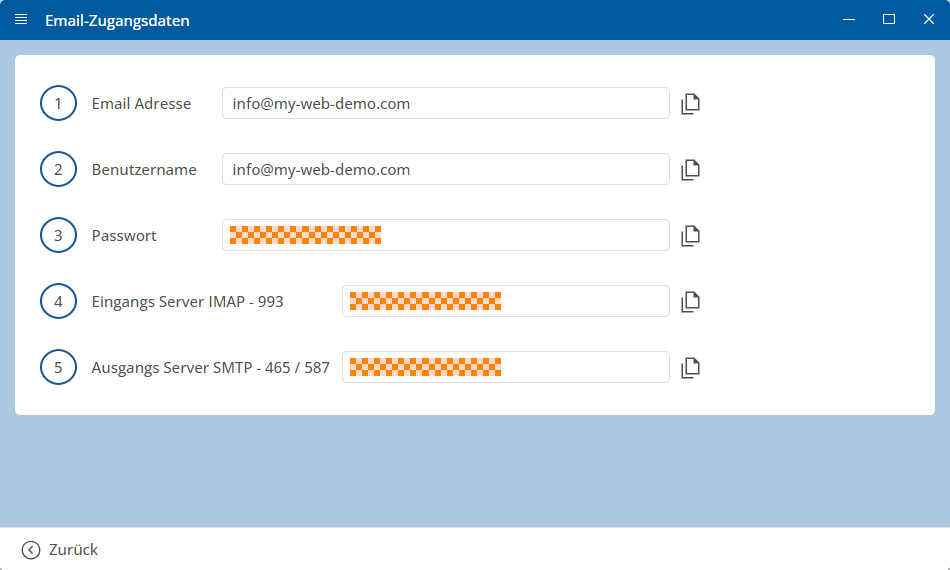
Important: Enter all data exactly as specified in the credentials. Pay attention to uppercase and lowercase letters.
Set up iPad.
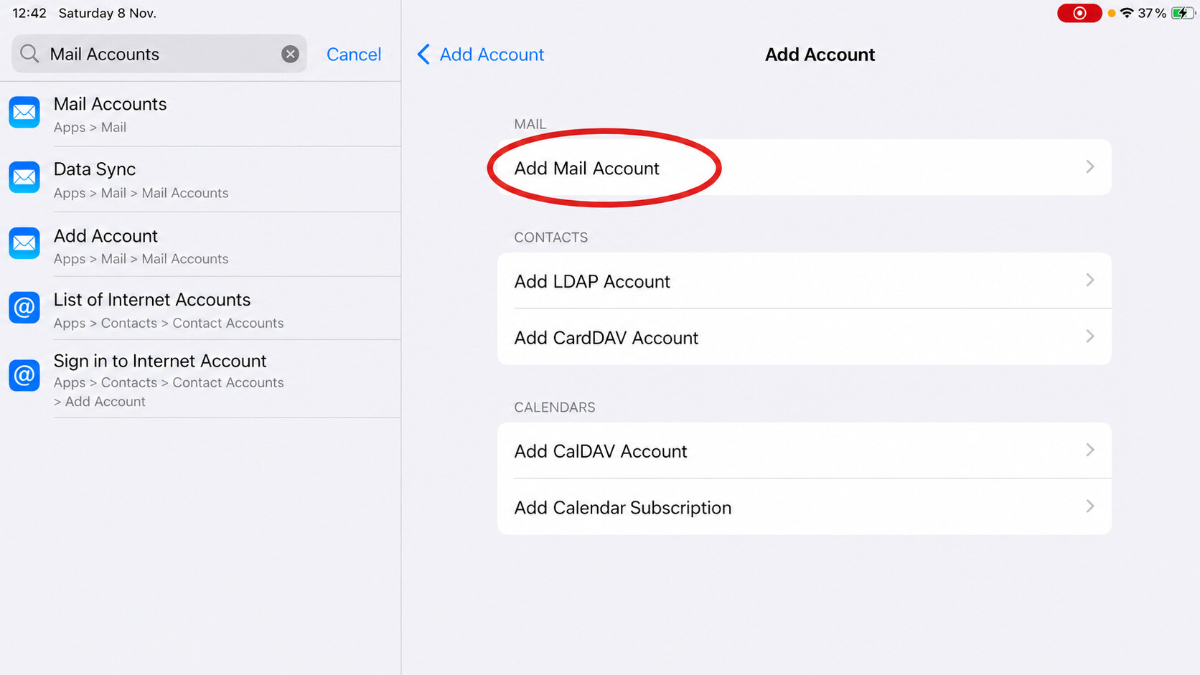
Open Settings on your iPad. Search on the left for Mail Accounts and tap the Mail Accounts entry.
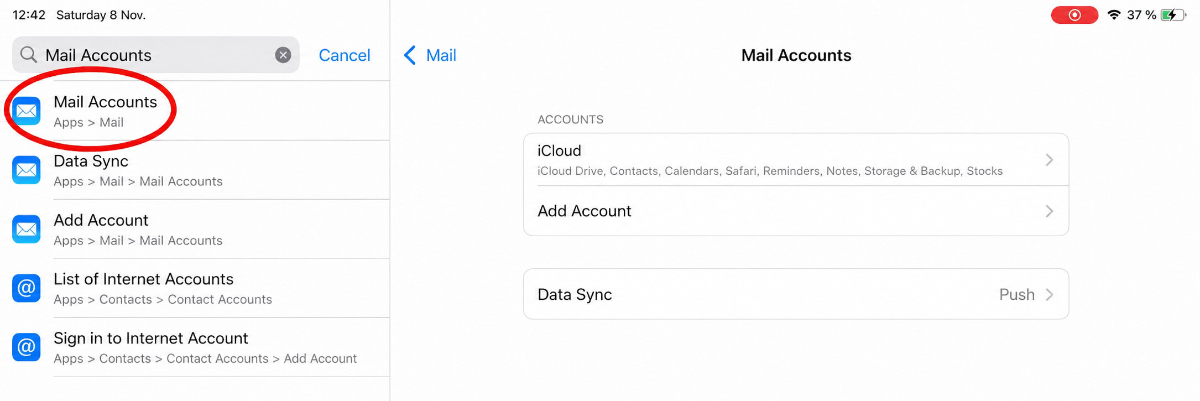
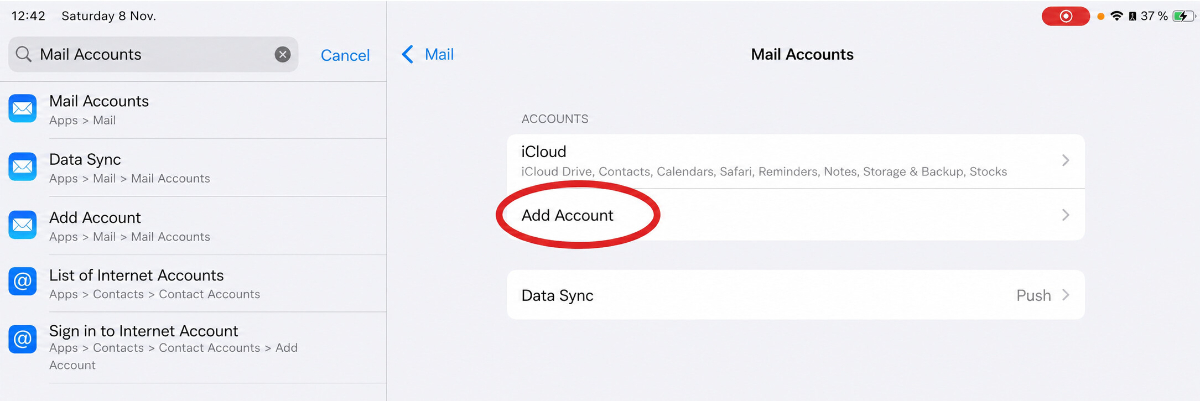
Tap Add Account.
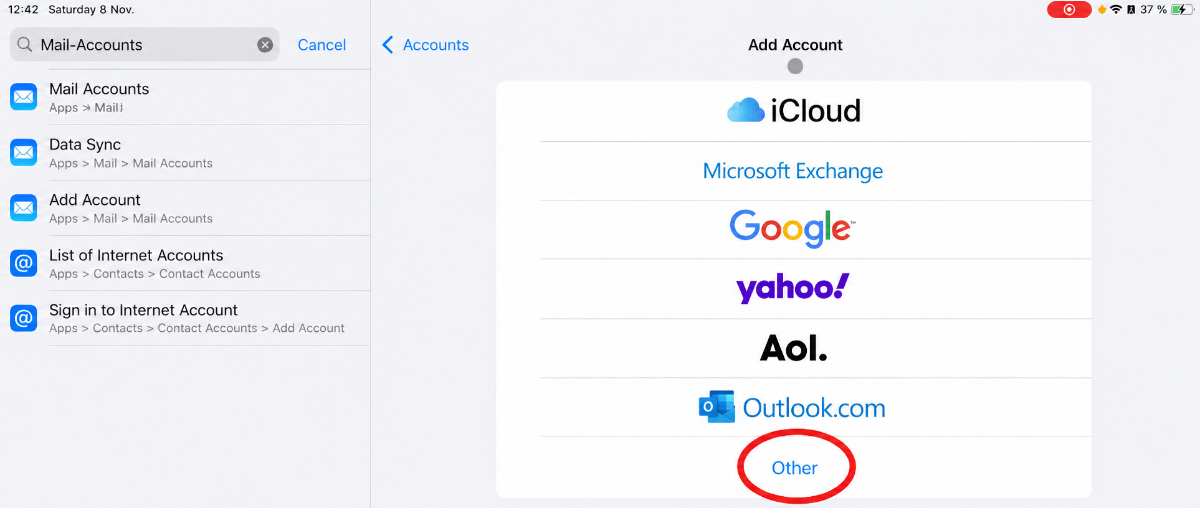
Select Other from the suggested account types.
Then tap Add Mail Account.
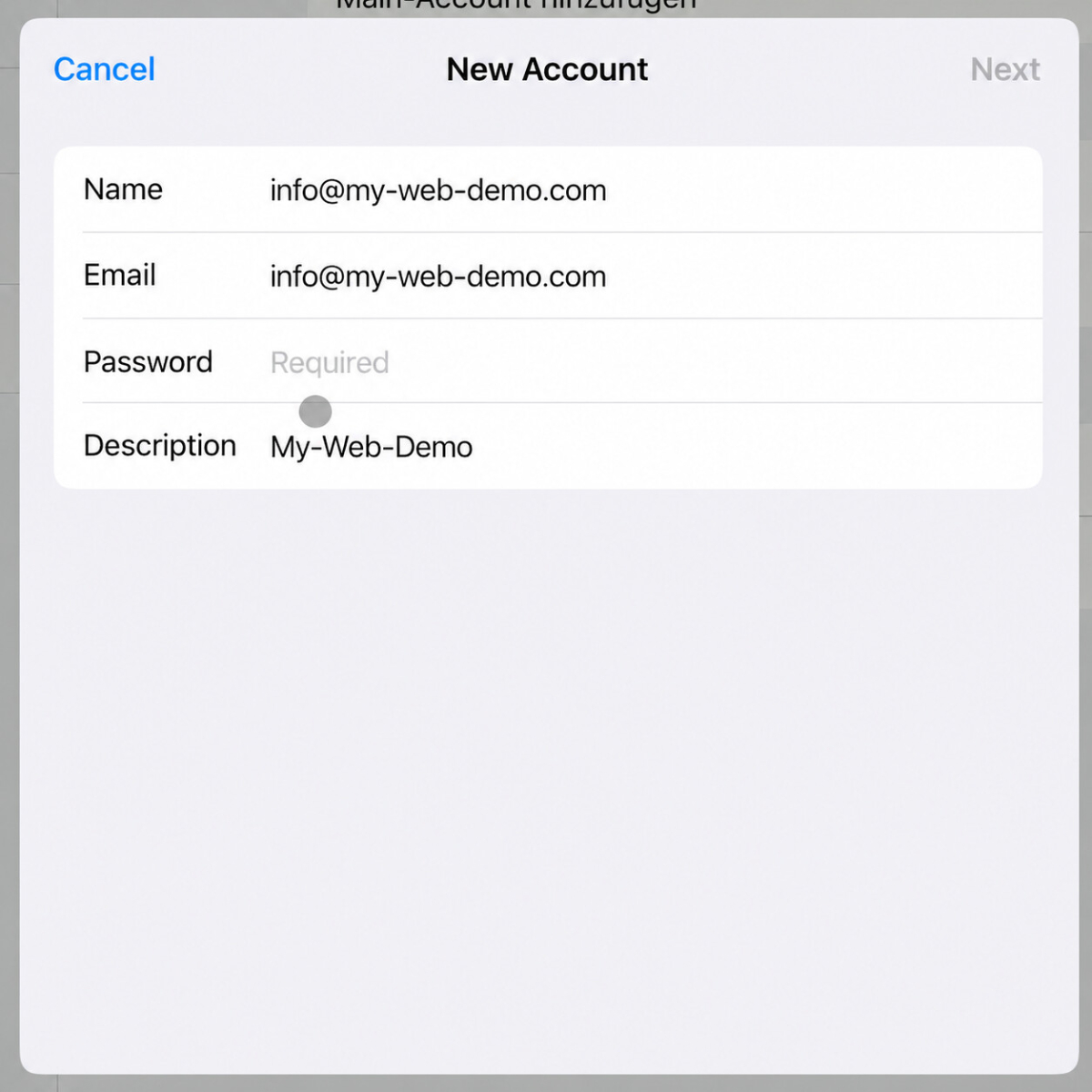
Now enter your basic data:
Name: Here you can enter your name or your email address.
Email: Enter the email address from your access credentials.
Password: Enter the password from your access credentials.
Description: Here you can enter a custom name, such as the name of your website or company.
Then tap Next.
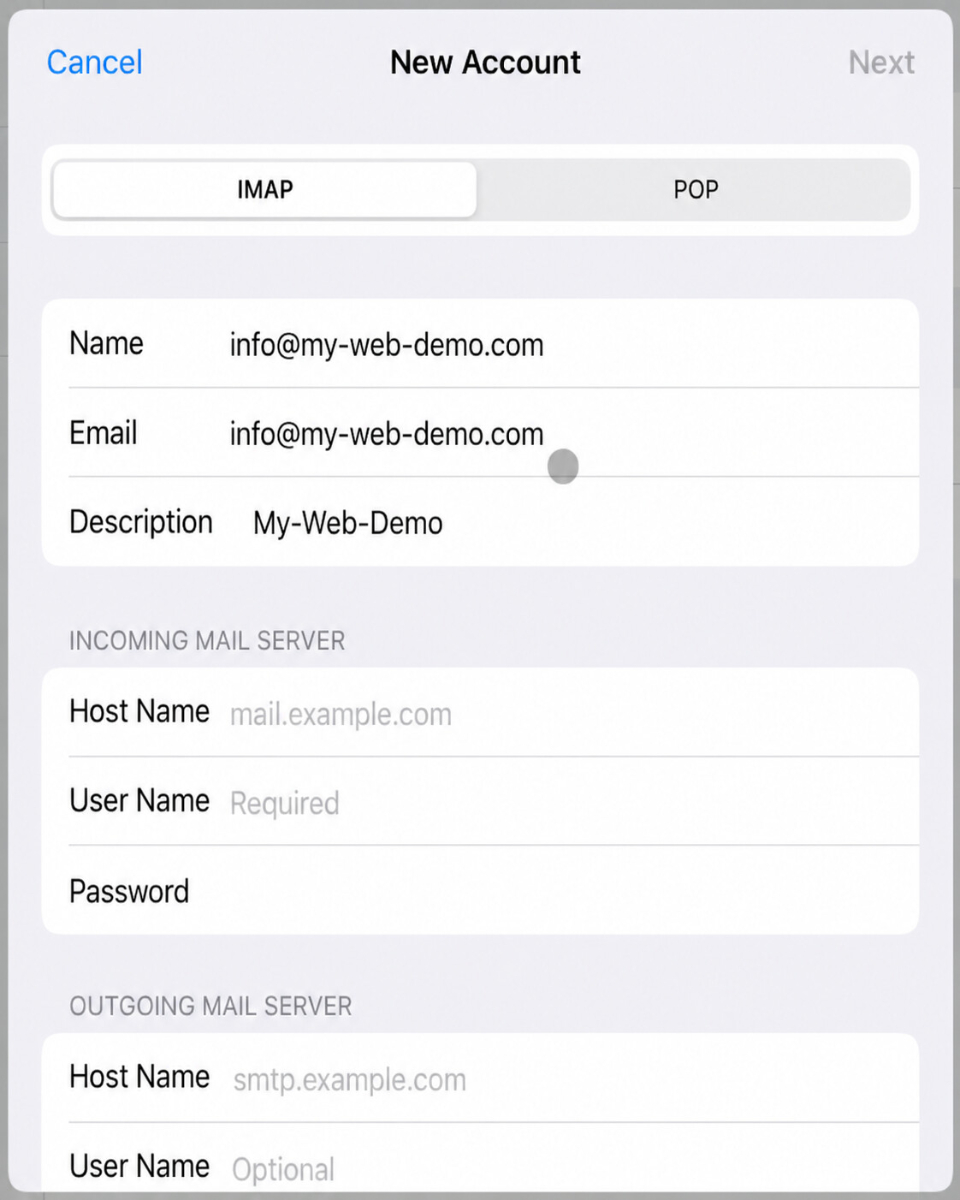
Select IMAP at the top. Then the settings for the incoming server and outgoing server will appear.
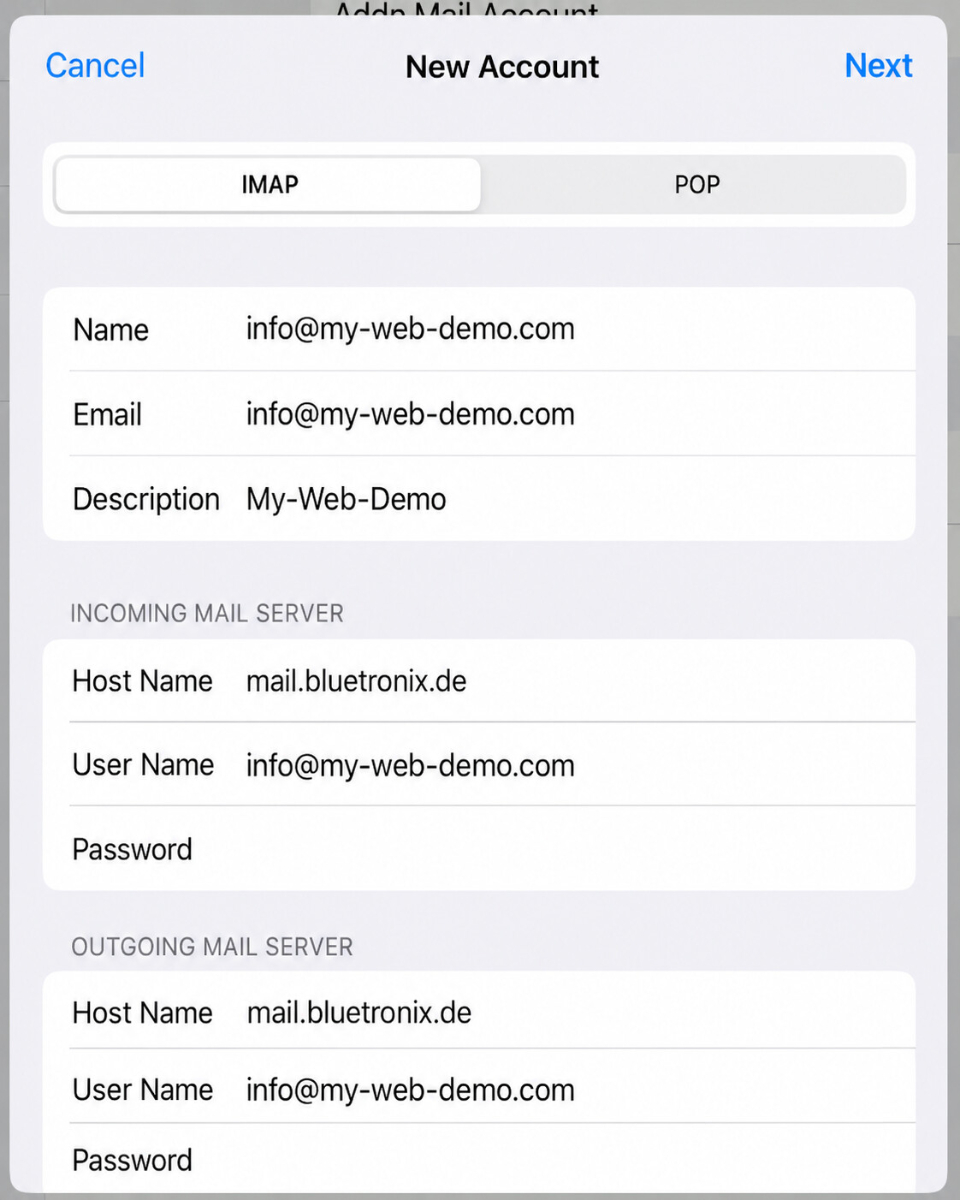
Enter the server data exactly as shown in your bluetronix access credentials.
Server for incoming emails:
Hostname: Enter the incoming server from your access credentials here.
Username: Enter your full email address here.
Password: Enter the password from your access credentials here.
Server for outgoing emails:
Hostname: Enter the outgoing server from your access credentials here.
Username: Also enter your full email address here.
Password: Also enter the password from your access credentials here.
Then tap Next at the top right.
Test emails
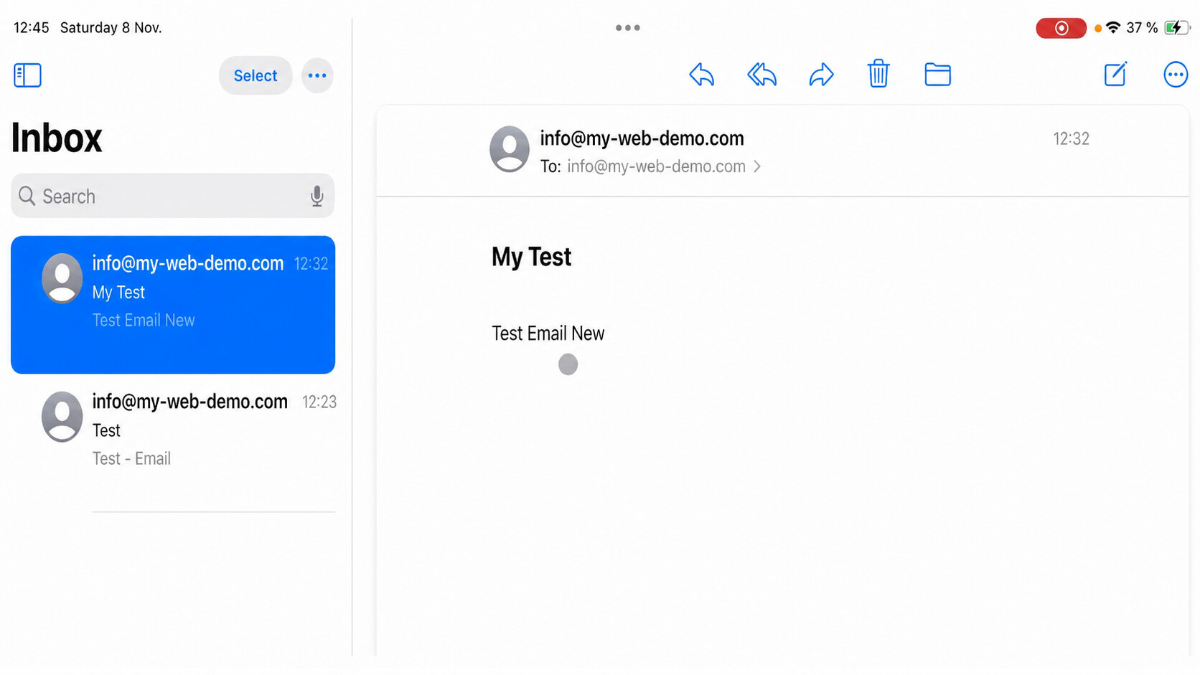
Then open the Mail app on your iPad. Send a test email to your own address and check if the message arrives in the inbox.
If the test email is displayed, the receipt is already working correctly.
If problems occur: Check credentials.
If the iPad cannot establish a connection, double-check the details with your bluetronix access credentials.
Pay special attention to these points:
The email address must be fully entered, for example info@your-domain.com.
The username is also the full email address.
The password must be copied exactly from the access data.
The hostname on the iPad corresponds to the server name from your access data.
The incoming server is used for incoming emails.
The outgoing server is used for outgoing emails.
Important: If your access data shows ports, then IMAP usually uses port 993. For SMTP, the port specified in your access data is used, for example 465 or 587.
Setup completed
If the test message is successfully received and sending and receiving work, the setup is complete.
FAQ
what customers often ask us
IMAP or POP3 – which one should I use?
It is recommended to use IMAP so that emails and folders stay in sync across all devices. POP3 only downloads emails locally and is only useful in special cases.
Where can I find my access data (server, ports, username, password)?
Open your bluetronix homepage in editing mode: Email ⯈ Email Address Management. Click on Access Data for the desired address. Pay attention to the exact case.
What ports and encryption do I need?
IMAP: Port 993 with SSL/TLS.
SMTP: Port 587 (or 465, depending on access data) with STARTTLS/SSL and active Authentication: Password.
How can I quickly test if everything works?
Send yourself an email. If it arrives in the Inbox and appears in the Sent folder, everything is set up correctly.
Troubleshooting – common causes
Check server names, ports, SSL/TLS, Authentication: Password, username (often the full email address), and password. If folders are missing, set the root folder path/IMAP server directory to INBOX and subscribe to IMAP folders.
How do I add the address?
Settings ⯈ Mail ⯈ Accounts → Add Account → Other → Add Mail Account.
IMAP and server data
Select IMAP at the top. Enter Hostname, Username, Password for incoming/outgoing respectively → Next → Save.
SSL and ports
If specified in the access data: activate Use SSL. IMAP port is often 993, SMTP port is usually 587. Authentication: Password.