

Create subdomain for existing domains
This section explains step by step how to create an additional subdomain for existing domains. Afterwards, you will see your test subdomain with a green checkmark and can use it as the main domain, redirect it to a directory, or associate it with a language.
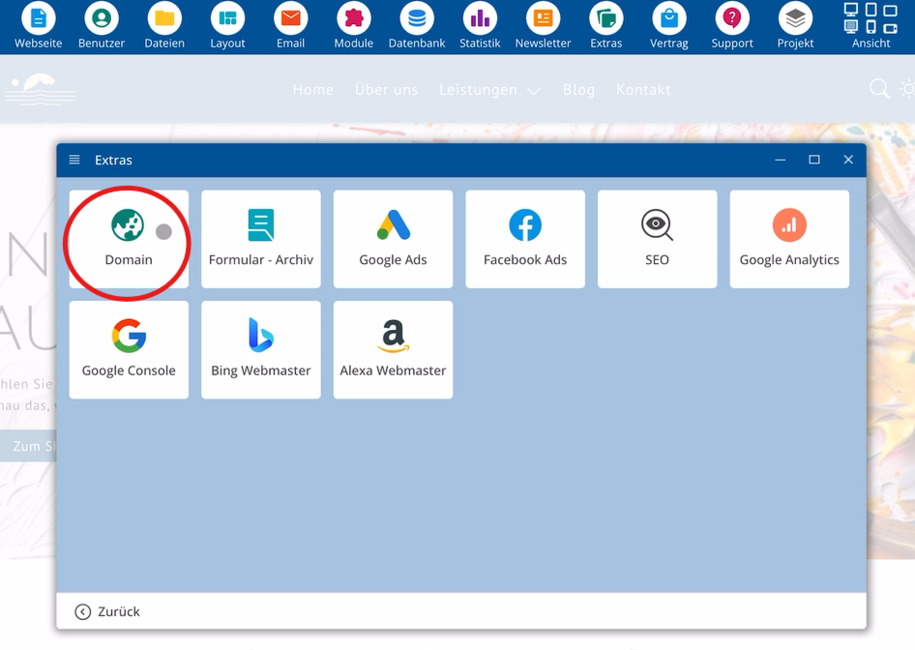
Bereich Extras > Domain öffnen
Start the bluetronix CMS, select the menu Extras, and then Domain. A list of domains you have already set up will appear below.
Test-Subdomain anlegen
Now create a test subdomain. To do this, click Create on the right.
Nach diesem Schritt zeigt die Übersicht einen neuen Eintrag für die Test-Subdomain. Ein grüner Haken neben dieser Domain signalisiert eine erfolgreiche Einrichtung.
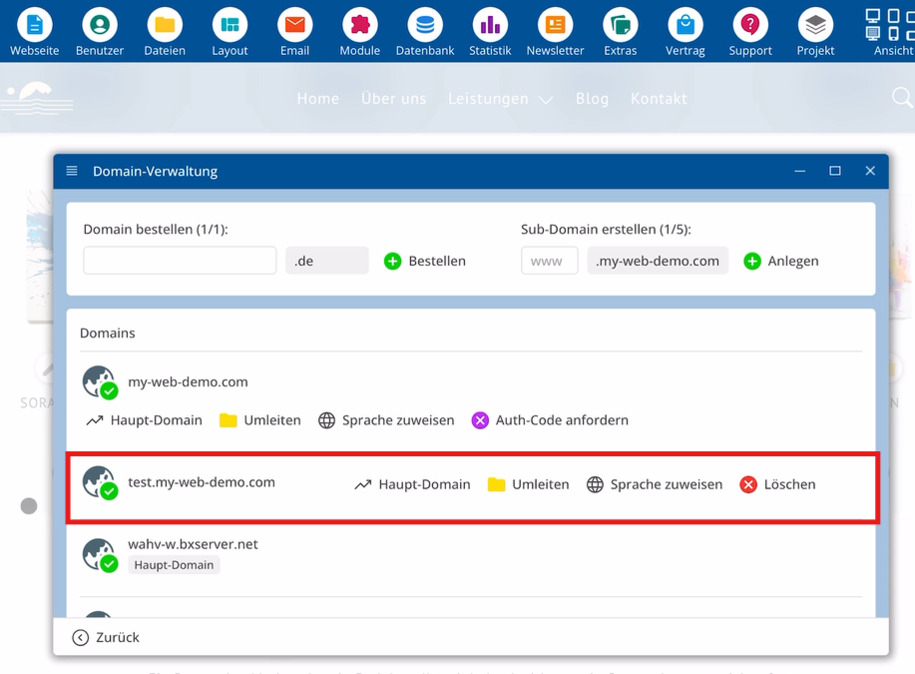
Important elements in the setup:
⯈ Extras – Menu for domain management
⯈ Domain – List of existing domains
⯈ Create – creates a new subdomain
⯈ Green checkmark – indicates successful setup
Weitere Optionen für die Test-Subdomain
Nach der Einrichtung stehen für die Test-Subdomain mehrere Möglichkeiten bereit:
Subdomain als Hauptdomain nutzen
You can designate this domain as the main domain, allowing you to primarily reach your website via this address.
Subdomain auf ein Verzeichnis leiten
Auf Wunsch leitest du die Subdomain auf ein Verzeichnis weiter. Aufrufe über diese Adresse landen dadurch direkt bei diesem Verzeichnis.
Subdomain mit einer Sprache verknüpfen
Zusätzlich ordnest du dieser Subdomain eine Sprache zu. Dadurch verknüpfst du die Adresse mit einer bestimmten Sprache.
Durch diese Möglichkeiten passt du die Nutzung der Subdomain exakt an deine Anforderungen an.
FAQ
what customers often ask us
How do I access the management of my domains?
Start the CMS, select the menu Extras, and then Domain. On the right, an overview of already configured domains appears.
Where can I see which domains are already available?
After calling Extras and Domain, the right side displays a list of domains you have previously set up.
How do I create a test subdomain?
Open the domain management via Extras and Domain, click on Create on the right, and this will create a test subdomain.
How can I tell that the test subdomain has been successfully set up?
After creating it, the test subdomain appears in the list. A green checkmark next to this domain indicates that the setup was successful.
Can I use the test subdomain as the main domain?
Yes. If desired, you can set this domain as the Main Domain, so that accesses primarily occur through this address.
What additional options do I have for my subdomain?
You can redirect the subdomain to a directory or assign a language to this subdomain, depending on your intended use.