

Assign language for domain or subdomain
This section describes step by step how to set a language for a domain or subdomain. You will then be able to access your website permanently through corresponding addresses for each language, and AI will provide the respective translated content.
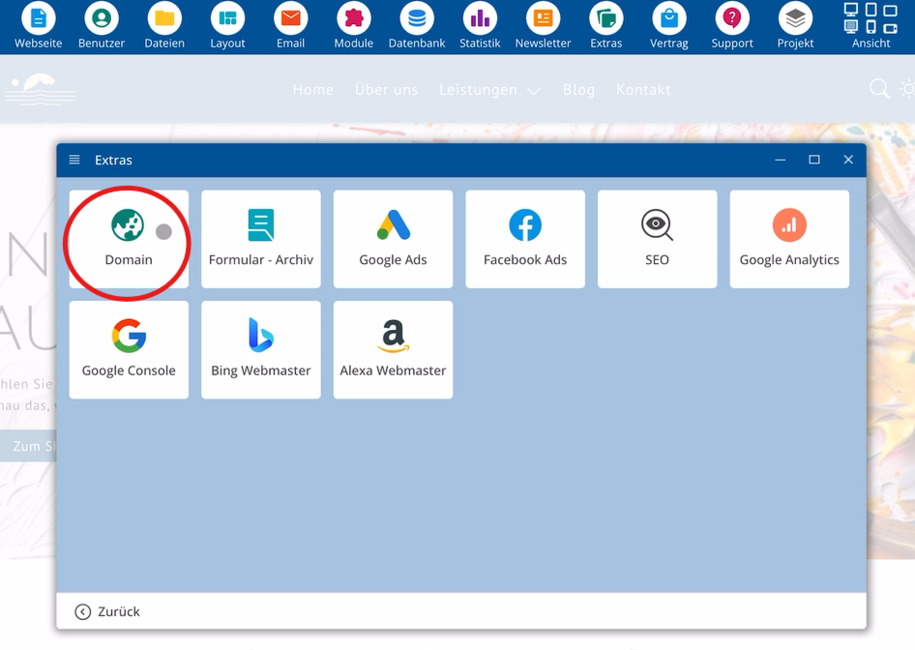
Access the Extras > Domain section.
Start within the bluetronix CMS and click on Extras. Then select the entry Domain to manage domains and subdomains.
Create a subdomain for a language
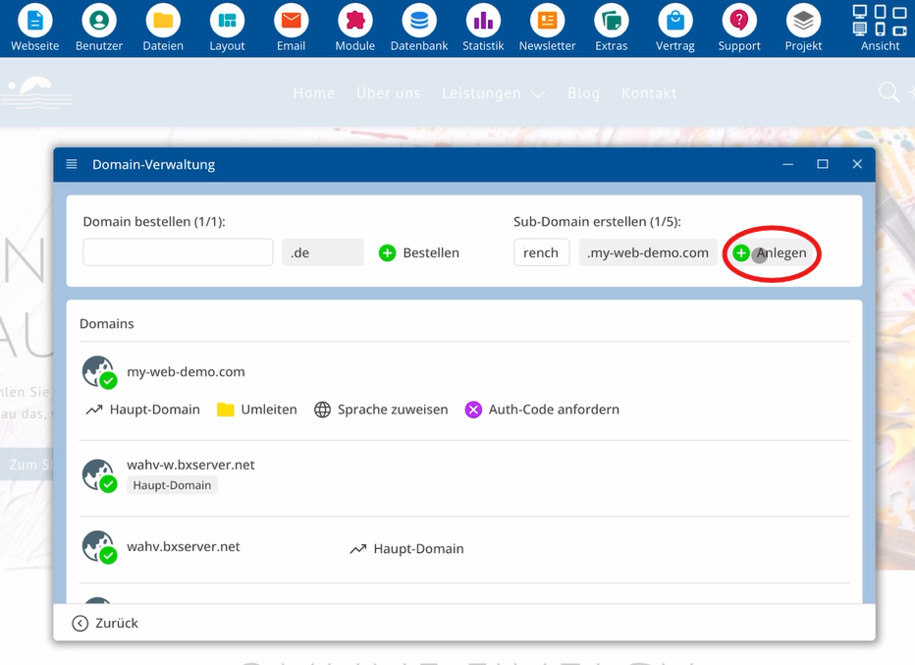
First, create a subdomain, for example for French. To do this, click on Create within the Domain Management.
Assign a language to the subdomain
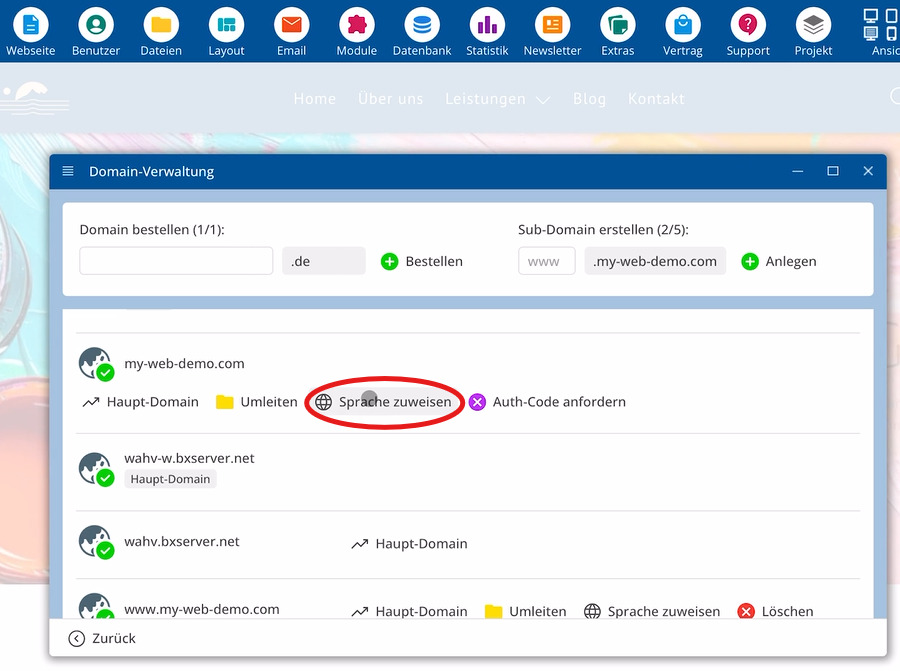
Once the subdomain is present, select this address and click on Assign Language, for instance French.
From this point on, the CMS associates this subdomain with French. AI will translate your website for access through this subdomain into French, and visitors will see French content there permanently.
An assigned language applies permanently to this subdomain until you delete the assignment.
Important elements in language assignments:
⯈ Extras – Menu item for managing domains
⯈ Domain – Area for domains and subdomains
⯈ Create – Create new subdomain
⯈ Assign Language – Set language for domain or subdomain
Set the language for the main domain
A language can also be directly assigned to a domain without a subdomain, thereby setting a default language for your main domain.
By default, your main domain uses the language you selected when installing the CMS.
If you change the selection here, your main domain will be completely in English or completely in French, for example.
Remove language assignment
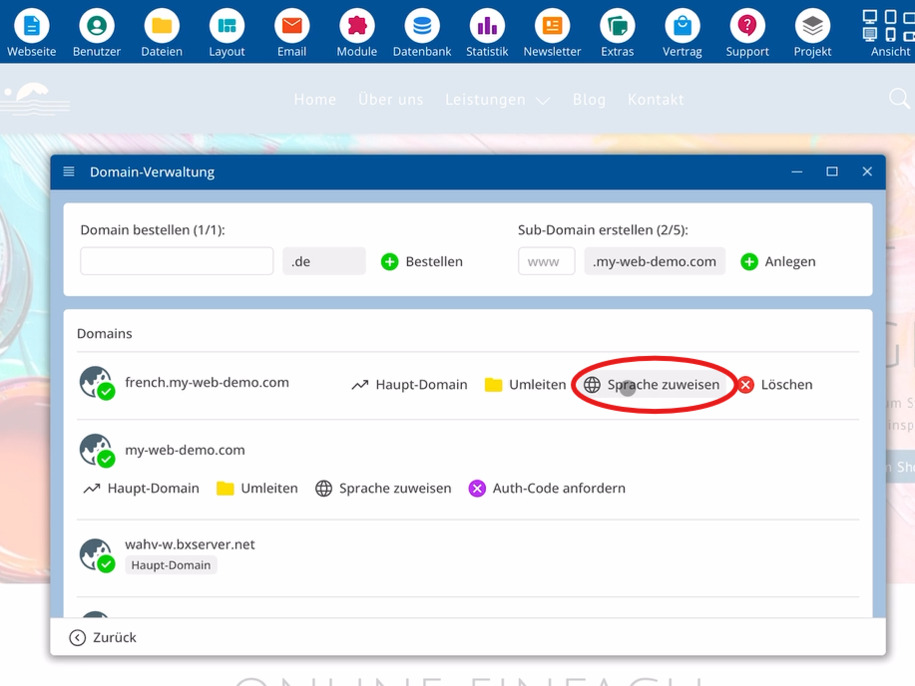
If you later want to remove an existing language assignment, select the respective domain or subdomain and delete the assigned language there.
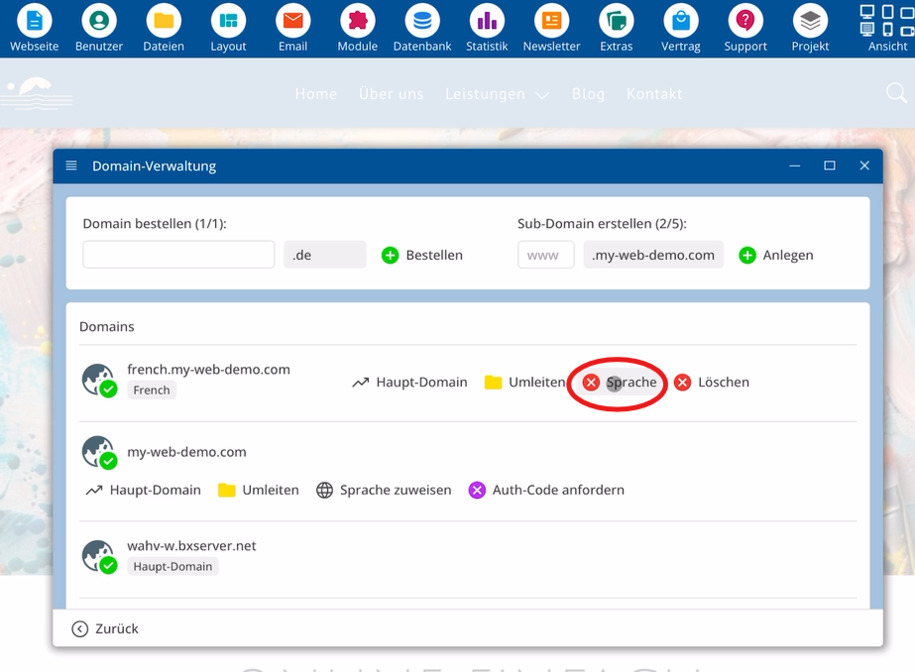
After removing the language assignment, the domain will again function without a fixed language and will default to the standard language.
FAQ
what customers often ask us
How do I open the management for domains and subdomains?
Start bluetronix CMS, click on Tools and then select Domain. There you can edit domains and subdomains as well as their language assignments.
How do I create a subdomain for a language?
Go to the Domain section and click on Create. This will create a new subdomain that you can then use for your desired language.
How do I assign a language to a subdomain?
Select the desired subdomain, click on Assign Language, and choose a language, for example, French. After that, this subdomain will be linked to the chosen language.
What is the effect of the language assignment for a subdomain?
After the assignment, the CMS connects this subdomain with the chosen language. AI translates your website for visits through this address into that language, visitors will see relevant content there permanently.
Can I also set a language for the main domain?
Yes. You can select a domain without a subdomain and set a default language there via Assign Language. Your main domain will then present the website entirely in this language, such as English or French.
What language does the main domain use without any changes?
Without your own selection, your main domain uses the language that you chose during the installation of the CMS. Only when you assign another language will the page appear in this new language.
How do I remove an existing language assignment?
Select the relevant domain or subdomain, open the language assignment, and delete the designated language there. After that, there will be no fixed connection between this address and a specific language anymore.