

Email troubleshooting for sending or receiving issues
This section shows step by step how to proceed if you have difficulties with sending or receiving. After that, you can check if your account within the bluetronix CMS is working correctly, whether the server is reachable, and that you are using help for mail programs.
E-Mail-Bereich öffnen
Start bluetronix CMS and click on Email. There you will find all functions related to sending and receiving.
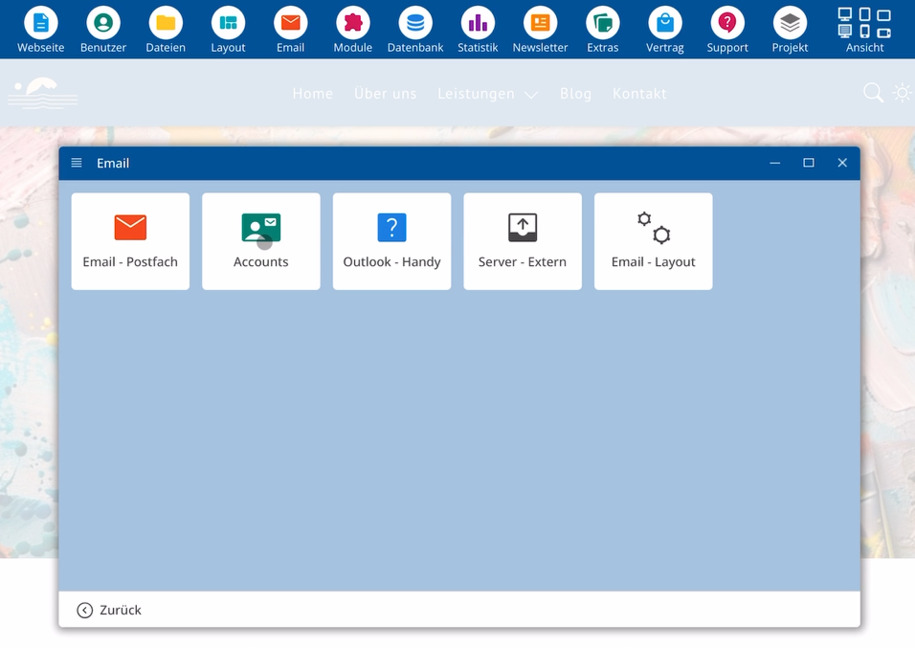
Account prüfen
Switch to the Accounts section. Ensure that your email address is listed there and shows a green check mark. This symbol indicates correct setup.
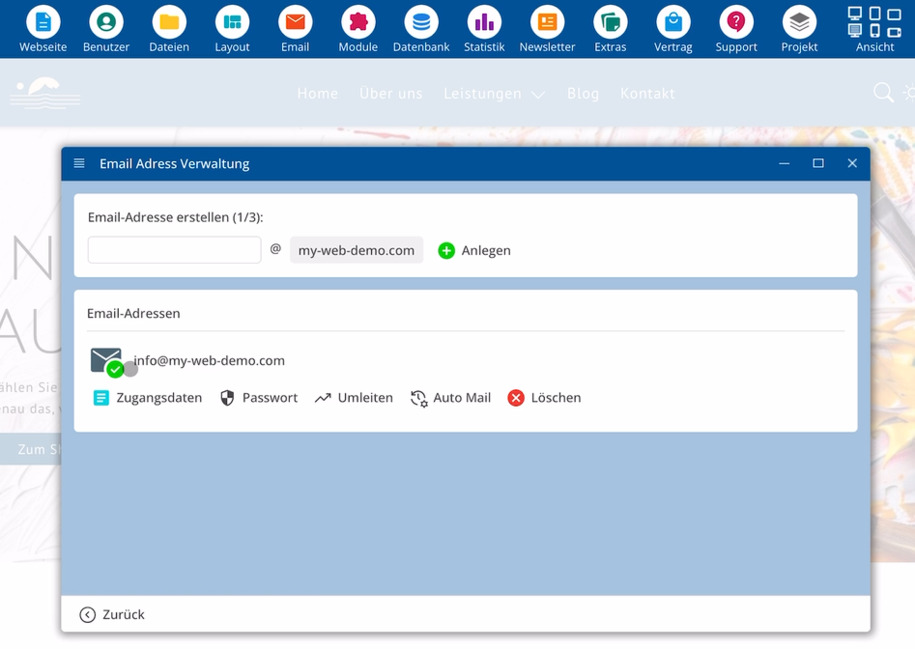
Then compare all data from the Accounts section with the information in your mail program:
⯈ Address from the Accounts section
⯈ Access data according to CMS entry
⯈ Entries within your mail program
Webmailer testen
Open the entry Email mailbox and then select Read Emails. This will start the webmailer.
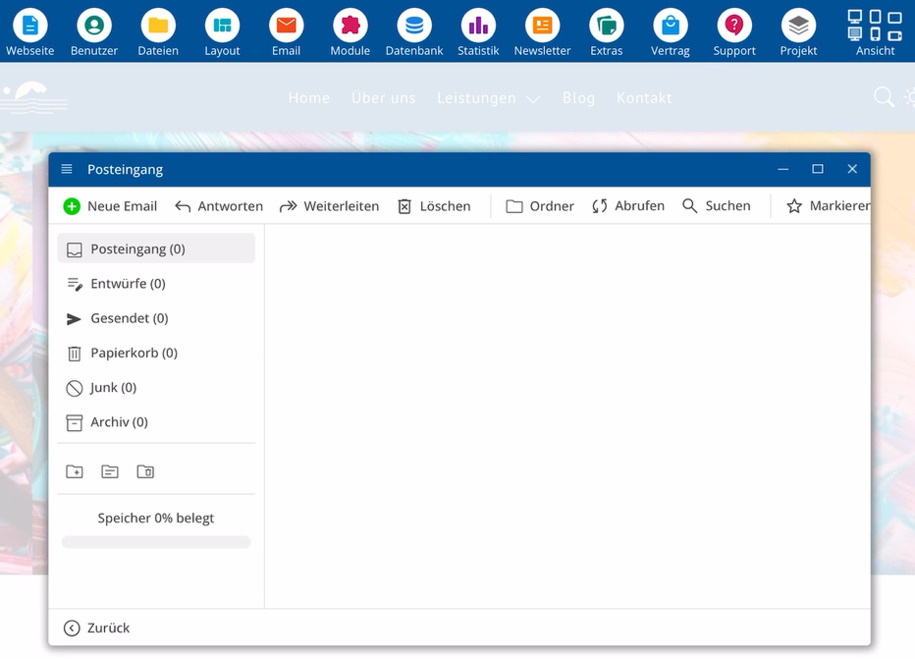
Schicke dir selbst eine Mail über den Webmailer. Wenn dieser Test klappt, passt die Server-Konfiguration. Adresse und Domain lassen sich erreichen, der Server arbeitet korrekt.
Funktioniert der Webmailer, liegt ein Fehler meistens bei den Einstellungen deines Mail-Programms, nicht auf dem Server.
Hilfe für Mail-Programme nutzen
Bestehen weiterhin Probleme beim Abruf oder Versand über dein Mail-Programm, öffne in der Dokumentation den Bereich E-Mail.
There you will find help for different programs, such as Outlook or mobile configuration. Select the appropriate help.
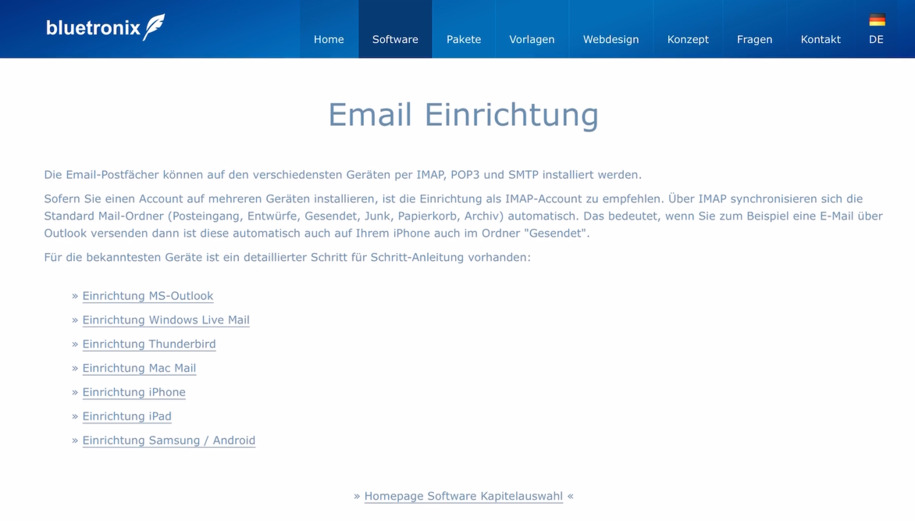
Die Anleitung öffnet sich über einen externen Browser. Für jede gängige Konfiguration und jedes verbreitete Programm steht ein ausführliches Tutorial bereit.
Gehe Schritt für Schritt durch diese Anleitung und prüfe sorgfältig, ob alle Zugangsdaten exakt eingetragen wurden.
FAQ
what customers often ask us
Open bluetronix CMS, click on E-Mail, and switch to Accounts. Check whether your address is shown with a green checkmark and whether all access data is correct. Compare this information with your mail program.
Wie erkenne ich, ob mein Mail-Account korrekt eingerichtet ist?
Within the E-Mail menu, access the Accounts section. If your address is shown with a green checkmark, the account is considered set up correctly.
Wie teste ich den Webmailer?
Within the E-Mail menu, select E-Mail inbox and then Read emails. If the webmailer starts, you can send a test email to your own address.
Was bedeutet es, wenn der Webmailer funktioniert?
Sobald du über den Webmailer eine Testmail empfängst, passt die Server-Konfiguration. Deine Mail-Adresse und deine Domain sind erreichbar, der Server arbeitet korrekt.
Was mache ich, wenn der Versand über mein Mail-Programm trotzdem nicht funktioniert?
Öffne in der Dokumentation den Bereich E-Mail und rufe die Hilfe für dein Programm auf, zum Beispiel für Outlook oder für die Handy-Einrichtung. Folge dem Tutorial Schritt für Schritt und vergleiche jeden Eintrag des Programms mit den Zugangsdaten aus dem Bereich Accounts.
Wo finde ich die Tutorials zur Einrichtung von Outlook oder Handy-Mail?
The help for various programs is located within the E-Mail menu. Select the appropriate guide for your program there. This help will open in an external browser and show detailed steps.
Warum soll ich mir selbst eine Mail schicken?
Eine Testmail an die eigene Adresse zeigt, ob Server, Domain und Adresse korrekt zusammenarbeiten. Klappt dieser Test über den Webmailer, liegt ein Fehler fast immer bei den Einstellungen deines Mail-Programms.