

Create editors & manage rights – this is how you work as a team on your website
On this page, you'll learn step-by-step how to add more users as editors, define rights and roles, and securely organize collaboration on your website – from basic writing rights to expert settings.
Collaboration with editors
In this tutorial, you'll see how to work together with multiple users on your website. These users are called editors and receive specific rights for content editing.
Add editors
Start the system and click on Users. Under Editors, you can create new users, so you can work together on the website. Create test users, for example, to check settings in advance.
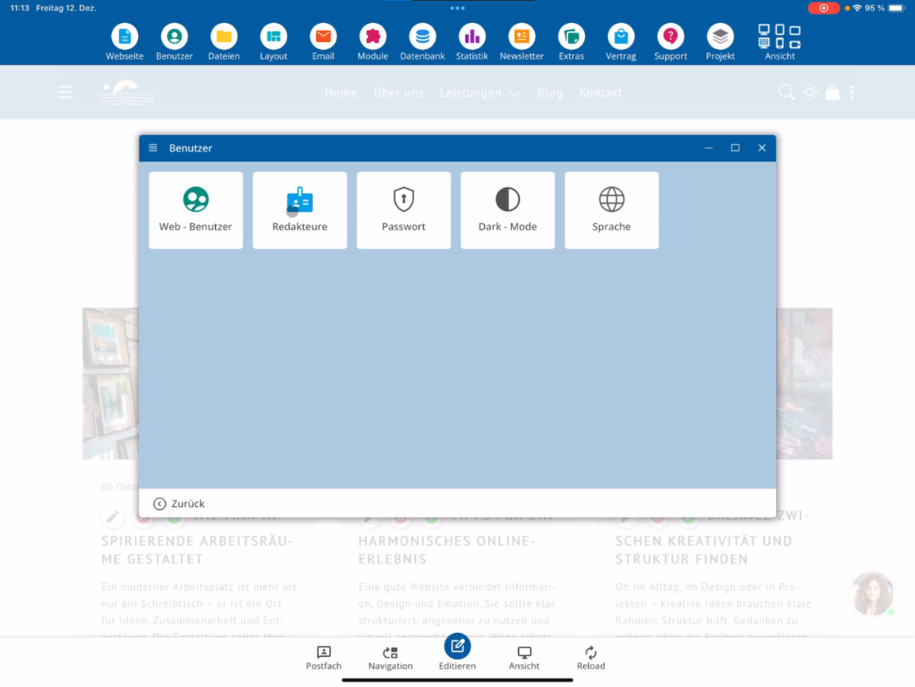
User data & settings
For rights management, click on Permissions. Here you enter salutation, first name, last name, and email address. Additionally, you can specify whether the user receives internal newsletters, which default language is used, and whether dark mode or light mode is active.
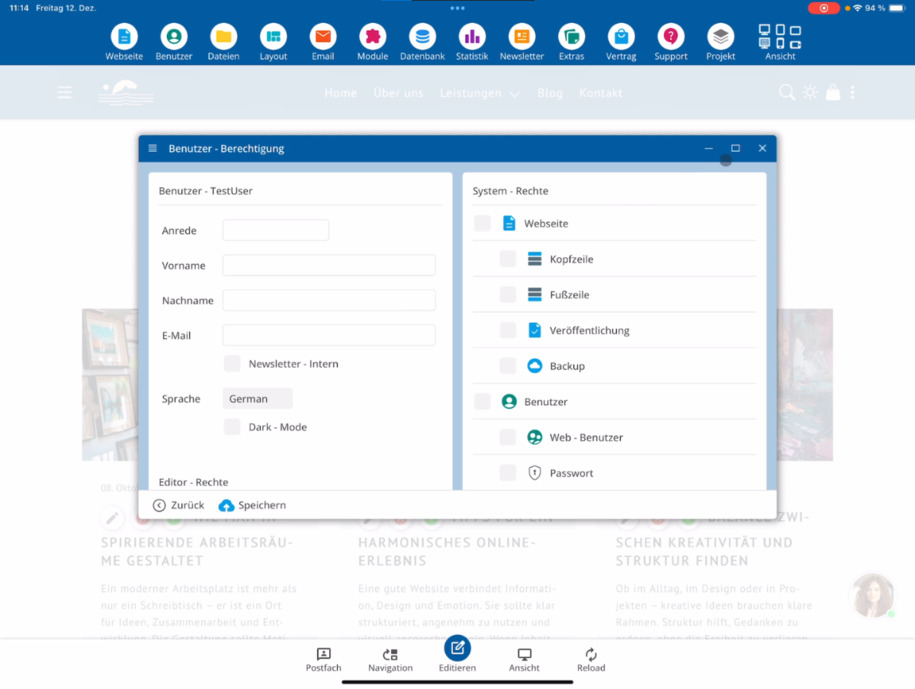
Without an email address, independent reset via Forgot Password is not possible.
Editor levels & access rights
The editor knows three levels:
Basic access rights: Write articles, layout remains locked.
Advanced access rights: Create pages and use extended functions.
Expert settings: Edit all file types, create pages, and use all functions.
If the special right to create, copy, delete, and rename files is missing, the user can only edit existing pages.
Files, databases & security
Carefully decide whether to allow file uploads. Images and PDFs require appropriate licenses – inform your team member accordingly.
Assign database rights such as creating, deleting, or changing columns only if sufficient expertise is available.
If needed, you can unlock additional functions, such as editing navigation, chat, or AI functions.
Assign modules & areas
You can assign modules like website, users, file system, or the website backup system. You decide whether everything is shared or only specific areas.
For file management, you choose everything or a single directory, such as Blog. For email, you specify whether access is granted to all accounts or just a particular address.
For databases, you can restrict access to all tables or specifically to individual areas like Shop or Blog. Additionally, you can assign rights for backups, restorations, and imports.
Check rights & switch view
You can assign all CMS functions from the main menu, including subpoints, individually. If you plan to have a second administrator, save first.
Set example rights and click Save. Then check the user view: only the menu items you have released are visible. In file management, for example, the user only sees the directory Blog.
To exit the user view, use the click path: View ⯈ back to admin view.
Password & user management
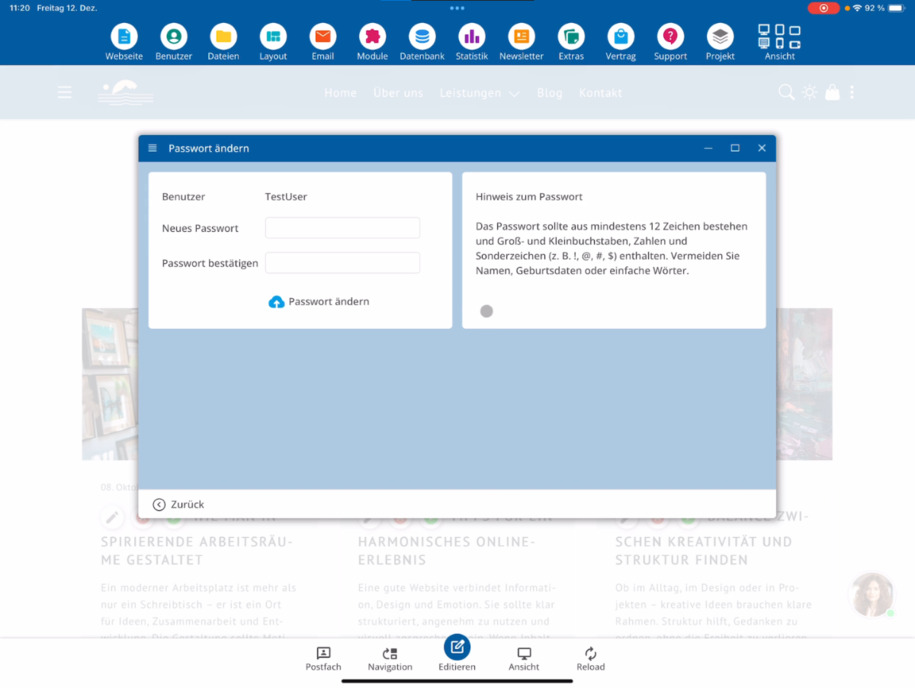
Finally, assign a password and send the username and password to your team member. If the access is no longer needed later, you can block or delete the user at any time.
FAQ
what customers often ask us
What are editors and what are they used for?
Editors are users with whom you collaborate on your website. You can specifically assign them rights so they can create or edit content without having full administrator access.
How do I create a new editor?
Start the system and go to Users ⯈ Editors. There you can create new users, including test users, to evaluate settings in advance.
Where do I assign rights for a user?
You set the rights under Permissions. Here, you determine which functions, modules, and areas the editor has access to.
Why is an email address important for editors?
Without an email address, the user cannot independently use the Forgot Password function. Furthermore, the address can be used for internal newsletters.
What editor levels are there?
There are three levels: basic rights for writing articles, advanced rights for creating pages and using extended functions, and expert settings with full access to all file types and functions.
What happens if the special right for files is missing?
Without the special right to create, copy, delete, and rename files, the user is only allowed to edit existing pages and cannot manage new files.
What should I pay attention to when uploading files?
Allow file uploads only if you trust the user. Images and PDFs must have appropriate licenses – be sure to inform your team member about this.
How do I handle database rights?
Grant permissions to create, delete, or modify columns only with sufficient expertise. You can limit access to all tables or specifically to areas like the shop or blog.
Can I release modules and individual areas?
Yes, you can fully or partially release modules like website, users, file system, or backup system, for example, only a specific directory like blog.
How do I check what an editor can see?
Switch to user view. Only the menu items that you have assigned will be visible there. You can return by going to View ⯈ back to Admin view.
How do I end or revoke a user access?
If the access is no longer needed, you can Lock or Delete the editor at any time.