

File manager in the bluetronix CMS – manage files, images, and code
In this tutorial, you will get to know the file manager in the bluetronix CMS. The tutorial shows you how to manage files and folders, upload or create images using AI, edit content in the editor, and access HTML or PHP code depending on your role.
Dateimanager im Überblick
Dieses Tutorial zeigt dir den Dateimanager im bluetronix CMS. Öffne ihn über Dateien, um Dateien, Ordner und Inhalte zentral zu verwalten.
The folders and HTML files are marked in yellow. TXT files, like robots.txt, are marked in green.
Dateien und Bilder hochladen
Über den Dateimanager lädst du Bilder und Dokumente hoch. Du kannst auch mehrere Dateien gleichzeitig hochladen.
Für Uploads gibt es spezielle Einstellungen. Du kannst festlegen, ob Bilder beim Upload automatisch skaliert werden.
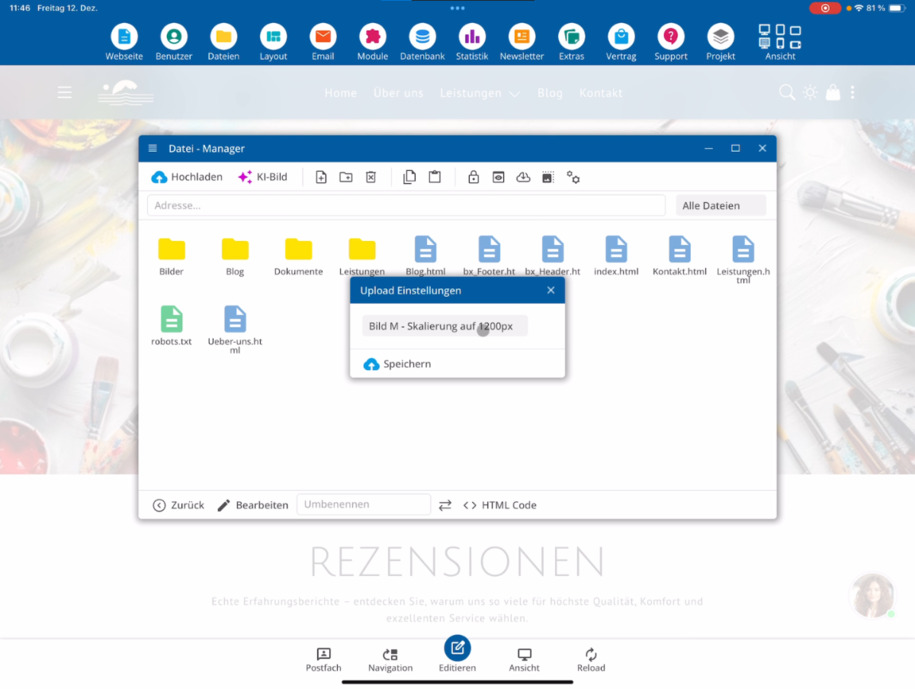
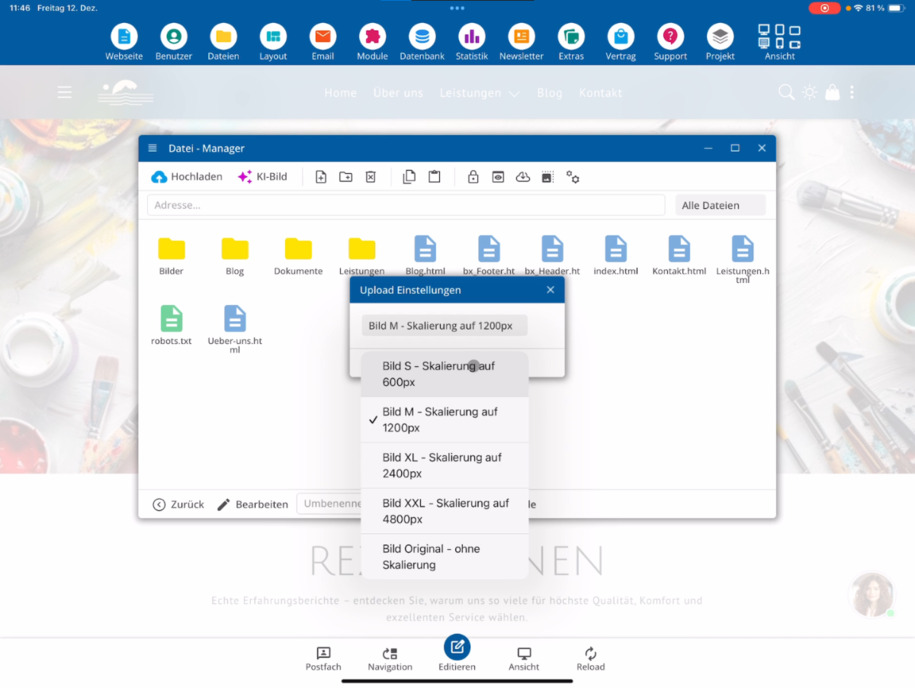
Choose target sizes, for example 600 to 4800 PX. If you need the original image without adjustments, use the option Upload Original Image without Scaling.
KI-Bilder direkt im Ordner erzeugen
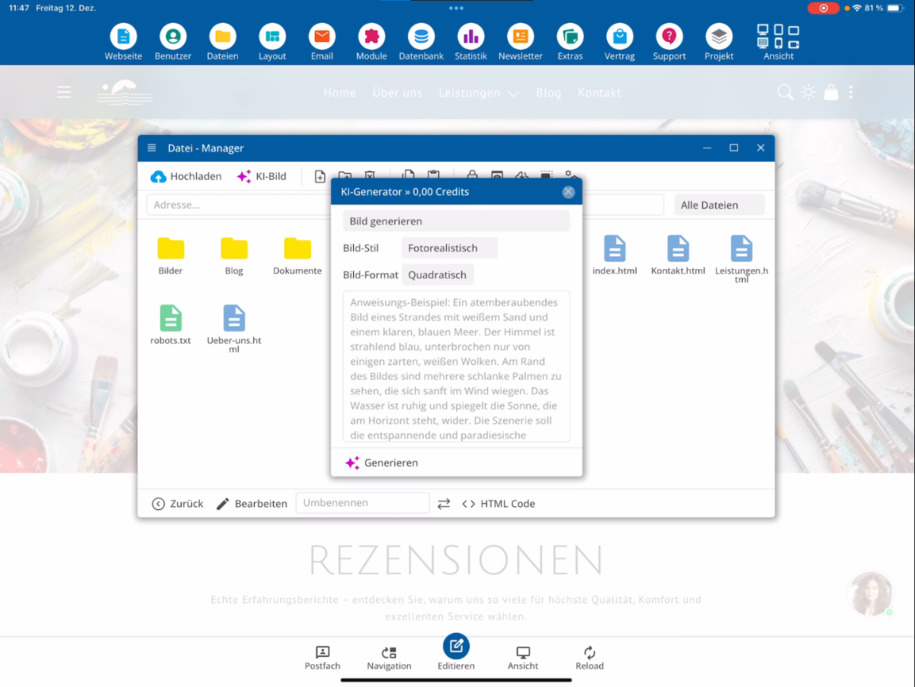
Within a folder, you can also create an AI image directly. Click on AI Image, describe your desired subject, and generate the image instantly.
Dateien anlegen und bearbeiten
In the file manager, you can create new files. By default, a HTML file is created.
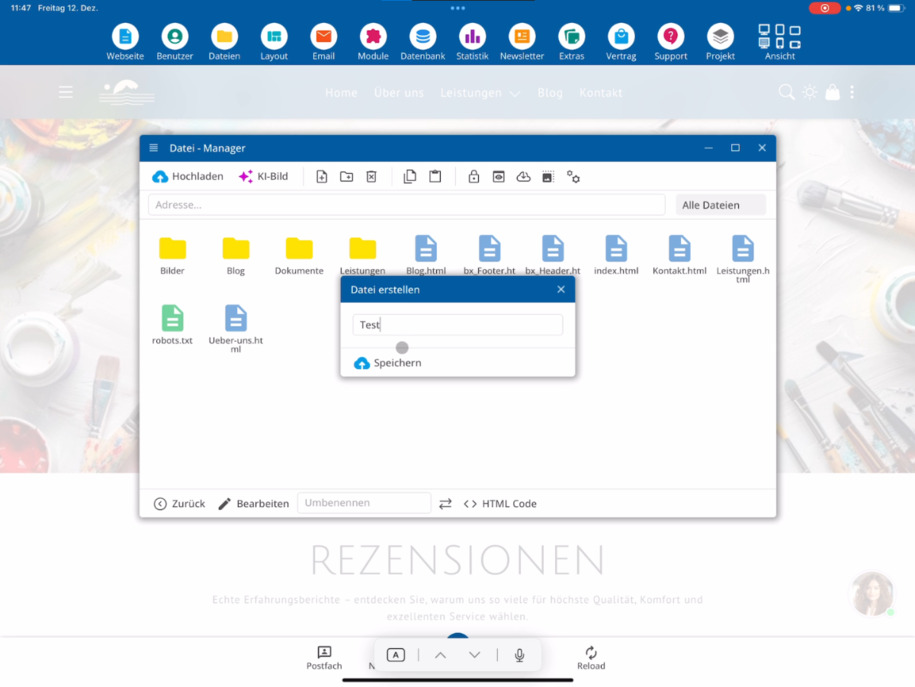
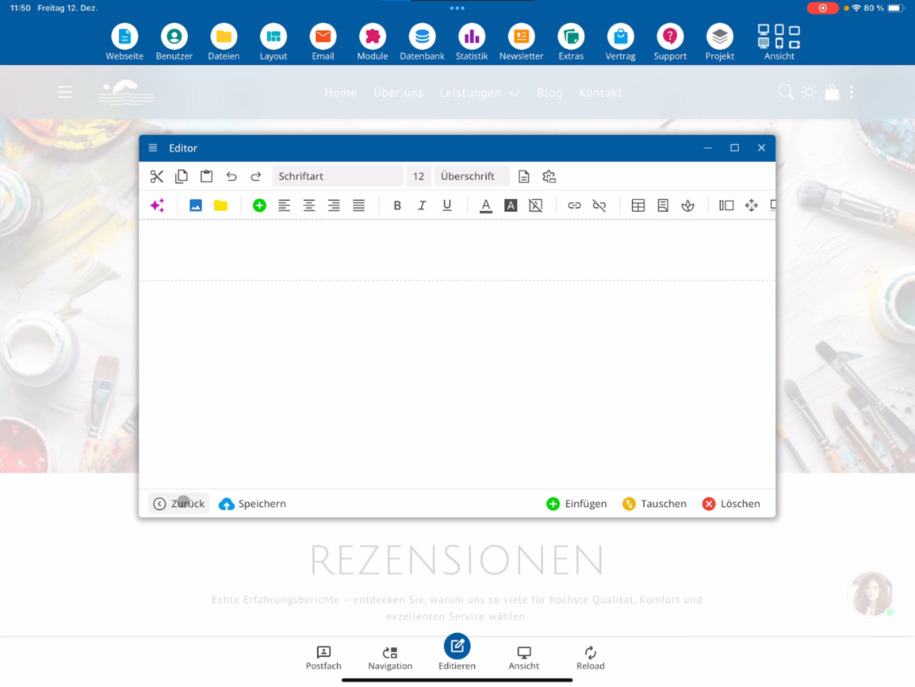
You can then edit the file in the editor. As an admin, you also have access to the HTML Code View.
Bist du als Agentur-Admin angemeldet, kannst du auch die PHP-Code-Ansicht nutzen. Fehlt dieser Button, sieh dir das Tutorial Agenturzugang beantragen an.
Ordnerstrukturen aufbauen
Neue Ordner legst du ebenfalls im Dateimanager an. So kannst du dir eigene Strukturen aufbauen, zum Beispiel nach Sprachen oder Kategorien.
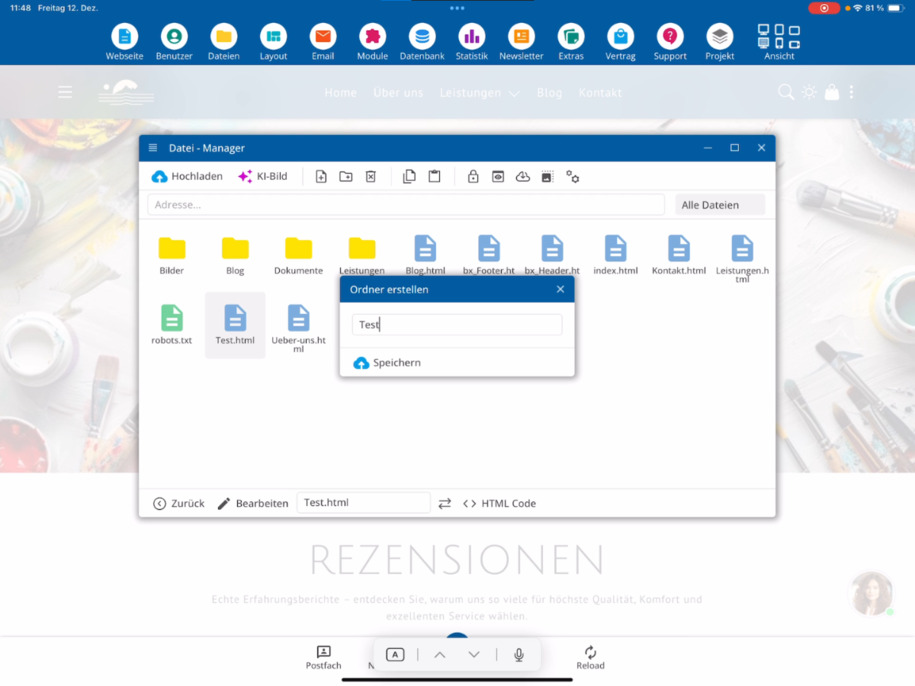
You open folders with a double-click. You can return to the main folder anytime by clicking Back.
Dateien kopieren, sichern und löschen
Du kannst erstellte Dateien löschen, kopieren und wieder einfügen. So erstellst du schnell eine Kopie.
Gerade bei wichtigen Dateien, wie deiner Index-Datei, empfiehlt es sich, vor Änderungen eine Kopie anzulegen – zusätzlich zum automatischen Backup-System.
Weitere Funktionen im Dateimanager
Ordner lassen sich auch mit einem Passwort schützen. Dazu gibt es ein eigenes Video.
Über die Vorschau prüfst du, ob du die richtige Datei bearbeitest.
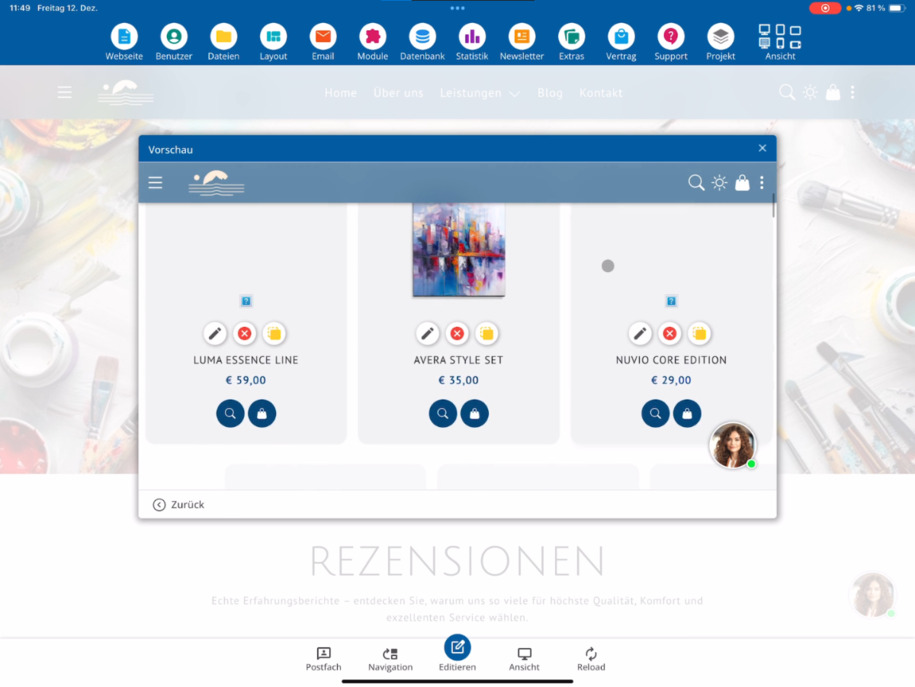
Du kannst Dateien außerdem herunterladen, zum Beispiel ein PDF lokal speichern.
Bildeditor nutzen
Ein integrierter Bildeditor steht dir ebenfalls zur Verfügung. Damit kannst du Bilder spiegeln, die Qualität anpassen, Kontrast verändern und weitere Optimierungen vornehmen.
Webseiten vorbereiten und Code bearbeiten
Über den Dateimanager legst du neue Webseiten-Dateien an und bearbeitest sie vorab im Editor. Diese Seiten sind noch nicht öffentlich, da sie noch nicht im System verlinkt sind.
Du kannst komplette Ordner- und Dateistrukturen vorbereiten und später in der Navigation einbinden.
FAQ
what customers often ask us
Du öffnest den Dateimanager über den Menüpfad Dateien.
Was bedeuten die farbigen Markierungen im Dateimanager?
Folders and HTML files are marked in yellow. TXT files, for example robots.txt, are marked in green.
Kann ich mehrere Dateien gleichzeitig hochladen?
Ja, über den Dateimanager kannst du Bilder und Dokumente auch gesammelt hochladen.
Wie funktioniert die Bildskalierung beim Upload?
You specify whether images should be automatically scaled during upload. You can choose target sizes, for example between 600 and 4800 PX. Alternatively, you can use the option Upload original image without scaling.
Kann ich im Dateimanager KI-Bilder erstellen?
Yes, within a folder you click on AI Image, describe the subject, and generate the image directly in the file manager.
Welche Dateien kann ich neu anlegen?
Du kannst neue Dateien direkt im Dateimanager erstellen. Standardmäßig wird dabei eine HTML-Datei angelegt, die du anschließend im Editor bearbeitest.
Welche Code-Ansichten stehen mir zur Verfügung?
As an admin, you can use the HTML code view. If you are logged in as an agency admin, you also have access to the PHP code view. If the button is missing, check the tutorial Order Agency Admin.
Wie lege ich neue Ordner an?
Neue Ordner erstellst du direkt im Dateimanager. So kannst du eigene Strukturen aufbauen, zum Beispiel nach Sprachen oder Kategorien.
Kann ich Dateien sichern oder kopieren?
Ja, du kannst Dateien kopieren und wieder einfügen, um eine Kopie zu erstellen. Das ist besonders hilfreich vor Änderungen an wichtigen Dateien, zusätzlich zum automatischen Backup-System.
Kann ich Ordner mit einem Passwort schützen?
Ja, Ordner lassen sich mit einem Passwort schützen. Dazu gibt es ein eigenes Video.
Gibt es eine Vorschau für Dateien?
Ja, über die Vorschau kannst du prüfen, ob du die richtige Datei bearbeitest.
Kann ich Dateien herunterladen?
Ja, du kannst Dateien wie PDFs direkt herunterladen und lokal speichern.
Welche Bildbearbeitungsfunktionen sind integriert?
Der integrierte Bildeditor ermöglicht es dir, Bilder zu spiegeln, die Qualität anzupassen, den Kontrast zu verändern und weitere Optimierungen vorzunehmen.
Wann sind neu angelegte Webseiten öffentlich sichtbar?
Neue Webseiten-Dateien sind zunächst nicht öffentlich, da sie noch nicht im System verlinkt sind. Erst nach der Verlinkung in der Navigation werden sie sichtbar.