

Protect folders with a password – this is how you secure content in the CMS
In this tutorial, you will learn step by step how to protect folders in the CMS with a password, test access, and selectively grant users or groups access. This way, you reliably secure entire folders, including all subpages, images, and documents.
Ordner mit Passwort schützen
In this tutorial, you will learn how to password-protect folders in the CMS. To do this, open the File Manager and select the folder Blog.
Aktuellen Zugriff prüfen
Before enabling the password protection, first check the current access. Switch to Safari on your iPad or Phone and open a page in the folder Blog.
Die Seite wird aktuell ohne Schutz angezeigt und ist frei erreichbar.
Passwortschutz aktivieren
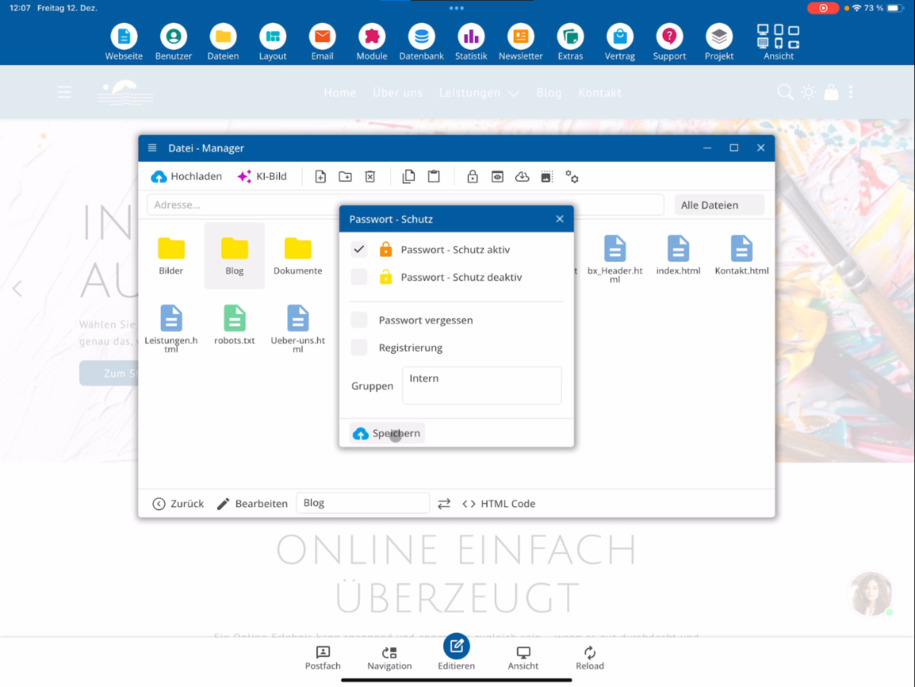
Return to the bluetronix CMS and click on the lock icon in the file manager. Activate the password protection for the selected folder there.
Optional kannst du erlauben, dass sich Nutzer ohne Zugriff registrieren dürfen. Ebenfalls optional ist die Funktion zur Passwort-Wiederherstellung. Diese Einstellungen nimmst du je nach Bedarf vor.
Gruppe definieren & speichern
Now define a group. All users in this group, for example internal, will receive access to the folder with their account.
Then click on Save to activate password protection. A lock symbol will appear next to the protected folder in the CMS.
Passwortschutz testen
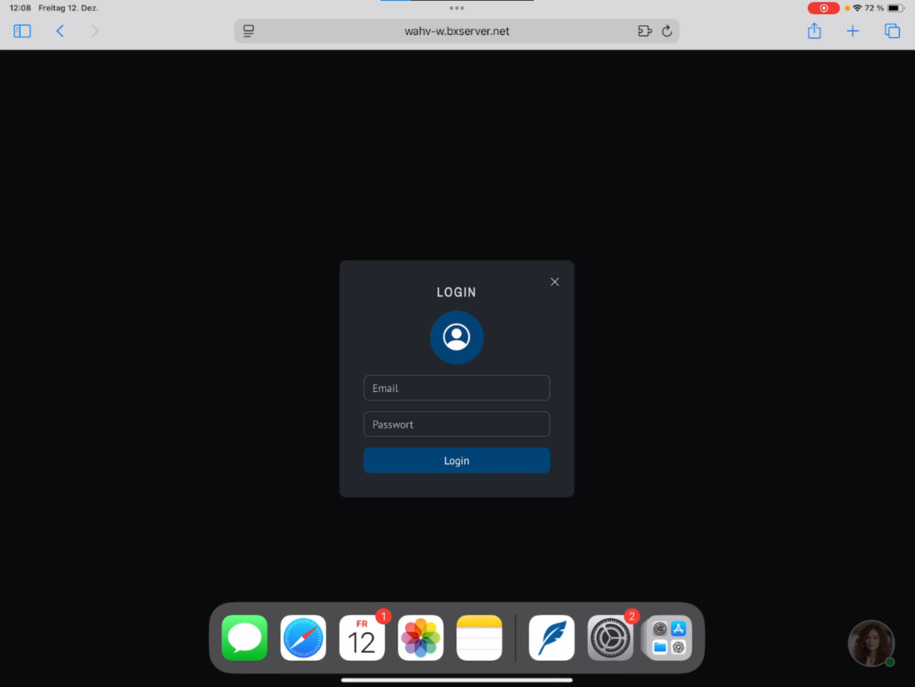
Go back to Safari, refresh the page, and click on the folder Blog again.
Statt der Seite wird nun eine Anmeldemaske angezeigt. Nur Nutzer mit gültiger E-Mail-Adresse und Passwort können sich anmelden. Ist die Registrierung aktiviert, können sich Nutzer direkt selbst registrieren.
Alternative: Webbenutzer anlegen
If only a small group should have access, create new users through Users ⯈ Web Users. These accounts are exclusively for the protected folder.
Wirkung des Passwortschutzes
Der Passwortschutz gilt automatisch für den gesamten Ordner sowie alle Unterordner.
Alle Dateien im Ordner sind betroffen – HTML-Seiten, PDFs und Bilder. Sämtliche Inhalte stehen anschließend nur noch passwortgeschützt zur Verfügung.
FAQ
what customers often ask us
Go to File Manager in the CMS and select the desired folder, for example Blog. Then click on Password Protection and activate the protection.
Wie prüfe ich den aktuellen Zugriff auf einen Ordner?
Rufe eine Seite innerhalb des Ordners im Browser auf, zum Beispiel in Safari. Ist der Ordner ungeschützt, wird die Seite wie gewohnt ohne Anmeldung angezeigt.
Wo aktiviere ich den Passwortschutz im CMS?
Go to File Manager, select the folder, and click on the lock icon. There you can enable the desired setting.
Kann ich eine Registrierung für externe Nutzer erlauben?
Ja, beim Passwortschutz kannst du optional die Registrierung aktivieren. So können sich Nutzer ohne bestehenden Zugang selbst registrieren.
Gibt es eine Funktion zur Passwort-Wiederherstellung?
Ja, du kannst optional die Passwort-Wiederherstellung aktivieren. Nutzer können ihr Passwort dann selbst zurücksetzen.
Wie steuere ich, wer Zugriff auf den geschützten Ordner hat?
You define a group. All users in this group, for example internal, will have access to the protected folder with their account.
Woran erkenne ich, dass ein Ordner geschützt ist?
After clicking Save, a lock symbol will appear on the folder in the CMS. This indicates that the password protection is active.
Was sieht ein Besucher nach Aktivierung des Passwortschutzes?
Beim Aufruf des Ordners erscheint statt der Seite eine Anmeldemaske. Nur Nutzer mit gültiger E-Mail-Adresse und Passwort erhalten Zugriff.
Wie lege ich Nutzer für einen geschützten Ordner an?
If only a small group should have access, create users via Users ⯈ Web Users. These accounts are exclusively for the protected folder.
Welche Dateien sind vom Passwortschutz betroffen?
Der Passwortschutz gilt für den gesamten Ordner und alle Unterordner. Betroffen sind alle Dateien, also HTML-Seiten, PDFs und Bilder.