

Setting up Email on Android in Samsung Mail - Guide for your bluetronix account
On this page, you will find a step-by-step guide to setting up your bluetronix email account on an Android device. You will receive all the necessary information for incoming and outgoing server (IMAP/SMTP), username and password, as well as tips for verification and troubleshooting – so your emails can be reliably sent and received.
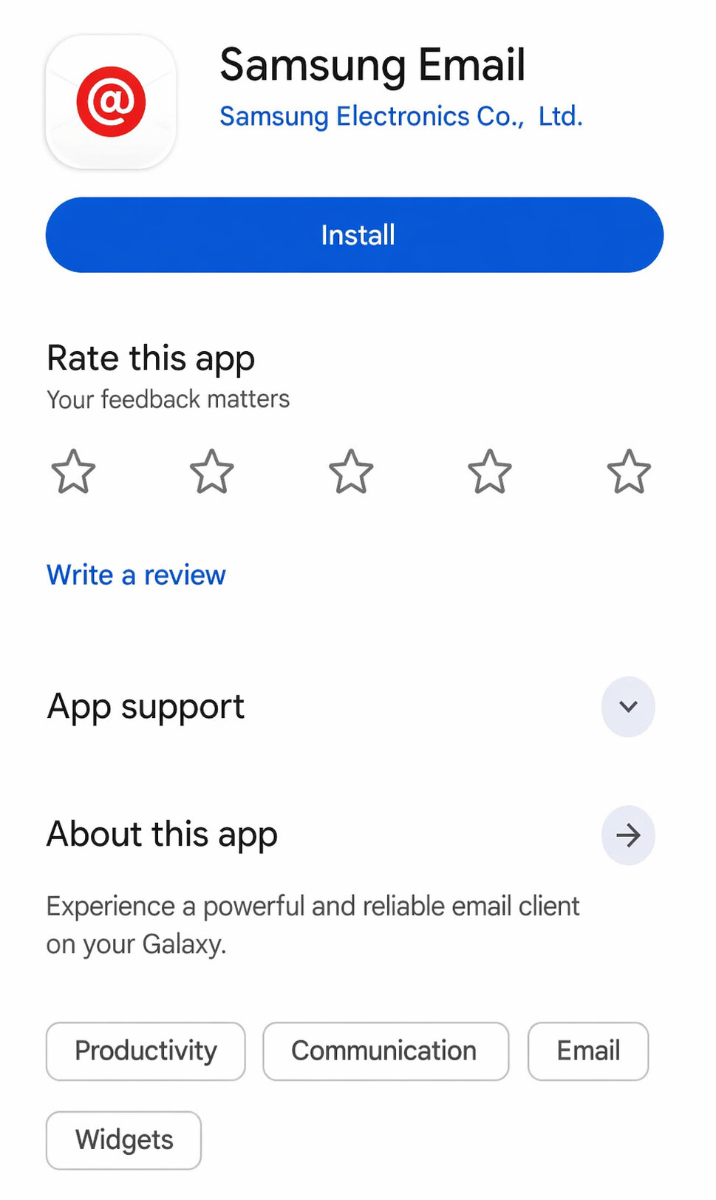
Install Samsung Email
If the Samsung Email app is not yet installed on your Android device, download and install it first from the Google Play Store.
You can find the download here: Samsung Email on the Google Play Store
Find email data
If you haven't set up an email address yet, first complete the step "Create Email Address".
Open your bluetronix homepage in editing mode.
Go to Email ⯈ Email address management.
Click on Access data for the desired address.
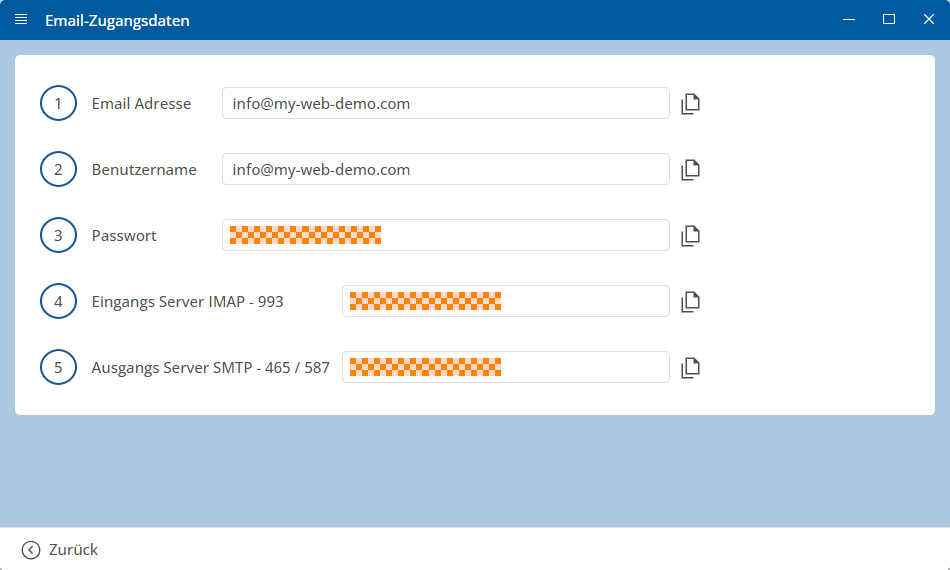
Important: Enter all data exactly as provided in the access data. Pay attention to capitalization.
Android: Set up account via Samsung Email
Open the Samsung Email App on your Samsung device.
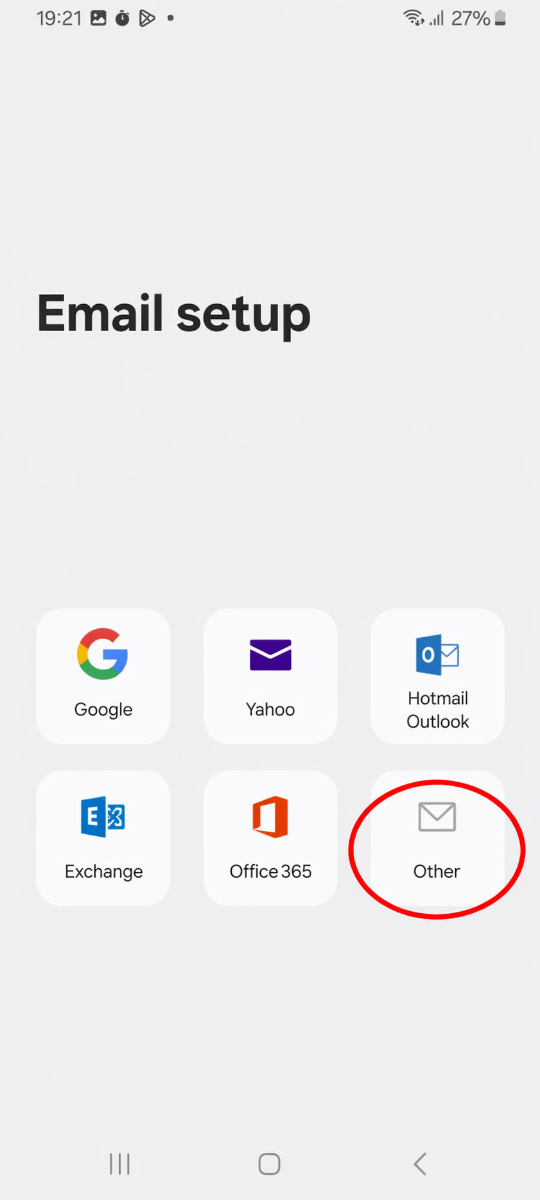
If you are opening the app for the first time, select the appropriate provider. For a standard email address with a custom domain, choose Other.
If an account is already set up, open the Samsung Email App and go to Settings. Then tap on Add Account and select More.
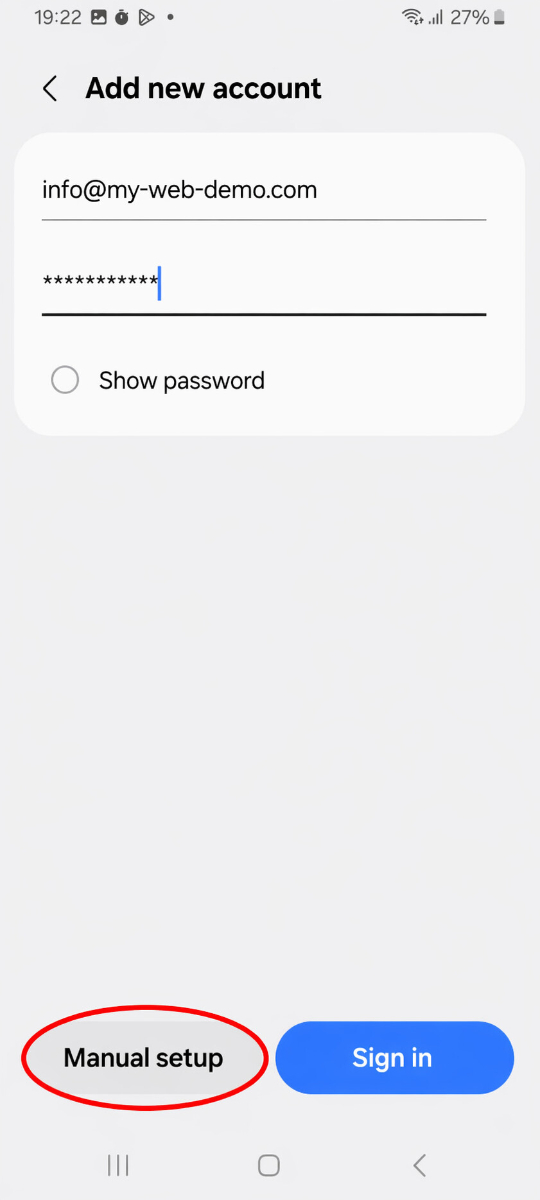
Enter your full Email Address and your Password.
Then tap on Manual Setup and select IMAP account.
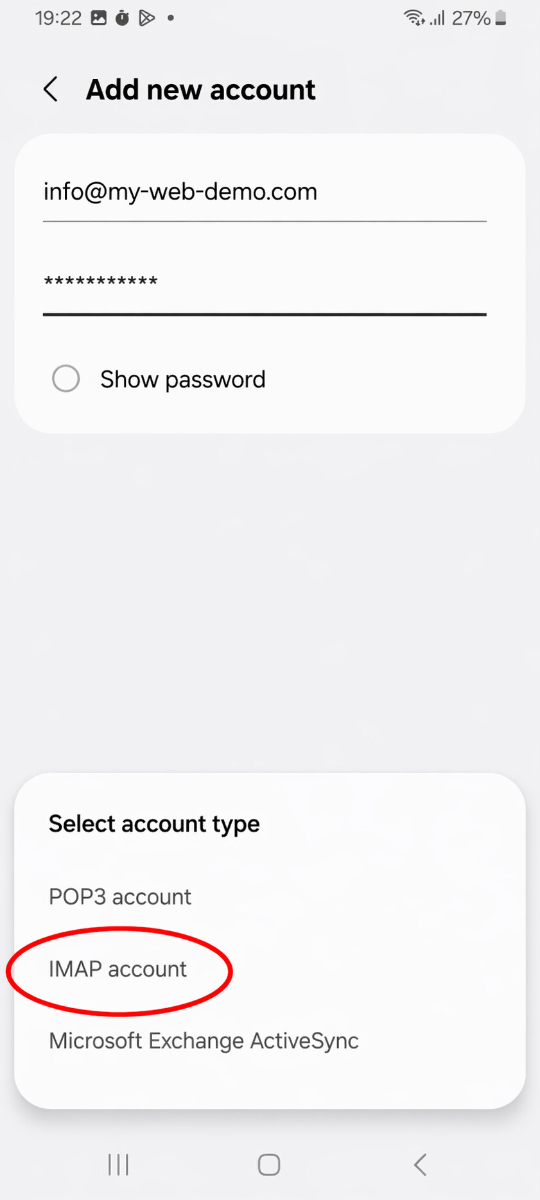
Enter the incoming server as the IMAP Server, which you will find in your bluetronix access data.
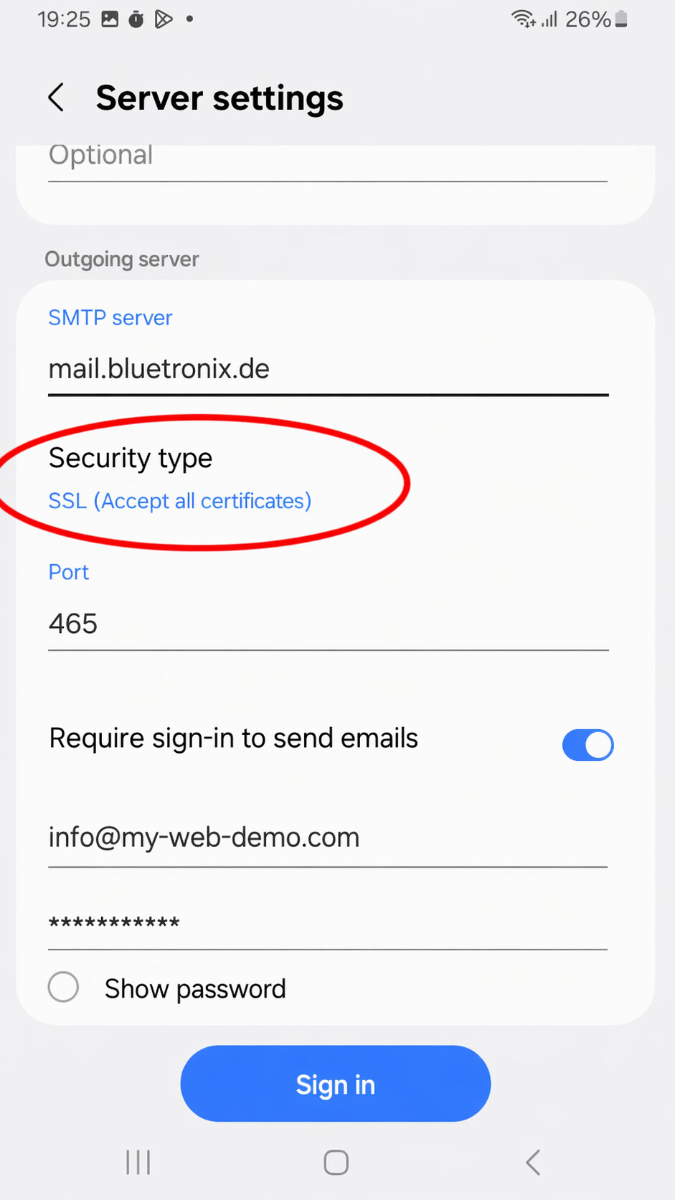
Select SSL (accept all certificates) as the Security Type and then confirm the security prompt.
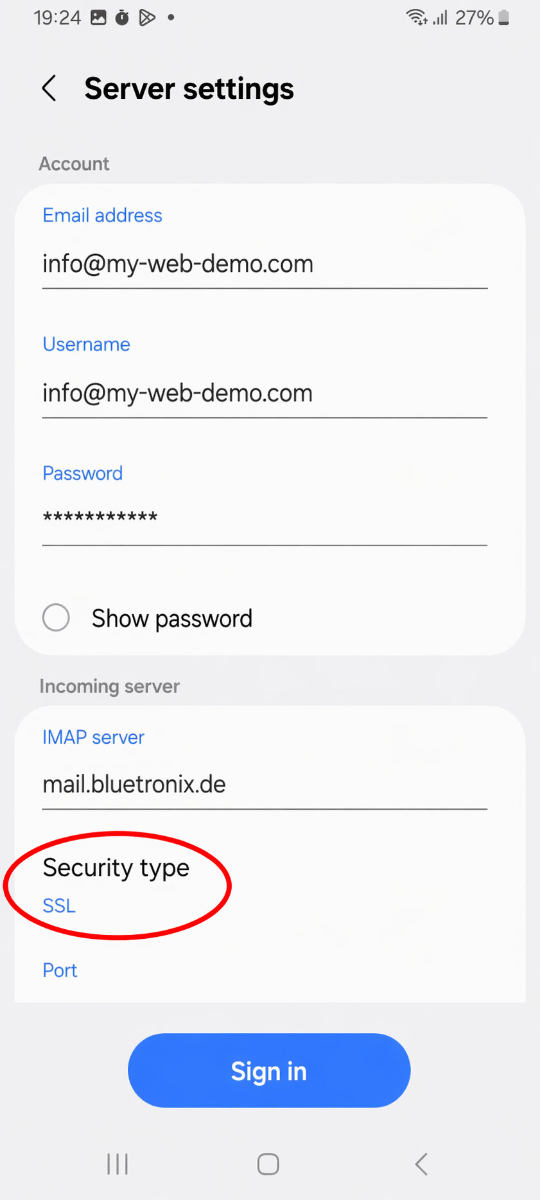
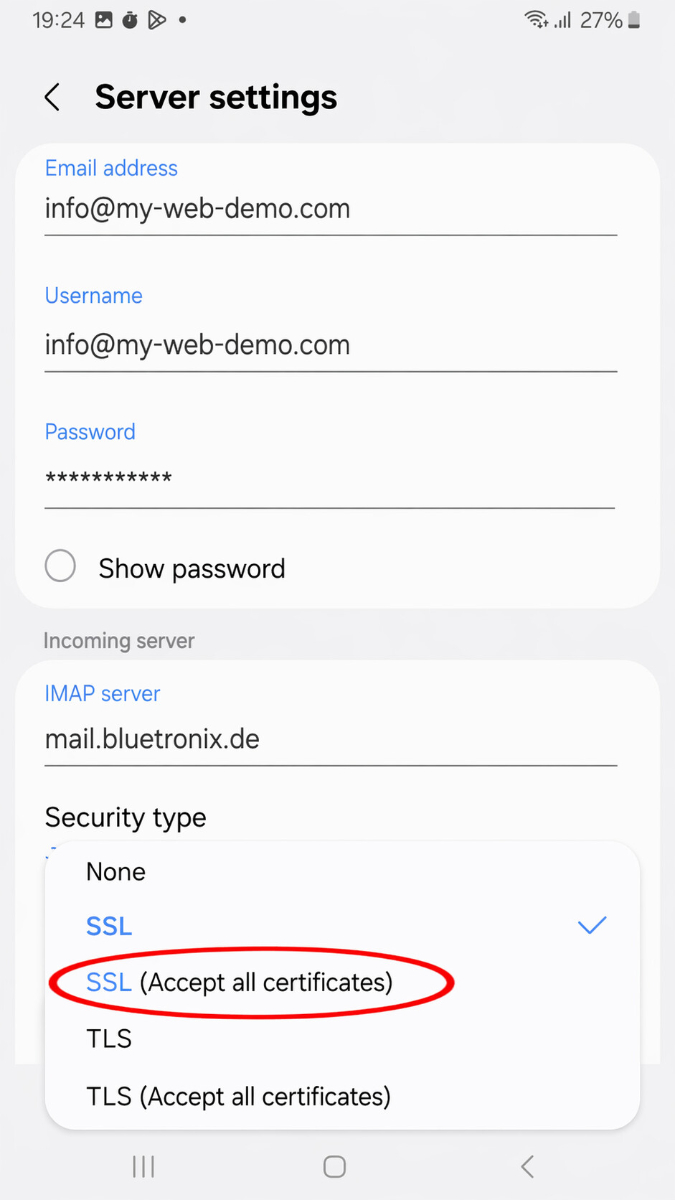
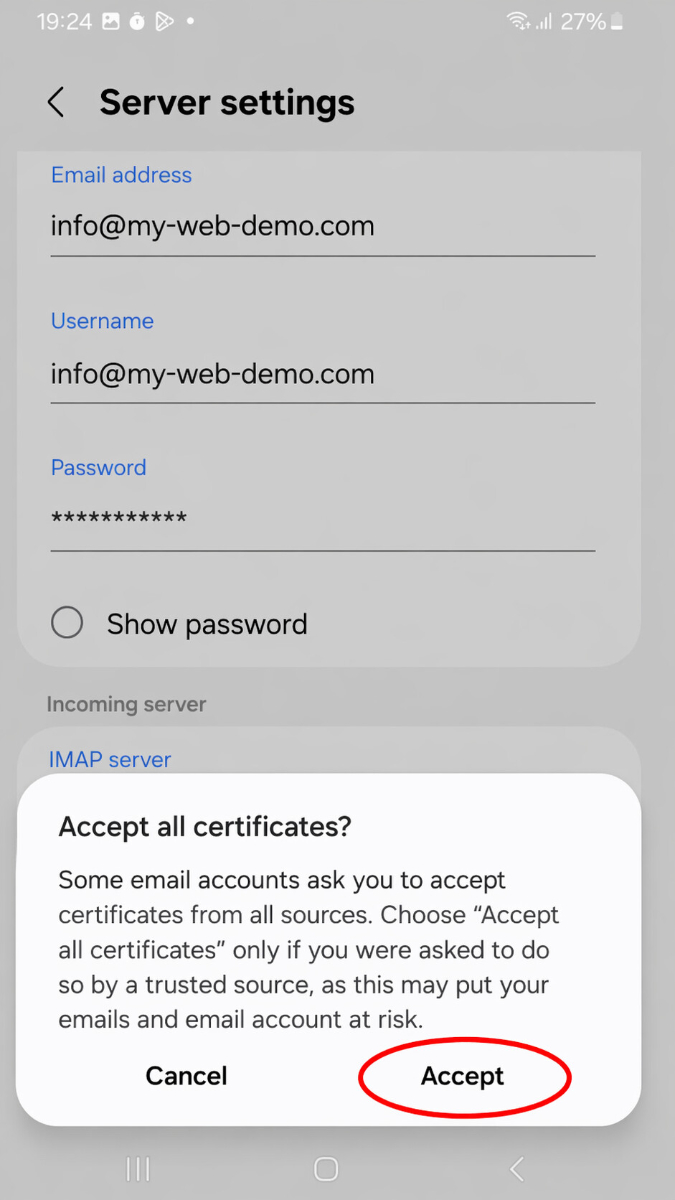
After selection, the security type should now be set as follows:
Confirm the entries and complete the setup.
Test emails
First, send an email to your own address and check if the message arrives in the inbox.
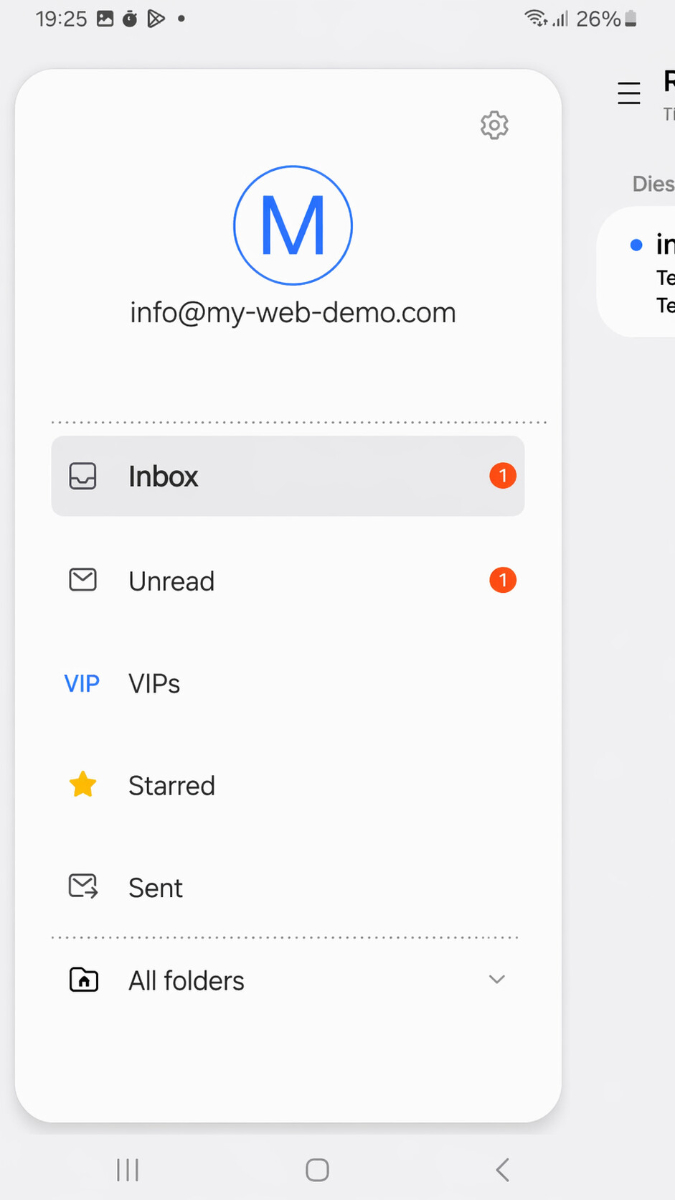
Then test sending to another address to make sure that both Receiving and Sending work.
If issues arise: Check settings
Check inbox (IMAP)
Open the Samsung Email App, go to Settings, and select your configured account.
Particularly check the information for IMAP server, Port, Username, and Encryption.
Pay special attention to ensure that the IMAP server is entered exactly as specified and that the values for port and encryption stated in your access data are correctly input.
Check outgoing mail (SMTP)
Check all details for SMTP server, port, username, password, and encryption for outgoing mail.
If receiving works but sending does not, the error is usually in the SMTP data or an incorrectly entered port.
Add new account
If the setup does not work despite correct data, remove the account from Samsung Email and then add it again.
If Samsung Email automatically recognizes the address incorrectly, set up the account again and this time deliberately select Other and then IMAP account.
Setup completed
If the test message is successfully received and sending and receiving work, the setup is complete.
FAQ
what customers often ask us
IMAP or POP3 – which one should I use?
IMAP is recommended so that emails and folders remain synchronized between Samsung Email and other devices. POP3 usually downloads emails locally only and is only useful in special cases.
Where can I find my access data (server, ports, username, password)?
Open your bluetronix homepage in editing mode: Email ⯈ Email Address Management. Click on Access Data for the desired address. Pay attention to the exact case.
What ports and encryption do I need?
IMAP: Port 993 with SSL/TLS.
SMTP: Port 587 or 465, depending on the credentials, with SSL/TLS or the specified encryption and active authentication: password.
How can I quickly test if everything works?
Send yourself an email. If it arrives in the inbox and also appears under sent, everything is set up correctly.
Troubleshooting – common causes
Check server names, ports, SSL/TLS, authentication: password, username (usually the full email address), and your password. If receiving works but sending does not, the error is usually in the SMTP data or the wrong port.
How do I start the setup in Samsung Email?
Open the Samsung Email App. Tap on a listed provider or on More if your email provider is not listed. Samsung describes this process for new email accounts directly in the app. :contentReference[oaicite:1]{index=1}
Do I need to install Samsung Email first?
Yes, if the app is not already on your device. Samsung lists the Galaxy Store or Google Play Store as official download sources.
How do I set up the account manually?
If Samsung Email does not automatically recognize the data, choose manual setup and then IMAP. Then enter all server data exactly from your access data.
Configure incoming and outgoing servers.
Incoming emails: IMAP server / hostname, port, encryption, username, password.
Outgoing emails (SMTP): SMTP server / hostname, port, encryption, username, password.
Check settings later.
Open the desired account in Samsung Email and compare all details for IMAP, SMTP, Port, Username, and Encryption with your access data. Samsung also mentions that account settings for the active account can be accessed directly in the app.
Common errors.
Common causes include incorrect ports, disabled encryption, typos in hostname, username, or password, and wrong selection of IMAP instead of POP3 or vice versa. If necessary, remove the account in Samsung Email and set it up again.