

Set up bluetronix email address in Thunderbird on Android
In this guide, you will learn step by step how to set up your bluetronix email address in the Thunderbird app on your Android smartphone. You will see exactly where to find your credentials, how to correctly enter IMAP and SMTP, and how to check if sending and receiving are working successfully.
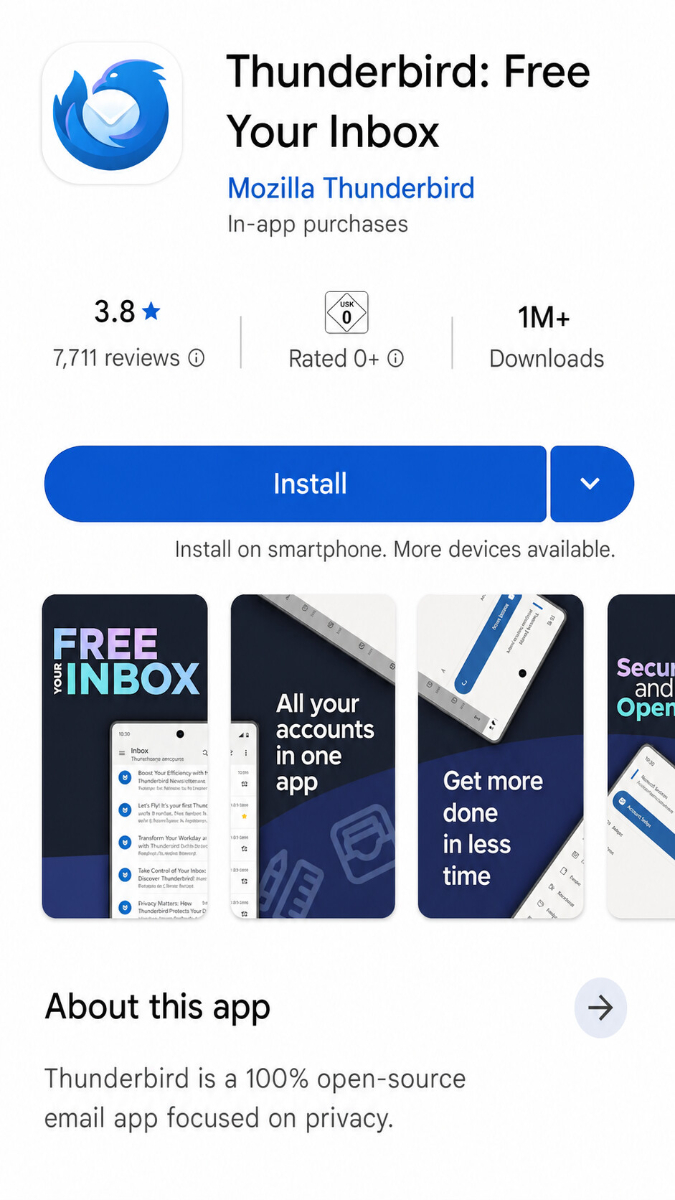
Install Thunderbird on Android
If Thunderbird is not yet installed on your Android device, first download and install the app from the Google Play Store.
You can find the download here: Thunderbird in the Google Play Store
Find email data
If you haven't set up an email address yet, first complete the step "Create Email Address".
Open your bluetronix homepage in edit mode.
Go to Email ⯈ Email address management.
Click on Access data for the desired address.
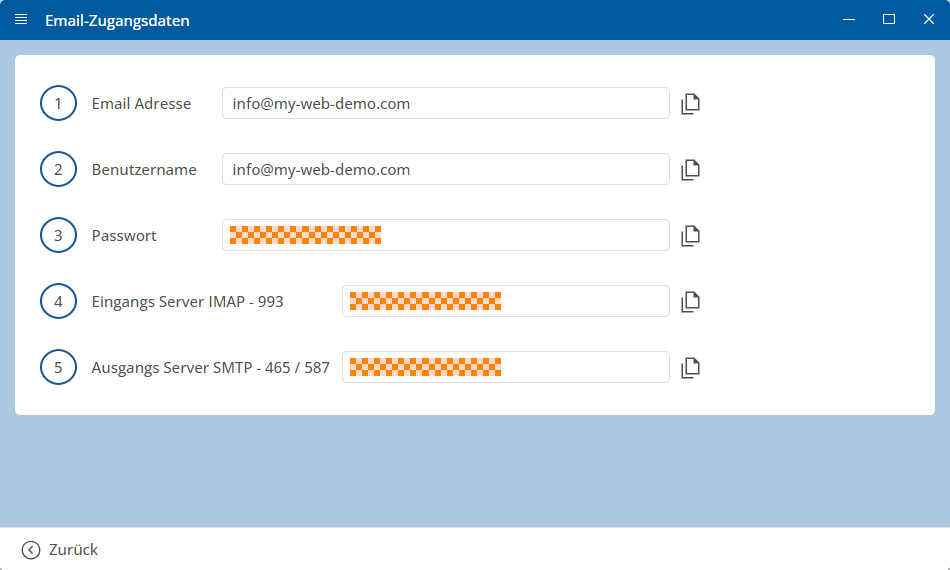
Important: Enter all data exactly as specified in the access data. Also pay attention to capitalization.
Android: Set up an account in Thunderbird
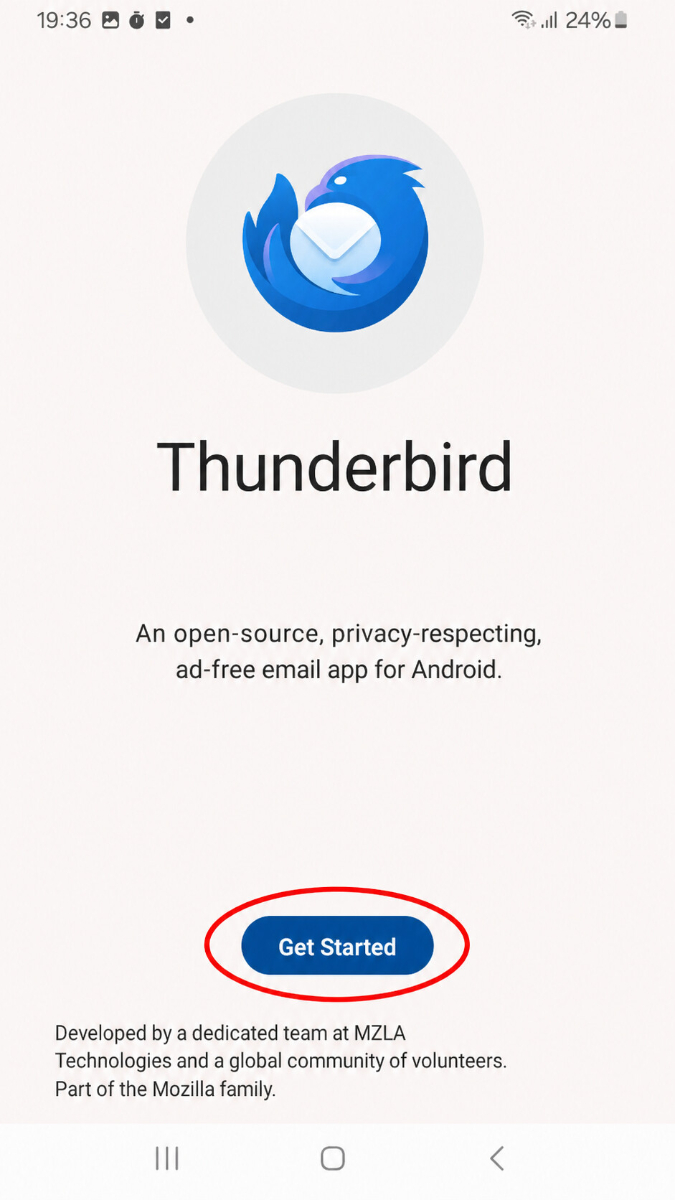
Open the Thunderbird App on your Android device.
Tap on Get Started.
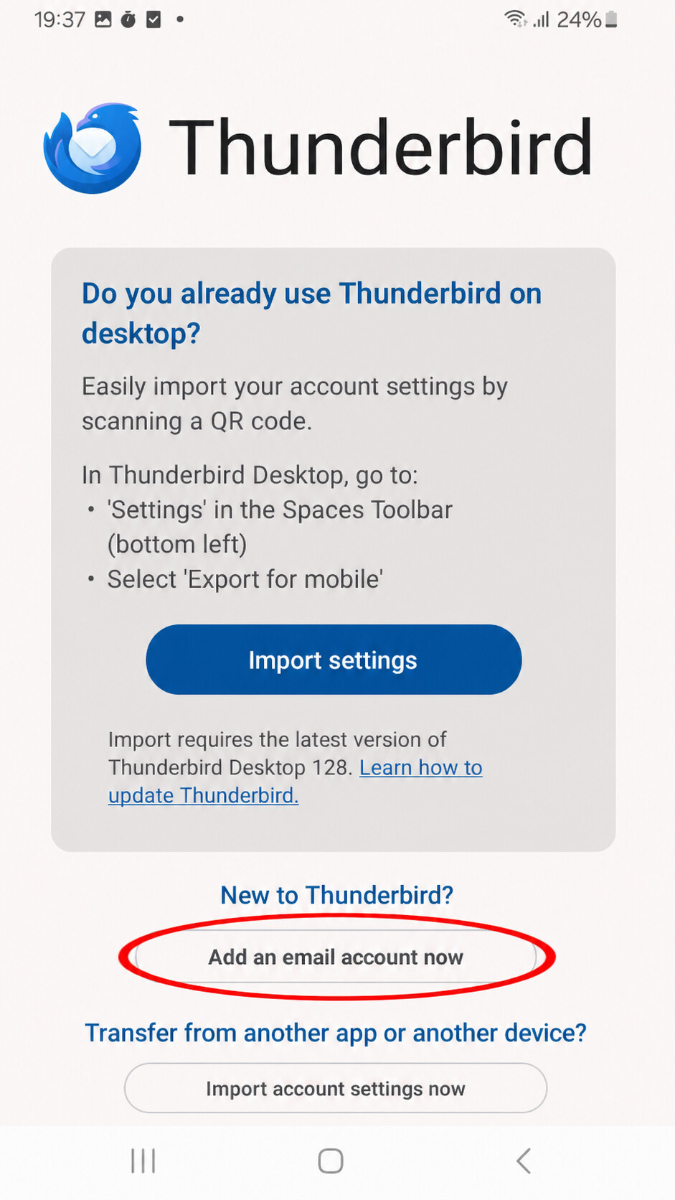
Then tap on Add Email Account Now.
Now enter your complete Email Address and tap on Next.
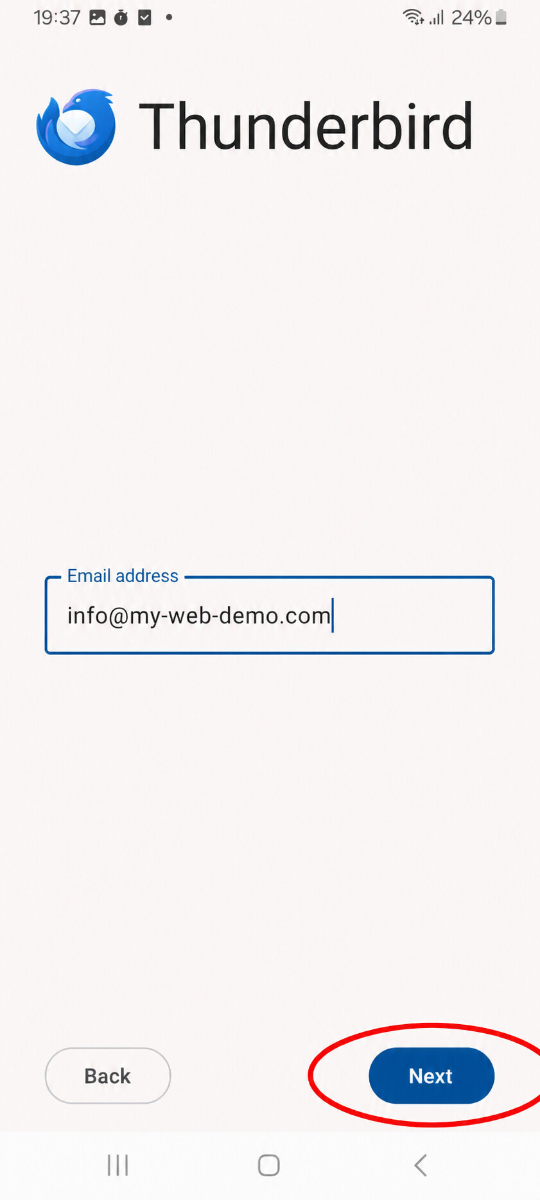
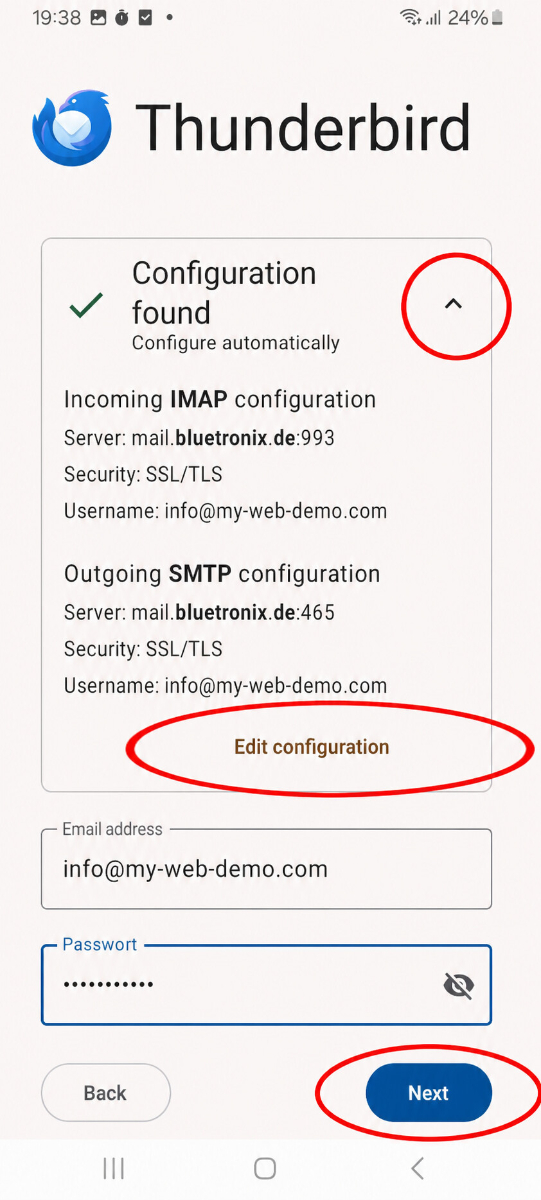
Thunderbird will then try to automatically detect the appropriate settings.
If the retrieved data looks correct, enter your Password and tap on Next.
If you want to verify or manually adjust the data, tap on Edit Configuration.
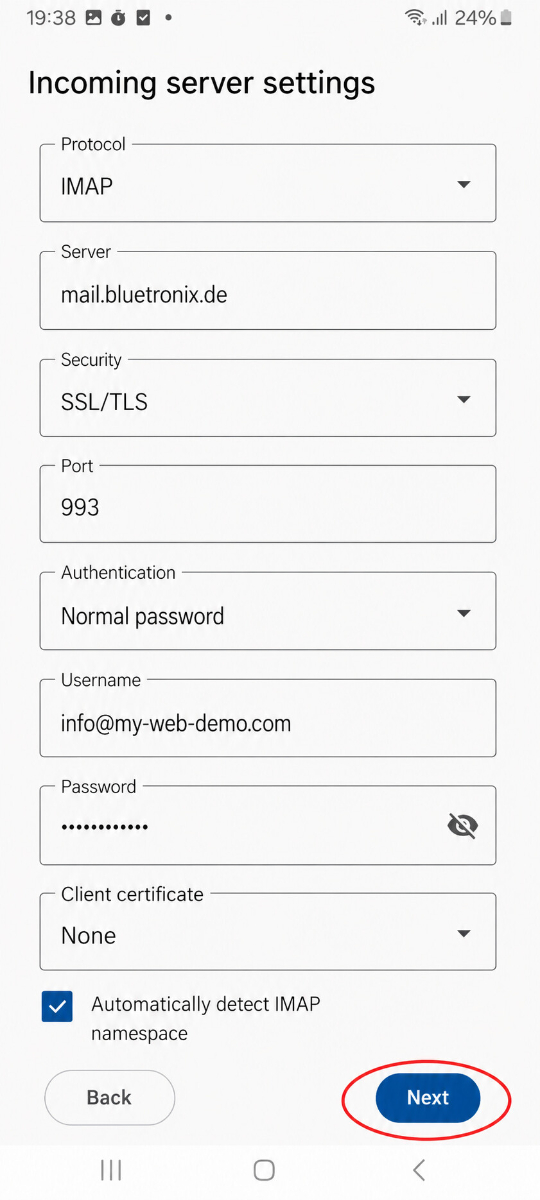
Enter Incoming Mail (IMAP) settings
Select Protocol as IMAP.
Then enter the details for the Inbox:
• Protocol
• Server
• Security
• Port
• Authentication
• Username
• Password
• Client Certificate: None
The option Automatically discover IMAP namespace can remain enabled.
Then tap Next.
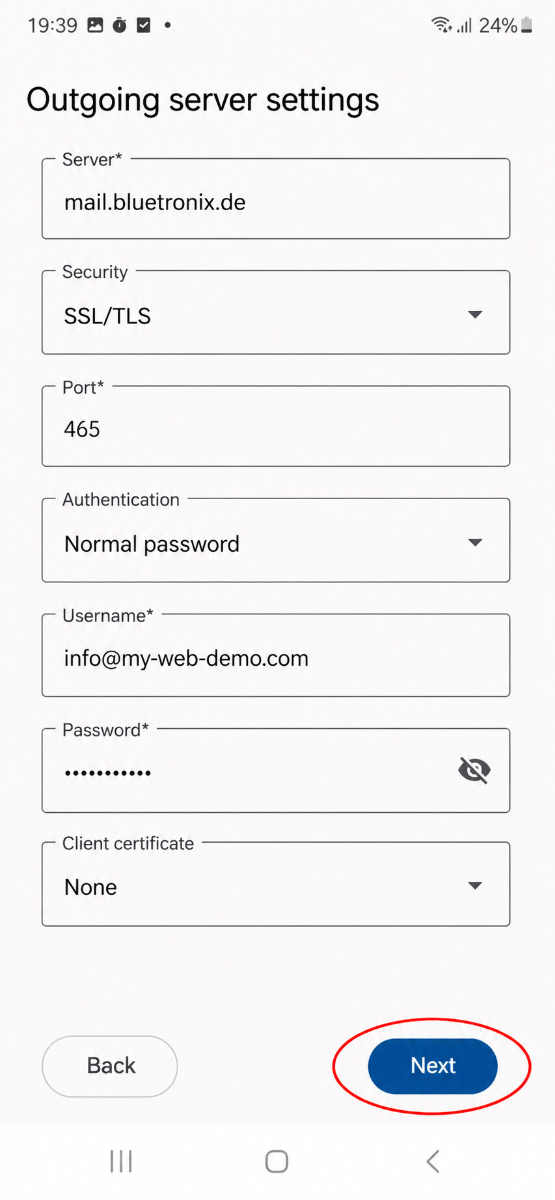
Enter Outgoing Mail (SMTP) settings
Then enter the details for the Outgoing Mail:
• Protocol
• Server
• Security
• Port
• Authentication
• Username
• Password
• Client Certificate: None
Then tap Next.
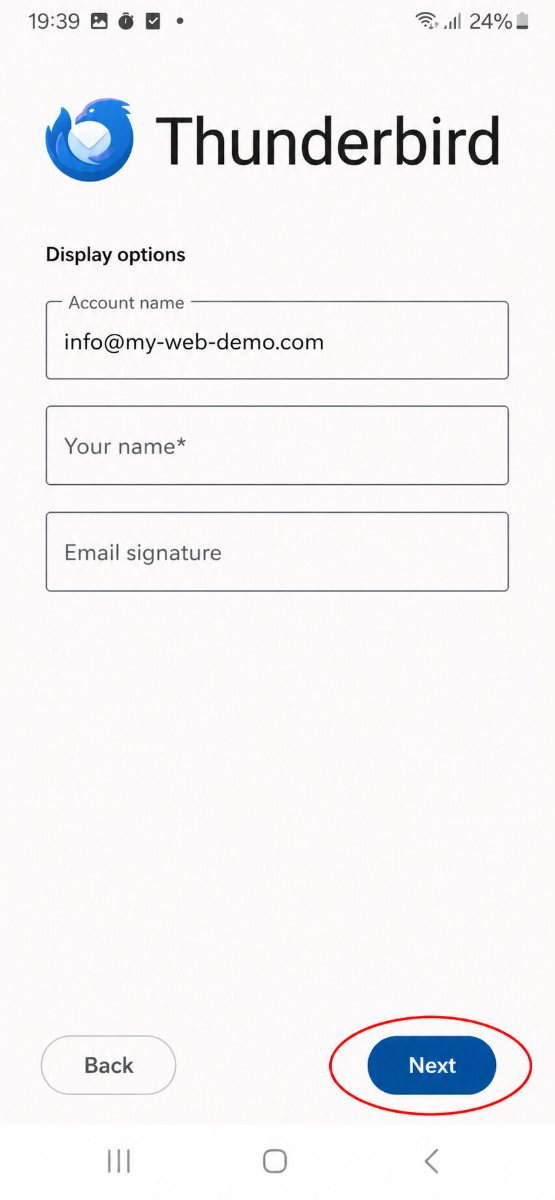
Set Display Name and Signature
In the next step, you can set the Account name, your Name, and optionally an Email signature.
Enter at least your Name and then tap Next.
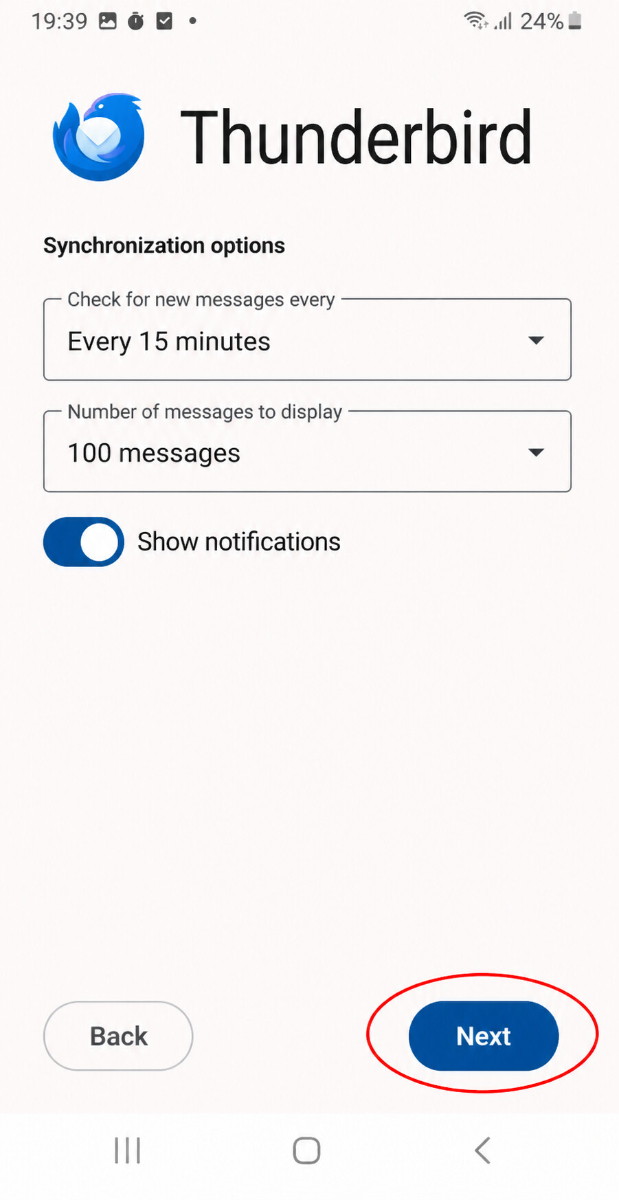
Configure Synchronization
Now select the Check interval for how often Thunderbird should retrieve new emails and how many messages should be displayed.
If you want to receive notifications, keep Show notifications enabled.
Then tap Next.
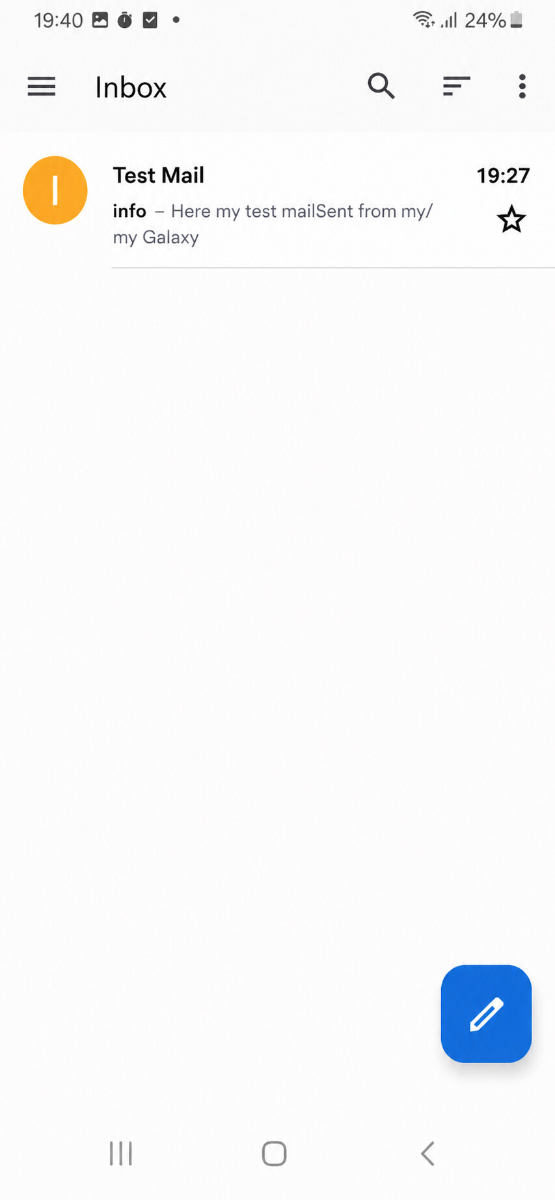
Test emails
First, send an email to your own address and check if the message arrives in your inbox.
Then test sending to another address to make sure that both Receiving and Sending work.
If issues arise: Check settings
Check inbox (IMAP)
Open the Menu in Thunderbird and go to the Settings of your account.
Check particularly the details for IMAP Server, Port, Username, Password, and Encryption.
Pay special attention to ensure that the IMAP server has been entered exactly as provided, and that the values for Port and Encryption in your credentials are entered correctly.
Check outgoing mail (SMTP)
Check all details for SMTP server, port, username, password, and encryption for outgoing mail.
If receiving works but sending does not, the error is usually in the SMTP data or an incorrectly entered port.
Add new account
If the setup does not work despite correct data, remove the account from Thunderbird and add it again.
If Thunderbird automatically detected incorrect data, tap Edit configuration during setup and enter the access data manually.
Setup completed
If the test message is successfully received and sending and receiving work, the setup is complete.
FAQ
what customers often ask us
FAQ for Setup in Thunderbird on Android
Where can I find the credentials for my email address?Open your bluetronix homepage in edit mode. Go to Email ⯈ Email Address Management and click on Access Data for the desired address. There you will find all the information you need for Thunderbird.
Which email address should I enter for the username?
Enter your full email address as the Username, for example info@yourdomain.com. Always input the details exactly as they appear in your access data.
What is the difference between IMAP and POP3?
For regular use, you should use IMAP. With IMAP, your emails remain on the server and can be synchronized across multiple devices. POP3 is generally only useful if emails are to be retrieved on a single device.
Why can I receive emails but not send them?
If you can receive emails but cannot send messages, the issue is usually with the SMTP data. Check especially the SMTP server, port, encryption, username, and password.
Why doesn't the setup work with automatically found data?
Thunderbird often tries to automatically detect the appropriate server settings during setup. If these settings are incorrect, tap on Edit Configuration and manually enter the values from your access credentials.
Which encryption should I choose?
Always use the encryption specified in your access credentials. It is often SSL/TLS, but the values from your bluetronix management are always decisive.
What should I enter for Client Certificate?
Typically, you select None, unless specified otherwise in your access credentials.
Can I use the same email address on multiple devices?
Yes, it is completely possible. If you set up your email address using IMAP, you can use the same emails simultaneously on your smartphone, tablet, and computer.
What should I do if the username or password is allegedly incorrect?
First, check if you have copied the data exactly. Pay particular attention to case sensitivity, extra spaces, and ensure that you are using the correct password. Then re-enter the data.
How do I check if the setup was successful?
First, send a test message to your own email address. If the message arrives in your inbox and you can also send a message to another address, the setup is successfully completed.
What can I do if nothing works?
Remove the account from Thunderbird and set it up again. Enter the login details manually this time and carefully compare each value with the information from your email account management.