

Incorporating custom JavaScript and CSS files in bluetronix CMS
In this tutorial, you will incorporate a custom JavaScript file and a custom stylesheet into the layout of your website. You will learn about the _own rule and discover how file versioning helps with changes.
Requirements and goal
For this tutorial, you need a developer access to the bluetronix CMS and should be familiar with the structure of layouts and developer folders. You will learn to integrate your own JavaScript and CSS files in addition to the existing CMS files, without modifying the original system files.
We will use the files shown in the screenshots, BxHeadScript_own.js and BxStyle_own.css. Both files are explicitly included in the layout so that the CMS considers them when loading the webpage.
1. Open layout
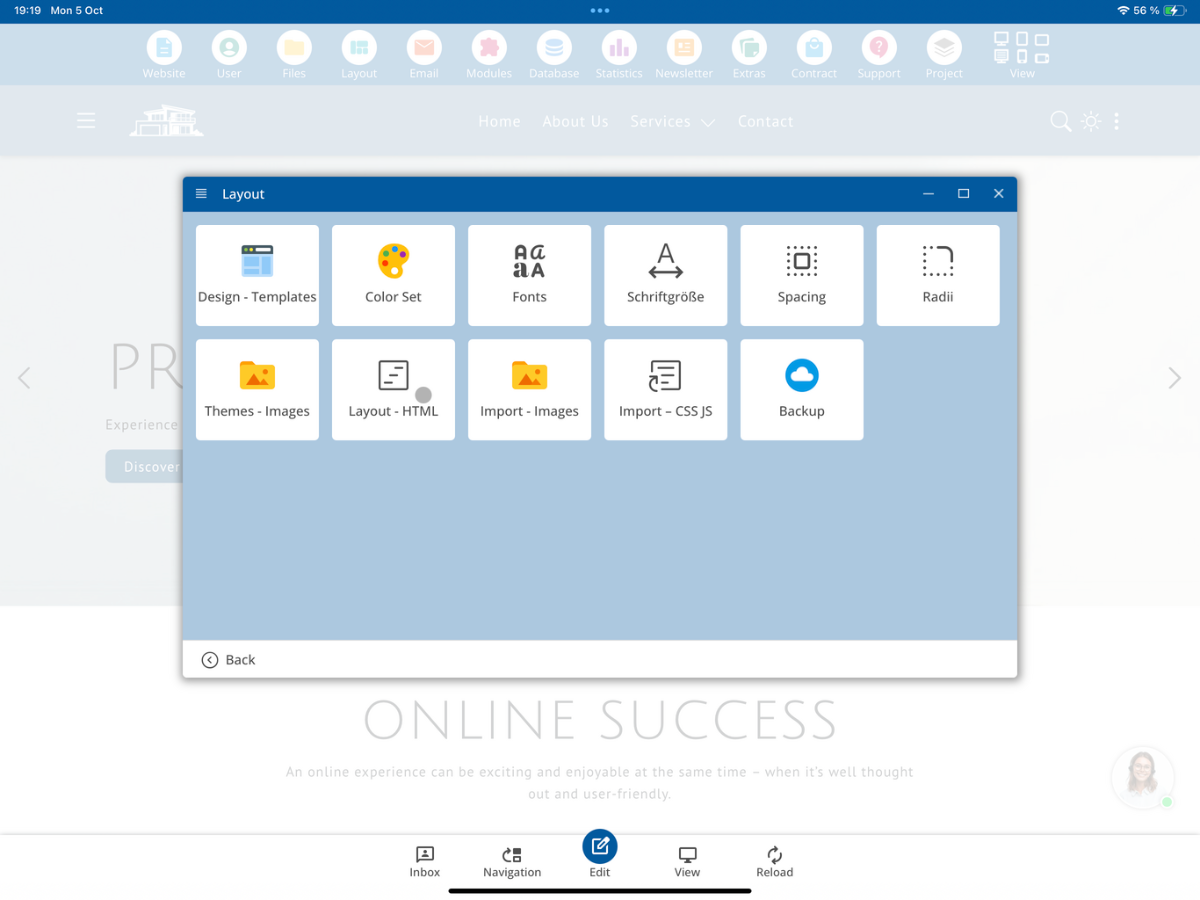
Open the Layout section in the CMS and select Layout - HTML. Then open the layout where you want to include your JavaScript and CSS files. In this example, we will use the standard layout.
In the layout definition, you will already find inclusions for the central CMS files, such as BxHeadScript.js and BxStyle.css. You can add your additional custom files right next to them.
2. Create custom JavaScript file in the file manager
Open the File Manager and navigate to the highlighted system folder bx_script. There you will find the central JavaScript files of the bluetronix CMS and possibly language-dependent variants.
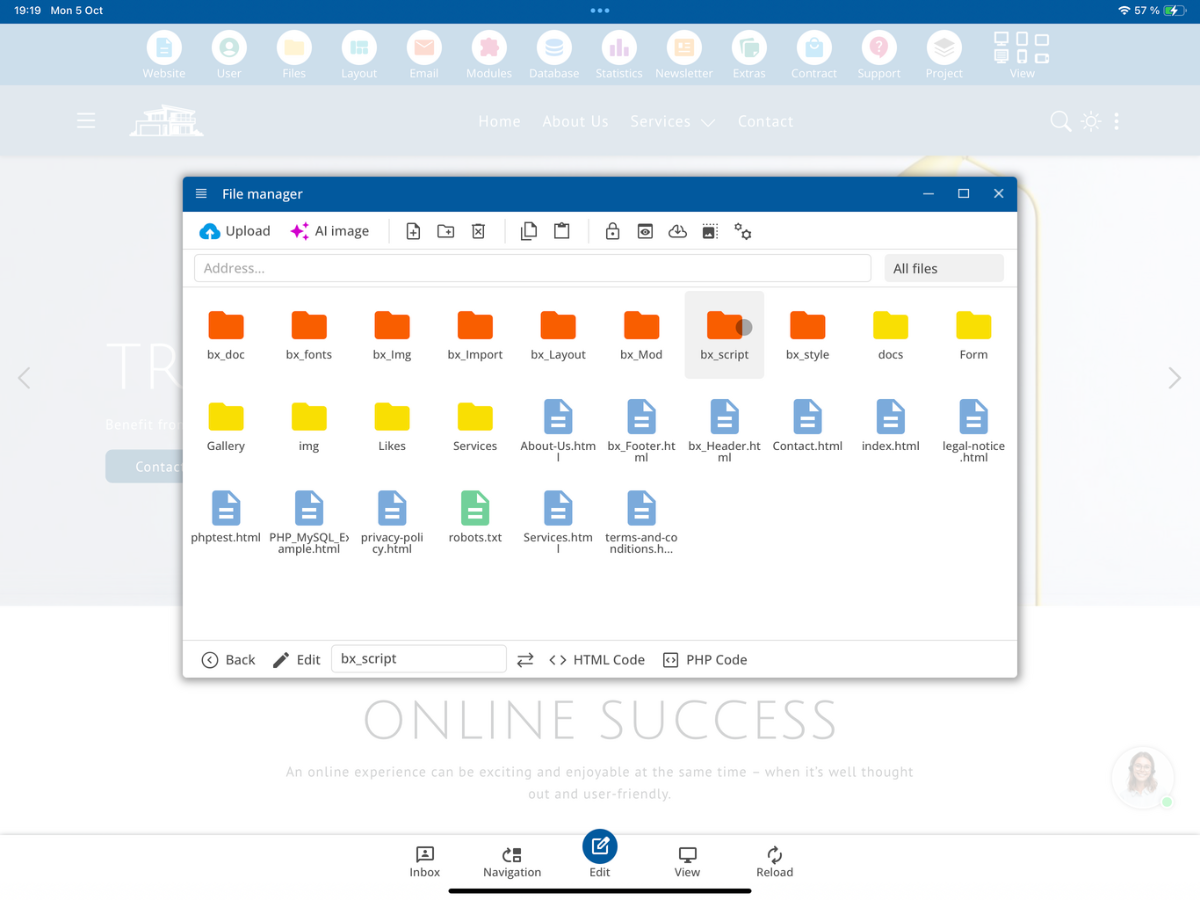
Create your own file BxHeadScript_own.js there or select it if it already exists. You can copy a suitable existing file as a template.
Select Edit to open the JavaScript code of your own file in the text editor.
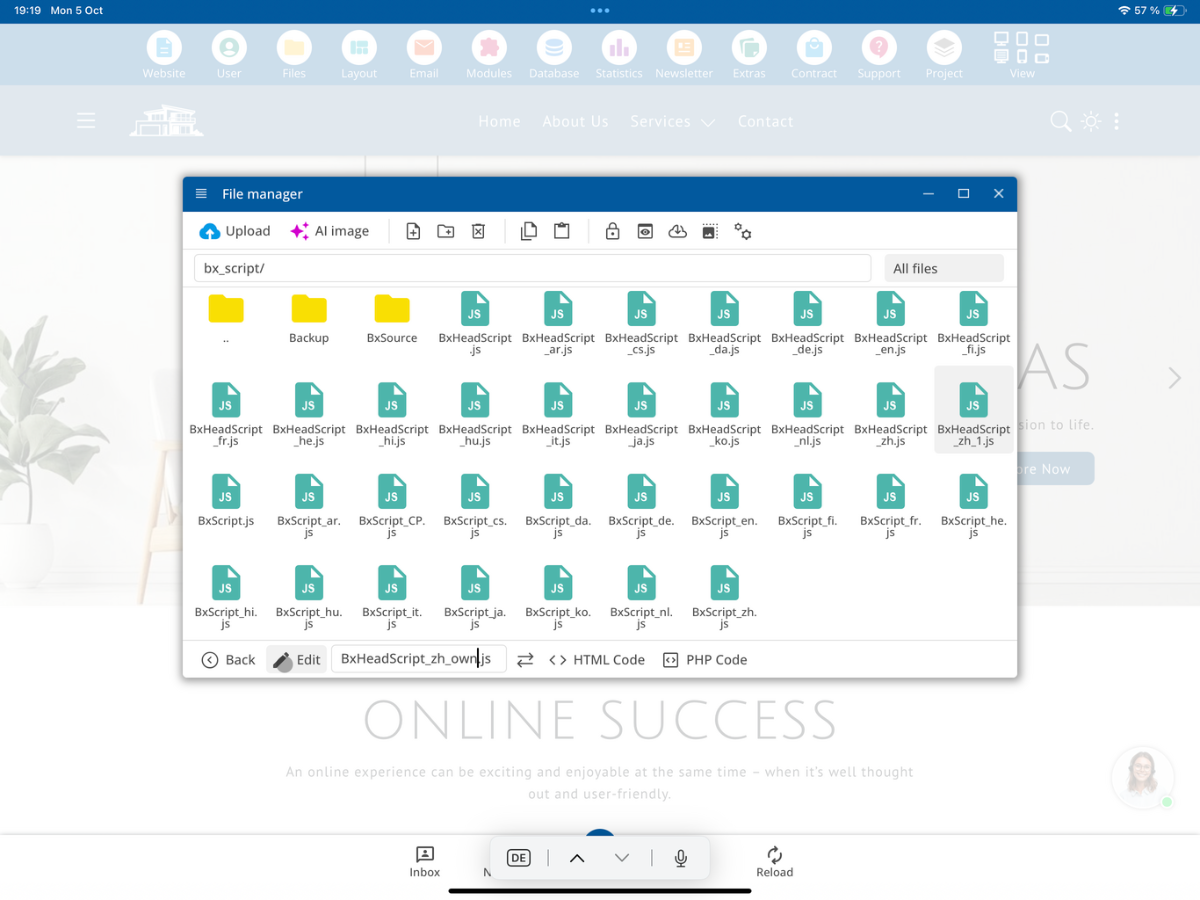
In the shown example, the file contains custom JavaScript code for switching between Dark Mode and Light Mode. In the text editor, you can maintain your project-specific JavaScript code and then save it.
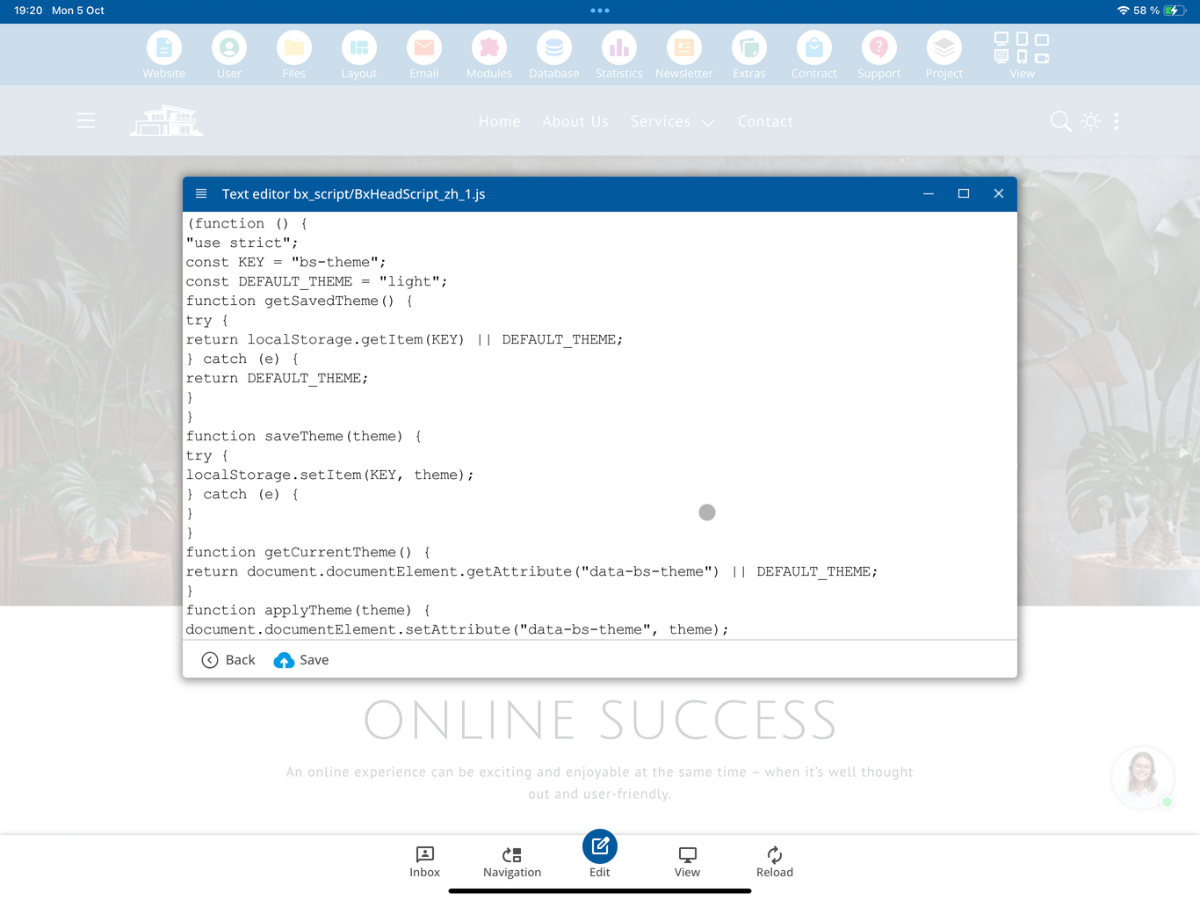
Do not change the original BxHeadScript.js for your own extensions. Files within the bx_ system folders can be overridden during CMS updates. Mark your own files there with _own.
3. Integrate custom JavaScript file into the layout
Go back to Layout - HTML. Add your own JavaScript file in addition to the existing CMS file. If you want your script to load early, insert it as shown in the screenshot in the head section after the existing Head script.
<script src="__FV_/bx_script/BxHeadScript_own_min.js__"></script>
<script src="__FV_/bx_script/BxHeadScript_own.js__"></script>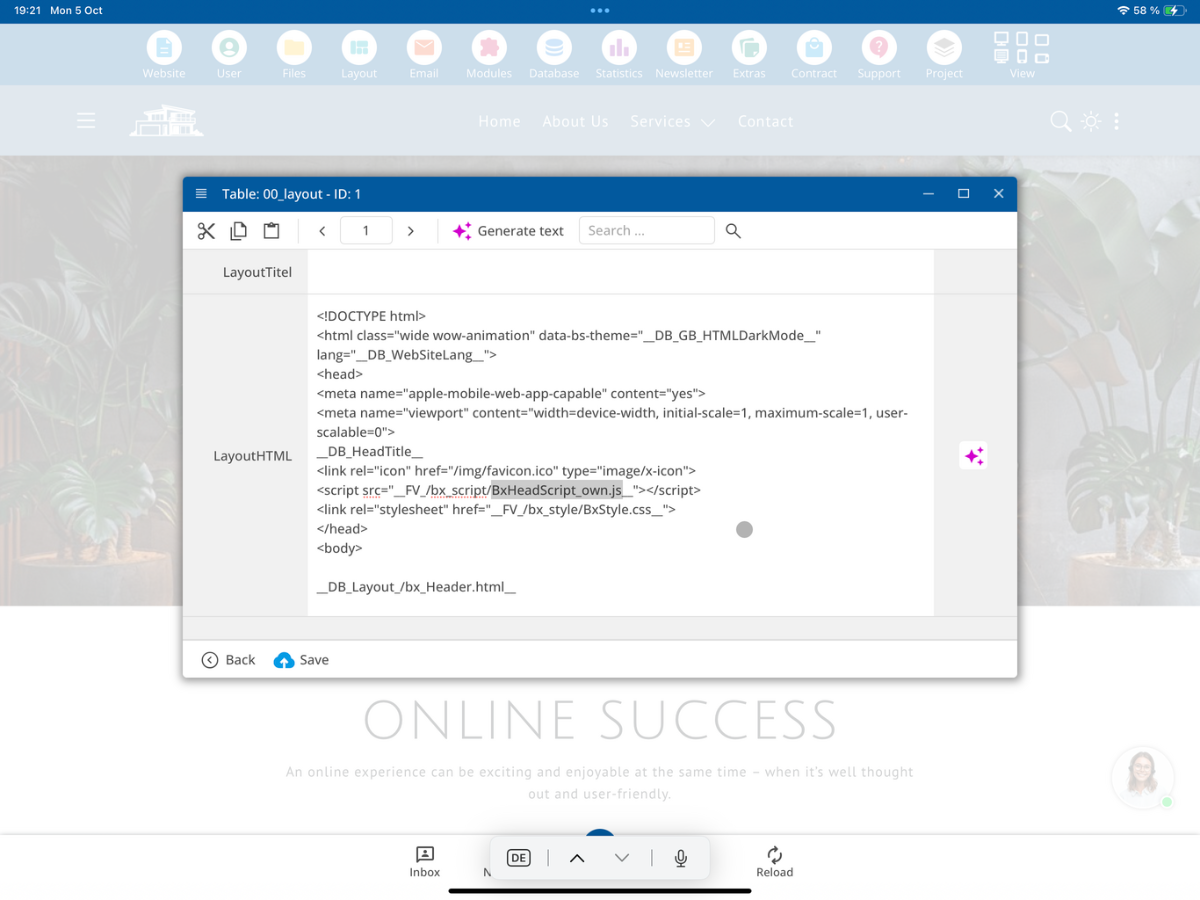
The additional line loads your own JavaScript code. The original BxHeadScript.js remains unchanged. The file path and name of your own file must match the file in the file manager.
4. Create custom CSS file in the file manager
Open the File Manager and navigate to the system folder bx_style. Here you will find, among other things, the central stylesheet BxStyle.css. For customizations, we use a separate file called BxStyle_own.css.
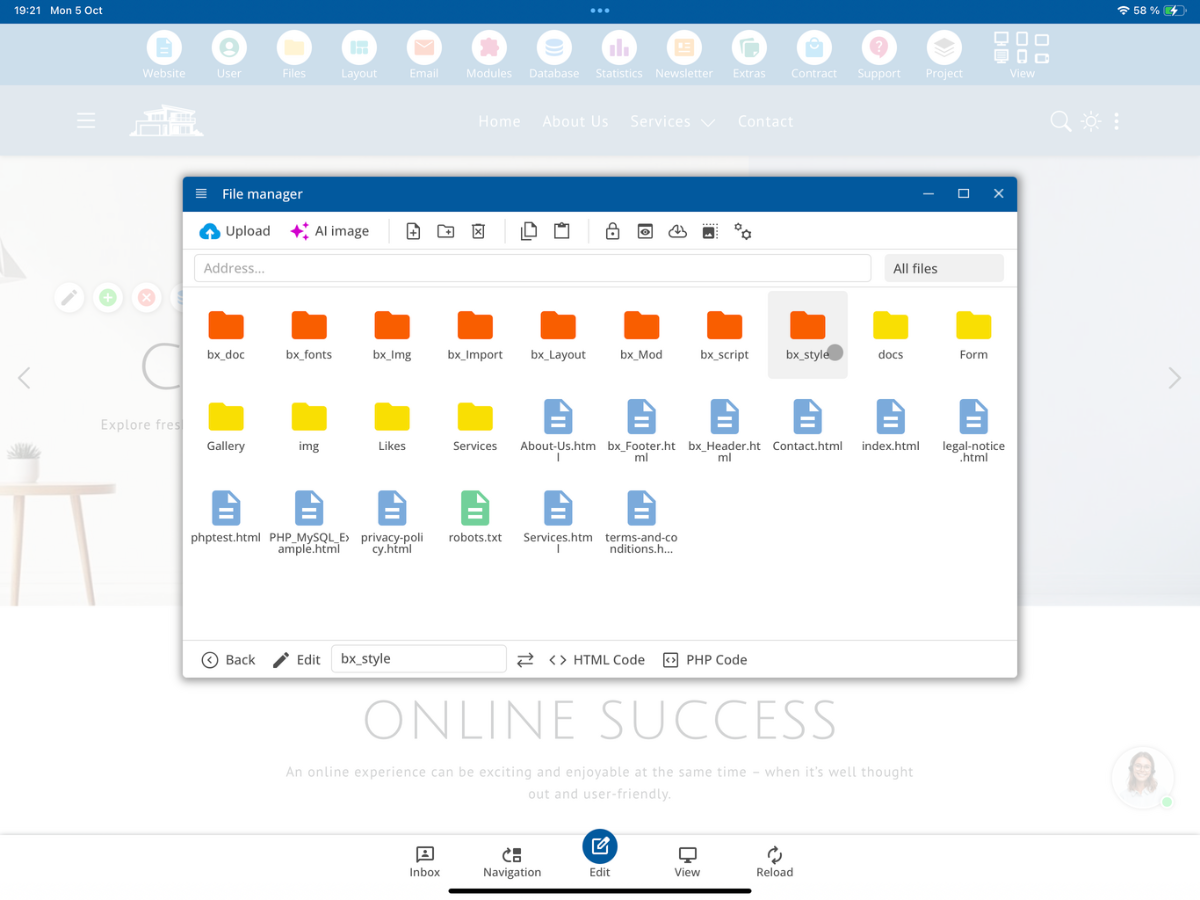
Create the file BxStyle_own.css or open the existing own file. The system file BxStyle.css will remain intact.
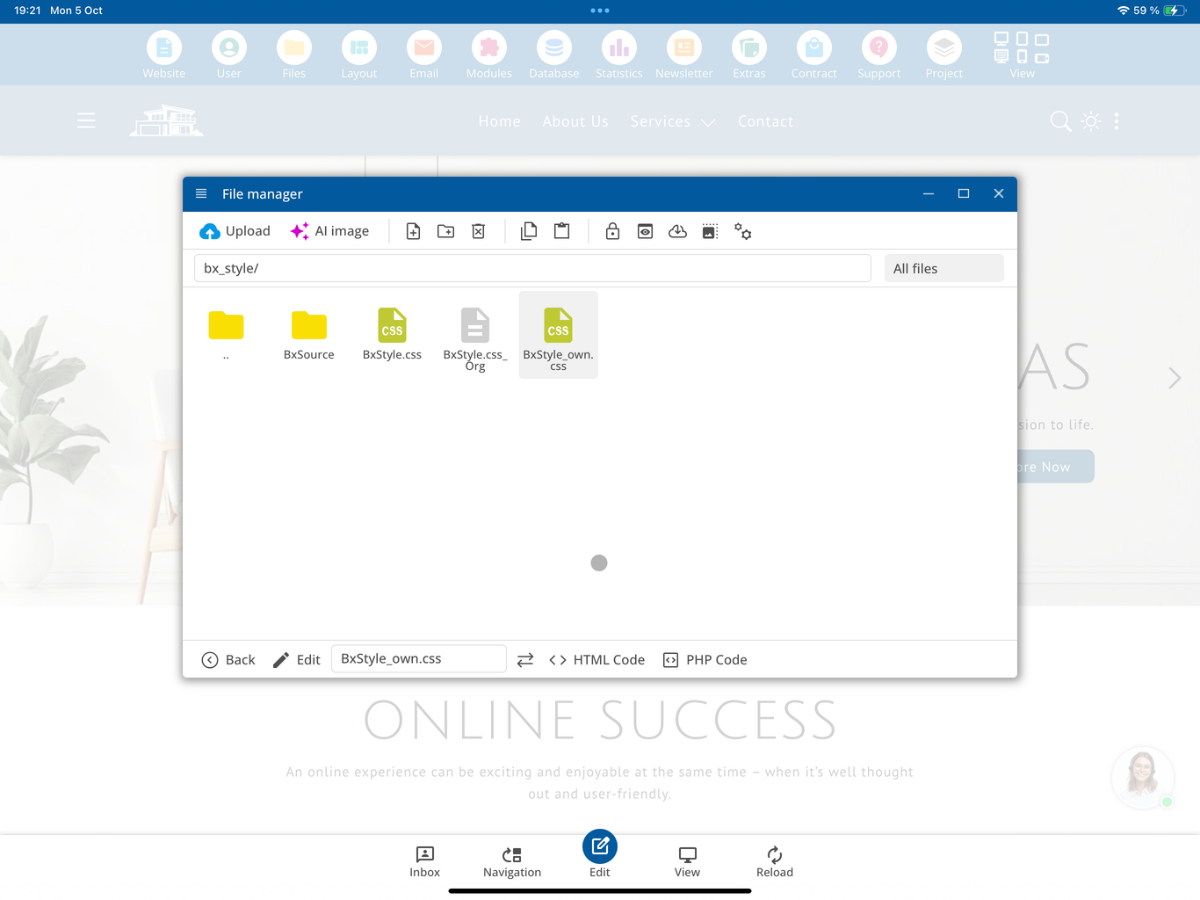
Through Edit, you can add and save your own CSS rules in this file.
5. Integrate custom CSS file into the layout
Open Layout - HTML again. In the head section, add your own CSS file after the existing stylesheet. The order is important if your own rules are to override the default formatting.
<link rel="stylesheet" href="__FV_/bx_style/BxStyle_own_min.css__">
<link rel="stylesheet" href="__FV_/bx_style/BxStyle_own.css__">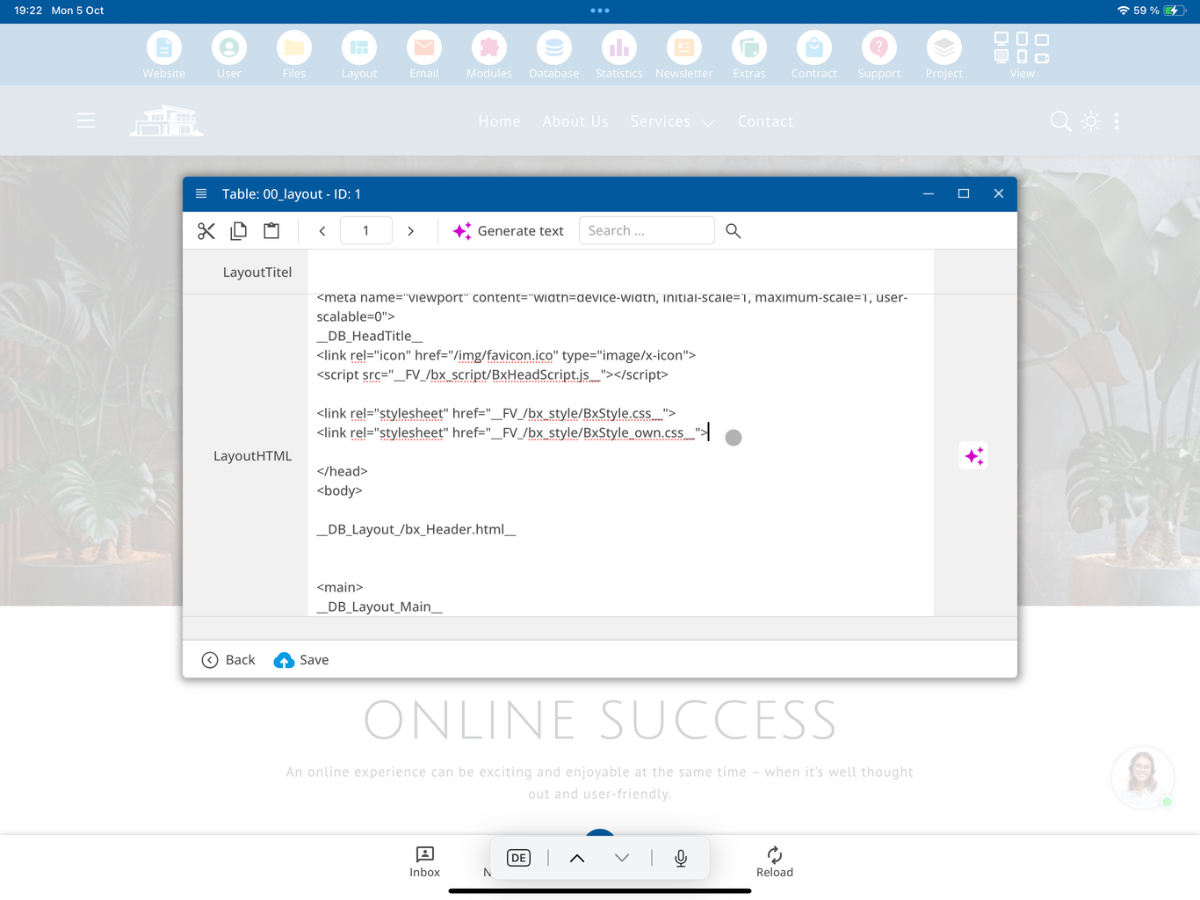
The standard CSS file remains, while you manage additional or differing formatting separately in BxStyle_own.css.
6. Use JavaScript in the head or at the end of the page
JavaScript files can be included in the head section or at the end of the page before the closing body tag, depending on their purpose. The shown BxHeadScript_own.js is loaded in the head. For other scripts, you can also use your own project folder and include the file later in the layout.
Example of an additional file from a custom folder at the page's end:
<script src="__FV_/bx_script/BxScript_own_min.js__"></script>
<script src="__FV_/script/MyScript.js__"></script>
This example shows an additional file. If you want to replace a system file with your own version instead, you must consciously adjust the corresponding inclusions in the chosen layout and ensure that no necessary CMS functions are omitted.
7. Distinguish between system folders and custom project folders
The highlighted bx_ folders belong to the bluetronix CMS. Custom files within these folders must be marked with _own so that they are not treated like system files during regular CMS updates.
You can alternatively store your own JavaScript and CSS files in custom-created project folders without the bx_ prefix, such as /script/ or /my_scripts/. In that case, the _own designation is not mandatory. You will then need to use the actual path in your layout definition.
The _own designation does not replace the inclusion in the layout: A separately created file is only loaded when it is included via the appropriate script or link line.
8. Automatic file versioning
In the displayed layout connections, the bluetronix CMS uses the marking __FV_…__. This way, the CMS can append a version parameter based on the modification date. After a change, the browser then loads the current JavaScript or CSS file instead of continuing to use an older cached version.
Example: An original path like /script/MyScript.js can be supplemented with a version parameter after processing. You do not have to manually update the version number in each layout for appropriately integrated files.
9. Save and check changes
First, save your own JavaScript and CSS files, and then save the edited layout. Reload your webpage and check whether your JavaScript functions are executed and your CSS rules are applied.
If a file is not loading, first check the file name, case sensitivity, folder path, and integration in the layout. If multiple layouts are in use, also verify that you have edited the layout assigned to the respective page.
Summary
For your own extensions, create BxHeadScript_own.js in the bx_script folder and BxStyle_own.css in the bx_style folder. Then, additionally integrate both files in Layout - HTML along with the original CMS files. This keeps the standard files unchanged while you manage project-specific JavaScript and CSS code separately.
FAQ
what customers often ask us
Do I need a developer access to integrate my own JavaScript and CSS files?
Yes. This tutorial is aimed at developers who have access to the layout definition and the developer folders of the bluetronix CMS.
Where can I find the integrations for JavaScript and CSS?
Open Layout and select Layout - HTML. There you can add the integrations in the desired layout.
Where do I save my own JavaScript file?
In the shown example, you create BxHeadScript_own.js in the bx_script folder and integrate it into the layout in addition to the existing BxHeadScript.js.
Where do I save my own CSS file?
In the shown example, your own file BxStyle_own.css is located in the bx_style folder. In the layout, it is integrated after the existing stylesheet.
Why should my own files contain _own in the name within system folders?
Red-marked bx_ system folders may be overwritten during updates. By using _own, you tag your own project-specific files.
Is an _own file automatically loaded as soon as it is created?
No. You need to add your own JavaScript or CSS file in the desired layout with a suitable script or link integration.
Can I use my own folder instead of a bx_-system folder?
Yes. In a self-created project folder without the bx_ prefix, _own is not strictly necessary. Use the actual file path in the layout.
Should I load my own CSS file before or after the standard file?
In the shown example, BxStyle_own.css is included after BxStyle.css. This allows your own rules to override previously loaded standard rules of the same specificity.
What is the purpose of the marking __FV_…__ in the file paths?
The bluetronix CMS can append a file version parameter, ensuring that browsers load the current file after a change.
What do I check if my own file is not effective?
Check the file name, case sensitivity, specified path, and the integration and selection of the correct layout.