

Use CMS Alert and CMS Confirm
With CMS Alert and CMS Confirm, you can output messages and confirmation queries directly using the bluetronix JavaScript functions. The dialogs visually adapt to the layout and are intended for use on the website within a custom iOS or Android app.
CMS Alert and CMS Confirm
The bluetronix CMS provides its own JavaScript dialogs for messages and confirmation requests.
You can use your own CMS dialogs instead of the standard JavaScript dialogs of the browser. These are visually adapted to the layout of your website and are also intended for use within a custom iOS or Android app.
Why are there separate CMS dialogs?
A website created with the bluetronix CMS can not only be accessed directly in the browser. For example, a customer portal can also be used within a custom iOS or Android app.
Standard JavaScript alerts are not suitable for this use, as they would not be displayed correctly within the bluetronix app.
The bluetronix CMS therefore has its own dialog functions. These are called directly via JavaScript on the website and are also intended for processing within the app.
If a website is to be used later within a custom bluetronix app, you should use the CMS-specific dialogs for messages and confirmations.
Create a test page for CMS Alert and CMS Confirm
For testing, you can create an HTML page and initially insert the two links for CMS Alert and CMS Confirm there.
<a href="javascript:BlueAlert('my alert text','','alert(5);','','');">cms alert</a>

<a href="javascript:BlueAlert('my confirm text','Confirm','alert(7);','','');">cms confirm</a>
Save the HTML page and then open it. The page now provides you with the two links cms alert and cms confirm.
Call CMS Alert
For a simple message, you use the following call in our example:
<a href="javascript:BlueAlert('my alert text','','alert(5);','','');">cms alert</a>Clicking on cms alert will open the CMS-specific alert. The text my alert text will appear within the dialog.
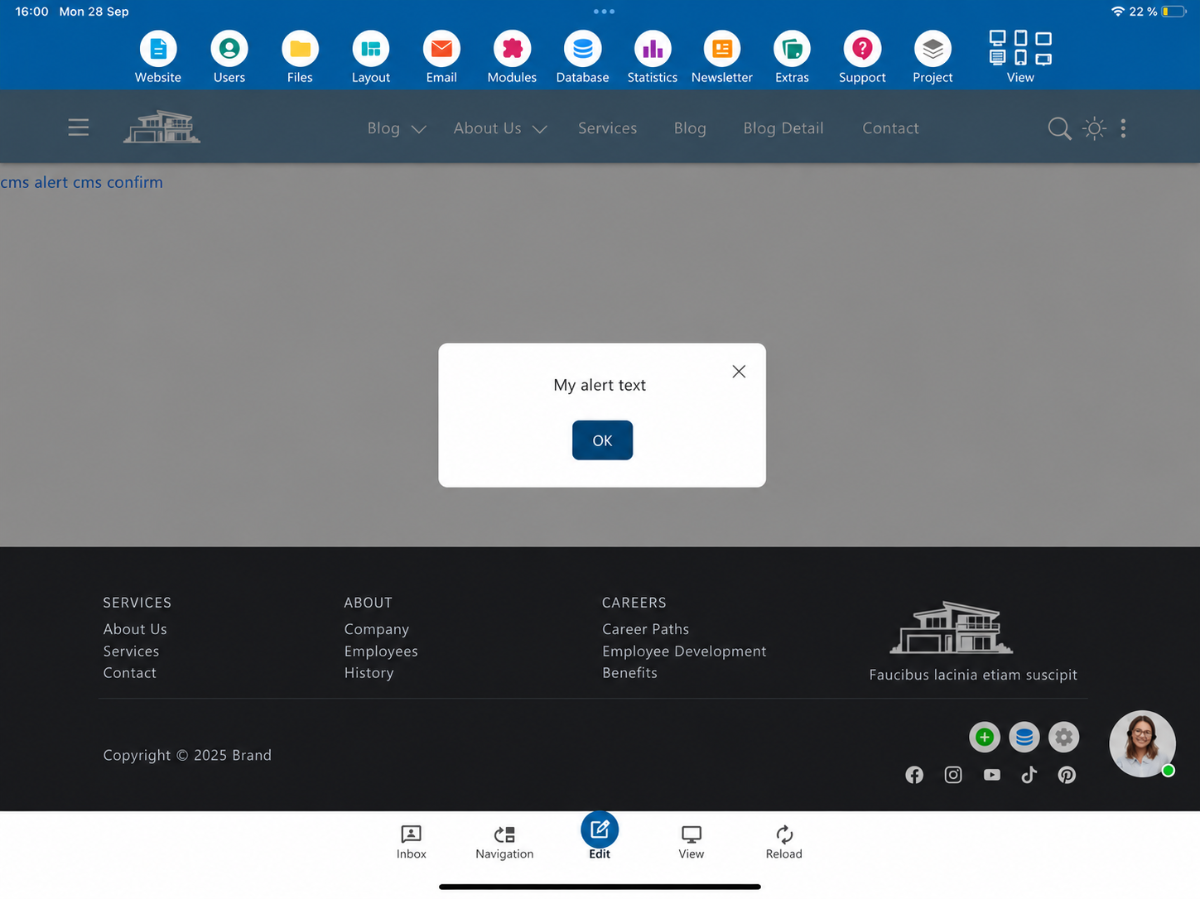
Compare CMS Alert and normal browser alert
The test example also includes the standard JavaScript call alert(5);.
alert(5);This way, you can directly see how a normal browser alert is displayed and how it differs from the CMS Alert.
The normal JavaScript alert is displayed by the browser. Its appearance is therefore not determined by the layout of your website.
The CMS Alert, on the other hand, is displayed in accordance with the design of the website and thus fits much better into the existing layout.
Call CMS Confirm
In addition to a simple message, you can also use a confirmation request.
For our example, the following code is used:
<a href="javascript:BlueAlert('my confirm text','Confirm','alert(7);','','');">cms confirm</a>Clicking on cms confirm will open the CMS-specific confirmation request. In this example, the text my confirm text is displayed.
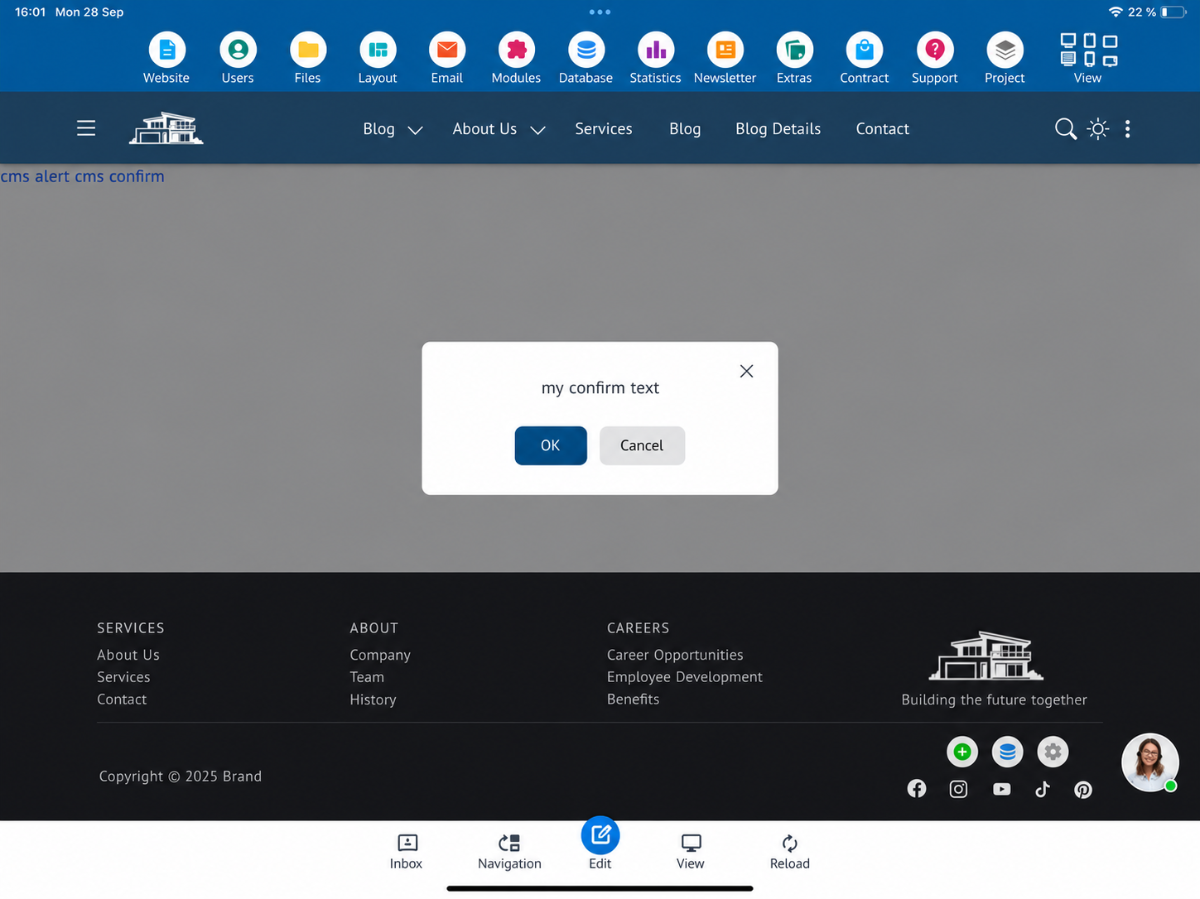
Execute JavaScript after confirmation
With the CMS Confirm, additional JavaScript can be passed that is executed after the corresponding confirmation.
In our test, we use:
alert(7);This will subsequently call the normal browser alert with the value 7. For this tutorial, you can easily see that the passed JavaScript statement has been executed.
Why not use the standard JavaScript alert?
The difference is not only in the design. The CMS-specific dialogs are also intended for websites that are used within an individual bluetronix app for iOS or Android.
A customer portal can therefore be accessed both via a regular browser and within an individual app. For messages and confirmation requests, the designated bluetronix function can still be used on the website.
This gives you a uniform solution for presenting such dialogs on the website and for use within a corresponding app.
Appropriate representation to the layout
Another advantage of the CMS-specific dialogs is their design, which matches the layout used.
A normal browser alert is defined by the respective browser and appears like a separate browser window. In contrast, the CMS Alert or CMS Confirm is presented in accordance with the design of the website.
Especially in customer portals and web applications, the dialog thus feels like an integral part of the actual application.
Overview of CMS Alert and CMS Confirm
For a simple message, you can use the following CMS Alert, for example:
<a href="javascript:BlueAlert('my alert text','','alert(5);','','');">cms alert</a>For a confirmation request, you can use the following CMS Confirm, for example:
<a href="javascript:BlueAlert('my confirm text','Confirm','alert(7);','','');">cms confirm</a>Both variants use the function BlueAlert(). The respective dialog is controlled through the passed parameters.
Summary
With CMS Alert and CMS Confirm, the bluetronix CMS provides its own dialogs for messages and confirmation requests.
The dialogs visually match the website's layout and are intended for use within an individual iOS or Android app. Therefore, in corresponding projects, you should use the CMS-specific dialogs instead of the standard JavaScript dialogs.
FAQ
what customers often ask us
What is a CMS Alert?
A CMS Alert is a specific message from the bluetronix CMS. It can be used instead of a normal JavaScript alert and is presented according to the website's layout.
What is the difference between CMS Alert and CMS Confirm?
A CMS Alert is used for displaying a message or information. CMS Confirm can be used when the user needs to confirm an action.
Why shouldn't I just use alert()?
A normal JavaScript alert is displayed by the browser and therefore does not automatically match the layout of your website. Moreover, the CMS-specific dialogs are intended for use within an individual bluetronix iOS or Android app.
How do I call a CMS Alert?
The CMS Alert is called using the JavaScript function BlueAlert(). The required values are passed to the function as parameters.
Can I execute JavaScript after a confirmation?
Yes. In the shown CMS Confirm example, alert(7); is passed as a JavaScript statement and executed after the corresponding confirmation.
Can I use CMS Alert and CMS Confirm within an app?
The CMS-specific dialogs are specifically designed for this use case. If a bluetronix website or customer portal is used within an individual iOS or Android app, the designated signals can be processed by the app.
Do the CMS dialogs adapt to the layout?
Yes. The CMS specific messages are presented in accordance with the layout used and therefore feel more like an integral part of the actual website or web application.